Category: category_2970

  • How To Disable AVG Zen And Uninstall Avira Connect Launcher

    These days, many antivirus companies are branching out and now sell VPNs, tweaking and cleaning software and various other services or applications. While you as a user might have no interest in anything else being offered apart from the free antivirus, the antivirus company is keen to make you aware that these other products exist. A few vendors have gone further and now put their free antivirus behind a launcher fronted that advertises their other products.

    Both AVG and Avira have gone down this route and when you click the tray or desktop icon for the antivirus it takes you to the launcher instead. AVG’s interface is called Zen while Avira’s launcher is called Connect. They are referred to as central hubs to control the products you own from the company on all your devices. In reality though, they are hindrance for the majority of users that just want the antivirus and are not interested in any of the other products.

    Avira Connect Launcher

    The problem is Zen and Connect are integrated into the free antivirus packages and refuse to let you uninstall the launcher software while the antivirus is installed. The tray icons also take you to the launcher instead of opening the antivirus main interface. In essence, you are stuck with the launcher whether you want it or not.

    AVG Zen Launcher

    While these launchers shouldn’t really take up a huge amount of system resources, they are for the most part, unnecessary. Here we’ll show you how to disable AVG Zen and uninstall the Avira Connect Launcher so you don’t have to use them if you don’t want.
    (more…)
  • 3 Free Norton Ghost Alternatives to Create a Full Windows Image Backup

    If you’re constantly testing software, trying out new Windows settings or tweaks or even purposely infecting your own machine with malware, it’s essential to have a complete copy of your Windows partition to hand so you can quickly restore it to its exact state to before you started messing around.

    Even if you don’t use your computer very often or for those things, a full backup could save you time and money, reinstalling Windows and all your applications again would be a long, laborious and possibly expensive process.

    Norton Ghost used to be the go to piece of drive imaging software if you wanted to create full backups of your entire Windows system. Backup Images have an advantage over backing up files and folders because they make a complete copy of everything in the Windows partition.

    Although it was good, Norton Ghost wasn’t free and has long since been discontinued. Thankfully things are different now and even Windows can create basic full image backups of your system, although it can be slightly inflexible.

    Here we’ll show you 3 free applications that can make full backups of your entire Windows install and how to create an image of your system with each one.
    (more…)

  • 13 Free Online Services and Software for Converting PDF to Word Compatible Format

    The Portable Document Format (PDF) was introduced by Adobe in the 90’s and as the name implies, PDF is simply meant to be a type of self contained document that you can distribute easily. It doesn’t matter what operating system or software you have installed, as long as you have a reader to view it, the document will always look the same. Unlike a simple text file, a PDF document can contain many elements including text, images, hyperlinks, tables, fillable forms and etc.

    Windows 8 has built in support for viewing PDFs and most web browsers can also view and save PDF documents. There’s plenty of free third party tools like Foxit Reader, Nitro Reader, SumatraPDF or even Adobe’s own reader. If you want to edit a PDF file, a popular way of doing so is converting the document into Microsoft Word format, that way just about anybody can then edit it without the need for specialized PDF editing software. If needed, you can later convert the Word document back to PDF.

    Some products such as Microsoft Office itself, Google Docs and even Libreoffice can convert or allow you to edit a PDF but the results are often less than satisfactory. Here we list a number of free software or online PDF to Word format converters that can help you get a good result.
    (more…)

  • Top 10 Free Macro Automation Software for Computers to Perform Repetitive Tasks

    There are times when you need to do something over and over again on the computer which is very time consuming and tedious. One simple example is the need to transfer a lot of data from an Excel spreadsheet into a database management system (DMBS) and it cannot import the data from the XLS file. Instead of hiring a team of people to do the data input or a programmer to write a custom importer, you can actually rely on a piece of “Macro” software to automatically do it for you.

    Macro software can be used to create a series of actions to help in automating tasks. It can be as simple as clicking a button to record your keyboard and mouse actions but it can also be very advanced where you get to write your own sophisticated macro script for play back. You can find both free and paid macro software, the free macro software is easier to use with less features while the paid versions support more commands and activations.

    Here we have a list of our top 10 free macro software which can make your computer perform repetitive tasks.
    (more…)

  • Comparing 20 Drive Imaging Software Backup/Restore Speed and Image Size

    One of the worst things that could happen to a computer user is losing the contents of the Windows drive, whether it’s through corruption, self inflicted damage or hardware issues. If it’s not bad enough to have to reinstall Windows again afterwards and then apply the hundreds of Microsoft updates, any personal files will also have been lost as well if they were not backed up beforehand. Experienced users will always recommend keeping a copy of your Windows drive or at least your documents and other files safe at another location, as it might not be possible to get those files back again.

    The backup method known as drive imaging is one of the most effective ways to keep a backup copy of your whole Windows drive safe in case disaster strikes. Drive imaging simply copies the whole structure and contents of a drive or partition, then compresses the content into a file which you can save to CD/DVD/BDR, network or FTP, the cloud or onto another hard drive or USB flash drive. This can be on a clean install or after several years of use, Windows and its contents will be restored back to the point in time you created the image.

    As your Windows partition will be tens or even hundreds of Gigabytes in size, it makes sense to find a program which does a good job of both compressing the image to a smaller size and not taking too long to complete this task. The backup software market is quite competitive so how do you know who’s the most efficient at creating a backup image? In this article we’ve put a number of free and paid backup software applications to the test to find out who’s fast at backing up a Windows drive, who creates the smallest files for the backup image and who’s the best at restoring the images back to the hard drive.
    (more…)

  • Create a Free Home Wireless Hotspot With Login Page

    What is an internet hotspot? Most people with even a small amount of technical knowledge will be able to answer that question in this day and age. An internet hotspot is simply a broadband/fibre connection that offers wireless internet access, and they are literally everywhere these days. Many shops/shopping centers, food and drink outlets, hotels and various other businesses/industries offer free or paid internet access via a hotspot. Even ISPs sometimes offer nationwide hotspots as an inclusive or optional part of your internet package.

    Creating a hotspot on your computer is actually quite easy but with an ordinary hotspot your protection consists only of the WEP or WPA WiFi key, you have to tell everyone the key to give them access. If you want to refuse someone access, the wireless key needs to be changed and a new one resent to those other users who still are allowed to connect. Have you ever wondered how to create a login page on your hotspot like businesses and commercial services do? This way everyone will be able to connect to the hotspot but when they try to browse the web, they’ll be presented with a page that requires a username and password login before the wireless internet can be used.

    There are various methods to create wireless hotspots that incorporate a login page (also known as a captive portal) but many of them are complicated to set up. Some require you to use Linux, others need extra access points connected via a second LAN adapter. You can also use specialized routers for this task or use a router that has a customized firmware but not everyone can use this method. There used to be a Windows application called 2Hotspot which made it very easy to create a login page for your hotspot, sadly that project died many years ago.
    (more…)

  • 12 Software to Turn your Computer into Video Surveillance System

    Webcams are very common nowadays and most, if not all modern laptops come with one built-in at the top center above the screen. It can be used for a lot of different purposes such as making a video call (chatting, demonstration, conference, webinar), taking pictures of yourself and even logging in to a computer using face recognition.

    A webcam can also be used as a surveillance camera by installing the correct software and configuring it to automatically record videos, notify you via email and perform custom actions when a motion is detected. This allows you to setup a powerful home based CCTV to monitor a section of your home which is most likely a source of break-ins without spending unnecessary money to install an expensive complete home surveillance system.

    There’s a number of software applications that can turn your computer and webcam into a surveillance system, each has its own pros and cons with different features. There are some that are difficult to configure which are meant for more advanced users while there are also user friendly ones that are lightweight. Below you can find our recommended list of 12 free webcam monitoring software based on your needs.
    (more…)

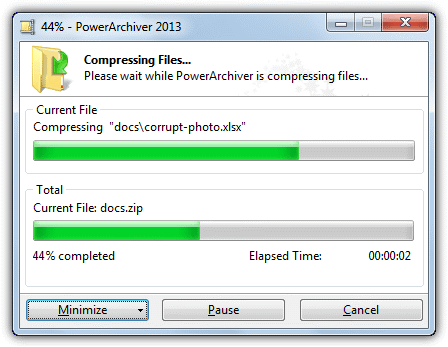
  • 15 Archivers Tested to Find the Fastest Speeds and Smallest File Sizes

    Just about everything that gets stored electronically nowadays is compressed in some form or another. Whether it’s game discs, Windows install discs, webpages, music, video, images, internet downloads or setup installers, most files are shrunk down from their original size to reduce the storage space they consume. One of the most popular and widely used file compression formats around today is ZIP which was developed by PKWare in 1989. Unlike JPG or MP3, ZIP is an archive format which allows you to store several files and also folders inside a single compressed ZIP file.

    Living in the internet age, it’s beneficial if a file can be compressed to half its size before you upload or download it, this can save bandwidth and time. Of course, there are many file compression formats around besides ZIP, others such as RAR and 7z are also very well known. ZIP archive compression is the only one which is natively supported out of the box by Windows, but like the copy function in Windows, there are better and faster alternatives.

    compress zip benchmark

    For more serious compression needs, dedicated archiver software that can handle ZIP or other better formats may be required. Many software archivers come with their own features but in the end what’s still important is the speed at which files can be compressed or extracted and the output size of the compressed file. There are many claims made about who’s fastest or offers the best compression rate, but you will never know who’s right until they’ve been tried out. Here we put 15 file archivers to the test to see which ones have the best compression rate plus the fastest speed.
    (more…)

  • 10 Free Tools to Permanently Delete Files and Prevent Data Recovery

    In Windows, if you delete an important file, even from the Recycle bin, it’s still entirely possible to recover that file as long as it doesn’t get overwritten between its deletion and your attempt at recovery. That’s because the file is never truly deleted and Windows is just told that the space the file occupies is available to write over when needed. In this case, a free tool that you can use to recover data is all that’s required.

    But this is obviously not good if you want to permanently delete a personal or private file because anyone could just try to recover it. Once a deleted file has been overwritten, it’s very difficult to recover and more professional methods would be needed to get any readable data back.

    Delete from recycle bin

    There are various ways to overwrite deleted files. If you sell or give your drive to somebody else, it needs to be completely wiped so nothing is left that can be recovered by the new owner. You can also erase the deleted data off a current drive by wiping all its free space. Then there’s the method we’re talking about here which is to completely overwrite and wipe the file or folder as you go.

    This method is the quickest and most secure as the files are erased immediately and not left in a recoverable state until the next time you decide to wipe the drive’s free space. Here are 10 free tools that can securely erase or “shred” your files making them unrecoverable. All tools were tested in Windows 10 and 7 64-bit.

    Important Note: Permanently deleting files is something that should be used with care as once the file is deleted and overwritten, you won’t be able to get it back, even with recovery software.
    (more…)

  • Top 8 Remote Access Software for Providing Online Support

    It is possible to control computers in another remote location even if it is located at the opposite side of the world by using a PC that is equipped with the software and an Internet connection. Fortunately the software to access a remote computer has been greatly simplified over the years solving many common problems such setting up dynamic DNS service to automatically point to your changing IP address, port forwarding, firewall configuration and etc.

    Remote access software can be installed for long term usage which administrators do to access their servers from home or another location to perform maintenance or troubleshooting. However, if you need to temporarily and quickly access your friend or relative’s computer to help configure a software or fix a minor problem, it doesn’t make sense to go through all the trouble in installing and configuring a full blown remote access software. A much easier way around this is to use the dedicated remote access software applications that are made to quickly and easily provide short term online support. Here are our top 8 picks that are free to use.
    (more…)

  • UnWrapper GOTD V2 Saves the Latest Giveawayoftheday Setup Files

    Almost everybody who likes to download some free software from time to time knows all about GiveawayOfTheDay. Since 2006 GiveawayOfTheDay has been offering shareware and commercial software to its readers, free of charge. The GiveawayOfTheDay software is rotated once a day and you have 24 hours to download and install, then activate the software on your computer. If you don’t install during that time it’s tough luck because the software is wrapped in their own custom installer which will only allow you to install and activate the software within the one day period.

    It does this by checking the GOTD servers online and won’t allow the download if you are trying outside of the 24 hour period. While the software given away might not always be very good, it used to be very easy to download and then save the installer and license information for future use outside of the time limit. The installer used to store itself in the Windows Temp folder and could easily be copied, then you had the real installer ready to use any time you wanted to. But in 2012 there was a controversial change and made saving the installer files very difficult.

    The updated 2012 wrapper was based on Themida technology which is similar to what’s used in malicious rootkits. It was done largely to stop users easily grabbing the installer and registration information without installing the software, something which GiveawayOfTheDay don’t like you doing because you’re only supposed to install and activate the program on the day the software is offered.

    gotd download wrapped program

    A member called Maximus from the cracking group Revenge Crew saved the day in late 2012 because he released a small tool called Unwrapper GOTD which allowed you to still get hold of installers and license keys from the encrypted .GCD files for future usage. That tool, although good, had a major problem which was it wouldn’t work properly in 64-bit versions of Windows. But yet again, GiveawayOfTheDay made changes to their wrapper in early 2015 which means Unwrapper GOTD version 1 no longer works.

    Although GiveawayOfTheDay isn’t as good as it once was, there are still users who would like to keep some GOTD giveaways if only there was a way around this newer 2015 protection. Thankfully, Maximus has done it again and released Unwrapper GOTD version 2!
    (more…)

  • 15 Free File Copy Tools Tested for the Fastest Transfer Speeds

    Most of us know that it is possible to perform folder and file copy or move operations in Windows by either using your mouse to copy and paste, drag and drop or by using a number of keyboard shortcuts. Obviously the single biggest factor affecting the speed of any transfer is what medium you’re copying from or to such as hard drives, SSD’s, USB sticks, network etc. Another factor is how Windows itself deals with these operations, and all versions of Windows have never been quite as efficient at it as they could be.

    Windows 8 Copy Dialog Box

    With this in mind, it is entirely possible to shorten the duration of any copying or moving of files if you use a piece of third party software to take over operations instead of relying on the Windows built-in function. Not only can this help the speed of transfers, but you can also get other benefits like better information, queuing copies, pausing, skipping, and dealing with problematic files far better than what Windows does.

    We were curious to find out just how fast some of these programs actually are when copying and moving files around in Windows, so have gathered together 15 freeware tools to have a closer look. A few simple tests were carried out to try and determine which file copying tools are the fastest at performing file transfers in a few different real world scenarios. To try and cover some common file copy operations, 3 tests were conducted;
    (more…)

  • Comprehensive List of Free AntiVirus 2013

    Billions of dollars are spent every year on antivirus software alone by enterprise because they know that computer virus can cause a lot of down time and making the company lose money. A computer virus can be programmed to do anything such as stealing sensitive information, locking up or slowing down the computer, data loss through corruption or deletion, and etc. With so many brands around and they all claim to be have the best detection and lightest in system resource, it is certainly not easy determining which is really the best.

    As for home users, most antivirus companies also offers a cheaper version that works on Windows operating system and requires an annual subscription. However, there is also a wealth of anti-virus software offered for free with the catch of disabling some of the extra defense system such as firewall, behavior blocking and also only allowing you to use it for personal home use only. After extensive research, we have come up with an up-to-date comprehensive list of free anti-virus programs for your convenience.
    (more…)

  • 8 Free Tools to Find What Files and Folders are Taking Up Hard Drive Space

    When someone tells you they’re running out of hard drive space, the first thing you would probably tell them to do is to clean up the system using a program such as CCleaner. That will help remove all the junk and temp files that can take up several Gigabytes on badly affected systems. Uninstalling old software might free up some more space depending on how many useless programs are installed.

    Even after doing those things, a system might still be left with less than 10% of free space remaining and Windows doesn’t really like that. Even if you have the operating system on an SSD or an NVMe drive, Windows will still slow down and misbehave if it runs out of available space. Other locations on the drive might have been filled with data that you or most cleaning programs wouldn’t normally look in.

    The normal thing to do would be to check the properties of each top level folder and navigate your way down until the culprit files and folders are found. This could certainly waste a lot of time and isn’t an efficient method. Thankfully there are much better solutions for how to find out what files and folders are taking up hard drive space, and here’s a selection of 8 free tools to do just that.
    (more…)

  • 8 Free Portable File Managers for Quicker File Operations

    One area of Microsoft Windows that really hasn’t changed that much over the years is file management. Windows File Explorer is not that different now to what it was in the days of Windows XP or even 98. In Windows 8 the ribbon interface was introduced in Explorer which did help make file operations somewhat easier, along with a pause option for file copying. But in the end, Explorer still pretty much looks and works the same as it’s always done.

    If you are someone that does a lot of file management and copies, moves, renames or deletes files quite often, you will no doubt find Explorer severely lacking in several areas. One drawback of Explorer is you need to have floating windows for each separate directory you want to work with. Something like a web browser shows it’s efficient to use tabs so you can quickly switch between locations. There are tools around that can add tabs to Explorer, but it still falls short elsewhere.

    Third party file managers have been around for decades and many are far better at file management than Windows Explorer. Usually a file manager will be either like an enhanced version of Explorer or a Commander type program with fixed panes. Here we list 8 free portable file managers that you can use anywhere, even on a USB flash drive.
    (more…)