Category: category_2970

  • 6 Useful Replacement Windows Tools When Fixing an Infected Computer

    Malicious software has become smarter over the years and all kinds of ways have been invented so you can’t detect it while its running. There’s also a different approach which is to make it very difficult for the average user to manually stop the malicious process or disable it from starting with Windows. Because advanced users can remove suspicious or malicious programs using a combination of built in Windows tools, malware makers find ways to disable those programs so you can’t easily get at them making the malware more difficult to remove.

    The easiest way to try and stop a process is from Windows Task Manager (Taskmgr.exe), an easy way to disable something from auto starting next time you boot Windows would be through the Registry (Regedit.exe) or the System Configuration Utility (Msconfig.exe). The Windows Command Prompt (Cmd.exe) is also is useful for repairing such things as file associations while Windows Explorer’s Folder Options are used to unhide hidden malicious executables and reveal any of your own files hidden by a virus.

    You can of course try to re-enable those disabled tools but a resident malicious process needs to be stopped first or it will simply revert the restrictions back again.
    (more…)
  • 6 Ways to Optimize or Reduce Memory Usage for Running Programs

    One of the biggest upgrades you can make to an older computer is being sure it has enough memory (RAM) to handle the operating system and all the programs you want to run on it. When Windows starts to run out of physical memory it offloads data to the page file which is stored on your hard drive. As we know, a hard drive is much slower than RAM and this is why a system with a low amount of memory can start to slow down really quickly with several programs running at once, or a web browser with many tabs open, for example.

    It’s not always possible to put more memory into an aging computer simply due to high costs for old types of RAM or a lack of RAM slots, such as in a laptop or netbook. Thankfully there are ways to get around this issue through software which is able to reduce the amount of memory a system process consumes by using a documented feature in the Windows API. This gives a program the memory it actually needs and not what it asks for, reducing the amount of used memory while not impacting on the performance of your computer

    Here we show you 6 free tools that can help reduce the memory your system is using and keep it running more smoothly for longer.
    (more…)

  • 4 Tools to Prevent, Cancel and Abort a Windows System Shutdown or Restart when Applications are Running

    Correctly shutting down a Windows computer is very important. Not only can Windows files become corrupted with a sudden and improper shutdown, the hard drive will probably get the dirty bit set and need a scan for errors. Not only that, it’s entirely possible to lose any work that hasn’t been saved before the computer is turned off or rebooted. This is an error common to new computer users turning off the computer without saving documents and closing opened applications first.

    One of the most common problems with Windows itself is the Windows Update service which can automatically restart your computer without your say so, although there are ways to stop this from happening. There are also many other applications which can ask for a reboot either after installation or when an update has been applied, you may even have a program configured to shutdown the computer when it’s finished its task such as downloading or encoding video etc.

    However, there are times when you might want the computer to stay on because some important programs are running or you’re doing some important tasks. It could be frustrating or even disastrous if the computer decides to reboot itself because you have forgotten or wasn’t aware of a scheduled shutdown. Here are 4 tools that can help prevent Windows shutting down or restarting until you want it to.
    (more…)

  • Free Latest Version PC Tools Privacy Guardian Genuine License for Everyone

    One of the most important and used words when talking about computers and the internet these days, is “privacy”. Whether it’s talking about snooping by governments or organizations like the NSA, keeping your private information safe from hackers, protecting yourself while downloading P2P or hiding your tracks from software and while online, keeping as safe as possible is something which needs constant attention.

    There are many computer utilities around that aim to help you keep your computer safer by deleting old junk files, cleaning program activity and browsing history etc, Piriform’s CCleaner probably being the most popular and well known tool of this type. There are many free tools that handle most of the standard privacy cleaning tasks, and also a sizable amount of paid for offerings for more advanced functions. One such commercial application that costs $19.99 is Privacy Guardian by PC Tools.

    Although PC Tools was sold to Symantec a few years ago and their antivirus/firewall software discontinued, other tools such as Registry Mechanic and Privacy Guardian are still available for sale. In this article we’re going to tell you what it does and show you how to easily get PC Tools Privacy Guardian for free!

    get privacy guardian for free

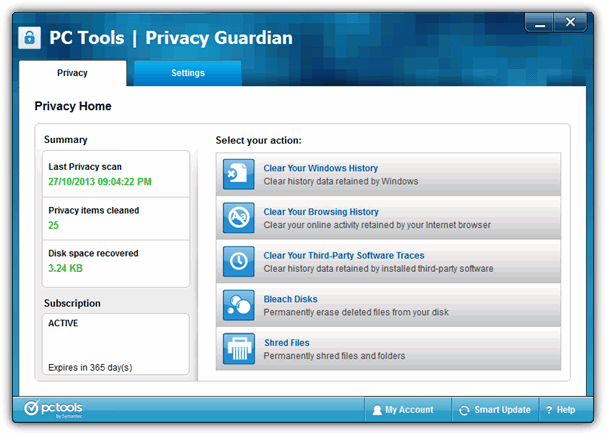
    The Privacy Guardian program has several cleaning modules that handle various tasks depending of which parts of Windows or browsers and programs you want to clean. Windows History will perform the standard Windows cleansing of areas all free or paid tools of this type would do, like; the Recycle bin, clipboard, temporary file folders, the Run dialog history, Checkdisk leftover files, document history and search history.
    (more…)

  • 10 Free Tools To Save or Print a List of File and Folder Contents

    Whether you need to do so for yourself or for someone else, there is sometimes a need to create a listing of the contents of a particular directory, set of directories, or a whole drive. With the size of hard drives today reaching multiple Terabytes, keeping track of all the stored files would be quite useful. It’s quite easy to find out what files are taking up the most drive space but it’s also handy to know what files are stored where.

    There are very simple ways of getting a list of files in a folder without external software. One option is using the Windows command “Dir [folder] > File.txt” from the Command Prompt. However, messing around with console commands is not to everyone’s liking and Dir is also quite limited.  Here’s a selection of 10 free tools to save or print out content lists of the files inside your folders including to plain text file, an Excel spreadsheet, or an HTML document. All tools were tested in Windows 10 and 7.
    (more…)

  • 8 Free Tools for Scheduling Windows to Shutdown, Hibernate, Sleep or Restart

    Sometimes when you’re using your computer, you might have to leave it alone to complete a task before shutting it down or putting it to sleep. A lot of modern software that performs time consuming tasks such as downloading or encoding will include some form of an option to shut down or sleep the computer once it’s finished. Many tools don’t give you that option though and the computer has to be left on until you come back to it.

    In Windows, you can use the built in tool shutdown.exe from command prompt or a batch script to log off, shutdown, restart, or set a timeout for shutdown to xx seconds. However, many users are not comfortable using the command prompt. Another option is to use the Windows Task Scheduler to do it and although not that difficult to set up, it’s not exactly a fast and efficient way to go for the average user.
    (more…)

  • FREE Fully Licensed Retail Version Lexar Image Rescue 3 Software

    Previously I’ve introduced PC INSPECTOR Smart Recovery which is a data recovery program from CONVAR for Flash Card, Smart Media, SONY Memory Stick, IBM Micro Drive, Multimedia Card, Secure Digital Card or any other data carrier for digital cameras. Other than that, I’ve also posted 10 more free data recovery software programs that work on PC and removable drives.

    The above mentioned software are the free ones and there are also paid data recovery software which we will be reviewing shortly. Some shareware are cheap while some are ridiculously expensive. As a general rule, most of the shareware are better than freeware because it comes with support directly from the developers themselves to make sure that you’re not having problems in using the software that they created. When trying to recover deleted images from a memory card or removable USB flash drive, it is important to use a trusted and reliable software or else the photos that you accidentally deleted are gone forever. Good news is I discovered that it is possible to use a recovery software called Lexar Image Rescue 3 that normally cost $29.99 for free! The best part is it works on both Windows and Mac OS.
    (more…)

  • Recover Lost or Forgotten CD Keys or Serials for Your PC Games

    A large proportion of computer games require you to enter a unique product key to play the game, which is what Windows and most applications require you to do. This is to combat piracy so you couldn’t just copy a game CD and distribute it to all your friends. The problem has always been that if you misplace or accidentally throw away the CD case or box, the product key often goes with it. If you haven’t yet installed the game then you have a problem as contacting the game retailer/publisher will likely be a waste of time. However, if you have already installed the game and entered a product key, all is not lost.

    A large amount of games these days are purchased and downloaded online which isn’t such a problem because your game serial numbers are stored either in an email or with the game service such as Steam or Origin, and you only need your username and password to retrieve them. But if you install a game from optical media, quite often the product key gets stored in the system registry, and as it’s easily accessible, there’s a good chance of recovering any previously typed in game serial.
    (more…)

  • 8 Free Tools to Change or Switch the Default Audio Output in Windows

    Although a lot of people use sound chips integrated on their motherboards for playing audio in Windows, many users still like to have a sound card. This is due in part to the number of external connections they can offer and the higher quality audio. These days, you can also get sound output through your video card, and some headphones or headsets will even set themselves up as a dedicated audio device.

    The trouble with Windows is it will only let you set up one of these audio devices as the default player at any one time. For instance, if you want to switch the audio output from your PC speakers to perhaps a TV or external media device, you have to go to the Sound options in Control Panel or Settings and change the default playback device from PC speakers to the other device.

    When you’re done, you need to go back into the sound options to revert the changes back. This has long been a problem with Windows and switching audio devices is not something that can be done with a couple of mouse clicks. Thankfully, there are tools around that make it easier and faster than having to dig into Windows Settings every time you want to select a different audio playback device.

    Here’s a selection of programs for you to have a look at.
    (more…)

  • 2 Tools to Monitor Specific Processes and Trigger actions

    We all know about Windows Task Manager and the fact you can use it to view, kill, change the priority and set the number of processor cores an application process uses. If you have a rogue process that is malicious or causing excessive CPU or memory usage, Task Manager is the first place you go to troubleshoot. Of course, in addition to processes, Task Manager can provide control over Windows Services and Application tasks and supply general computer and network performance information.

    Although Windows Task Manager is good enough for most people, there are more complete and advanced task management tools like Process Explorer, Process Hacker and System Explorer. But if you want to monitor a specific application process for CPU or memory usage it becomes more difficult with these tools because they are designed to monitor all the system processes in general and are limited when you want to monitor a single program.
    (more…)

  • 3 Tools to Minimize Open Application Windows to the Desktop as Thumbnails

    With each subsequent version of windows, the task bar gets tweaked and enhanced a little bit more. When you minimize a running program or application it should usually go down to the task bar as an icon alongside your Start menu and quick launch or pinned icons. If you hover your mouse over a minimized window, in XP you get a text tool tip, in Vista you get a static thumbnail and in windows 7 and 8 you get a nice live preview thumbnail.

    There are plenty of tweaking tools around that can do all manner of things to enhance the system task bar and tray. Some can even minimize the open windows into the tray to keep the task bar uncluttered as some users like to keep the task bar clean and efficient and others prefer to pin most of their used programs to it. An alternative tweak you can perform if you have plenty of space on your desktop is to minimize the open applications not to your task bar or tray, but instead straight onto the desktop. Not only does this give you quick access and a thumbnail view of the windows, it can also free up the limited amount of space in the task bar and tray. Here’s 3 free tools to have a look at.
    (more…)

  • 3 Ways to Run Bootable ISO Image Files Directly in Windows

    Not too many years ago if you wanted to try out the latest Linux distro, test to see if a repair CD you downloaded worked or whether your custom made Windows install disc could boot, you had to burn the content to CD or DVD and then reboot your computer to try it out. This not only took vast amounts of time waiting for the disc to burn but it also meant perhaps fiddling with the boot order in the BIOS and if you didn’t have any rewritable media, every burn would cost you money.

    These days disc images (ISOs) are everywhere and that allows you to do several things such as burn to CD like before, mount the ISO as a virtual drive, install the image onto USB flash drive, or even load it into virtualization software to test without leaving your desktop. The trouble is using the above methods to boot the ISO image can still take time which isn’t ideal if for example you quickly want to try a number of the latest Linux distros. Being able to boot and test an ISO image with just a couple of clicks of your mouse can be a real time saver, here we show you 3 ways to do it.
    (more…)

  • How To Test and Boot an ISO Image Without Burning to CD or DVD

    If you’re even a little tech minded, you would most probably know what an ISO image is by now. A lot of ISO images can be downloaded legally from the internet such as a Windows 7 install DVD, Live Boot CD’s and Antivirus rescue discs which all come in ISO form and you’ll usually have to burn them to CD, or use a utility to write the images to USB stick to test them out.

    Sometimes I would like to test an ISO image first before burning it to a CD. Recently I’ve been trying to merge a few ISO images into one to create a multi-boot CD. With the ability to test the ISO image first, I don’t need to waste CD-Rs. Even if I can use CD-RW, it is still inconvenient because I don’t need to waste my time in burning the disc and booting up my computer with the CD-RW.

    There are a few ways to actually mount an ISO in Windows to be able to read the contents of it. A portable tool which is able to mount and run the ISO virtually allowing you to test it quickly is MobaLiveCD. While MobaLiveCD is great for quickness and ease of use (because it can also be attached to your ‘Send to‘ menu), it uses Qemu as the virtual emulator and booting into larger ISO images can be incredibly slow.

    Boot Kaspersky ISO without burning to CD

    The image above shows Kaspersky Rescue CD booted up in a virtual machine without burning to CD. While something like MobaLiveCD is good at testing small images, for testing something larger, I think other virtualization software like Virtual PC, Windows 7’s XP Mode or VirtualBox are much better suited all round.
    (more…)

  • 10 Free Software to Monitor Windows Startup Locations

    Software can be easily added to Windows startup so that it automatically runs when your computer is booted up. It is necessary for some software such as an antivirus to run at startup so it automatically starts protecting Windows once it has been loaded. However, there are many other software applications that come with an option to start with Windows and if you don’t need them running all the time consuming unnecessary system resources that can potentially slow down the computer, it is better to just disable the option.

    Other than just legitimate programs adding themselves to Windows startup, any kind of malicious software such as viruses, trojans, rogueware, keyloggers, ransomware etc also quietly sneak into Windows startup locations without your knowledge to keep them active on the computer as long as possible until they are detected and cleaned. HIPS (Host Intrusion Prevention System) can effectively detect and prevent both legitimate and and malicious software from adding itself to startup but they are very sensitive and protect many other areas other than startup locations.

    If you are looking for a smaller and easy to use tool to just monitor Windows startup locations, here we have 10 software tools.
    (more…)

  • 7 Tools To Manually Turn Off Notebook or Laptop LCD Screen

    Whenever I stop using my laptop but I decide to leave it turned on while on the battery, I’ll make sure that I turn off the LCD screen. The main reason I turn the screen off is I think that it’s pretty logical that doing so will save at least some power and prolong the charge in the battery. Even if the laptop is plugged in, saving a tiny amount of electricity and also possibly leaving the laptop slightly cooler all help in their own small way.

    The Power Options in Windows have a setting to turn off the monitor after xx amount of minutes when your computer is idle. While this works, setting it to kick in too fast can be annoying because you don’t want the screen to go off when in the middle of reading something. The best option is to manually turn off the laptop’s LCD screen as and when you want to.

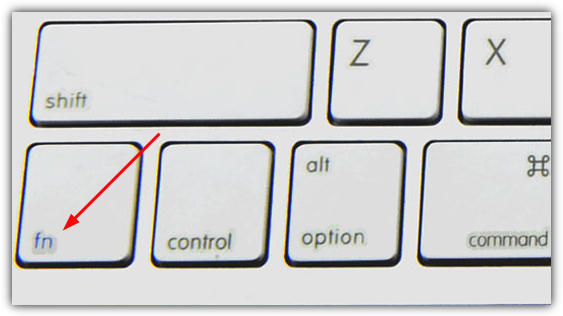
    Some laptops have a shortcut F key combined with the Fn key to turn the LCD screen off and then by pressing any key will turn it back on. Unfortunately not every laptop has a basic button or combination key that can be used to manually turn off the LCD screen. It’s also entirely possible that your keyboard has issues and the Fn key is not working and there is no way to replicate that key other than changing the whole keyboard which could cost big money.

    laptop fn function key

    There maybe times when you just want to leave your laptop for a few minutes but don’t want to put it to sleep because it might be doing something like downloading a file from the internet. Similarly, you might be listening to an audio book or some music while on your travels. If you can’t turn the screen off manually using any keyboard function shortcuts to save a bit of power, here’s a selection of simple and easy ways that you can use to manually turn off your laptop’s LCD screen on command.
    (more…)