Category: category_2970

  • Remove Windows XP Genuine Advantage Notifications with RemoveWGA

    The Microsoft Windows Genuine Advantage (WGA) has long been a major annoyance for a number of people. Although it’s designed as an anti piracy measure, all too often WGA causes problems for legitimate users telling them their copy of Windows XP isn’t legal and they should go and buy a full copy to make their system a “genuine” one. That’s all well and good, but you can’t even buy Windows XP any more even if you were using a pirated version and wanted to go legit!

    Although Windows XP is nothing more than an afterthought for Microsoft these days and they want it killed off ASAP, WGA is still very much alive and can still cause problems for users.

    Also, there is Windows Genuine Advantage Validation and Windows Genuine Advantage Notification, these are 2 different things. Validation allows or stops you getting certain update patches and software like Window Media Player or Security Essentials. Notification is actually a voluntary patch you can opt out of, but once on, is the more intrusive because it affects the system while booting and on the desktop if the install is not deemed to be genuine.
    (more…)

  • 2 TCP Scannners to Accurately Detect Alive VNC Server

    There are two programs in a VNC software, the server and viewer. The viewer is used to connect and remotely control the VNC server while the server simply listens for incoming connections from the viewer. The VNC server acts like many of the online services (such as WWW that uses port 80, FTP on port 21, etc) where it requires a port to be opened in order for the viewer to connect, unless you are using the reverse-connection method. The VNC server uses port 5900 by default and it can be easily changed from the VNC server options to provide extra security so that it won’t be instantly recognized as a VNC server service running on that computer. Most of the port scanner checks for open port on a machine and assumes that it is running the service associated with the port number according to the RFC Internet standards.

    Today we’re looking into scanning for VNC servers with more accuracy rather than checking if the port 5900 is open.
    (more…)

  • Silently Push Install VNC Server to Remote Computers

    It is a fact that the Remote Desktop that is built-in to Windows is faster than VNC and is more convenient because there is no need to download, install and configure a third party remote access software. However, the Remote Desktop is disabled in some version of Windows such as the Starter and Home edition or you probably want to have cross platform compatibility where VNC is a perfect solution for this. Most importantly, VNC is open source and free to use without licensing restrictions.

    We have previously covered that Remote Desktop can be remotely enabled to conveniently access the computer without being in front of the computer to turn on that option. It can be tricky in attempting to do the same with VNC because the VNC server module and configuration will have to be copied to the remote computer first and then run it.

    Here we will show you the easiest method to push VNC to a remote computer running Windows XP and 7.
    (more…)

  • 2 Tools to Decrease Download and Increase Upload Ratio in BitTorrent Trackers

    BitTorrent is one of the most common method used to download files from the Internet. Although you are able to download files from the public BitTorrent tracker websites such as ThePirateBay without any limitation other than the block imposed by some ISP, there are actually many private BitTorrent tracker sites around that offers better download speed and files that are clean from malwares. Some private torrent sites are hard to get in because they periodically open the registration for a short period and close it back once they’ve reached the members quota. The most important factor to keep your account in good standing at private torrent sites to avoid being banned is to maintain a positive ratio, where you’ll have to at least upload the same amount that you’ve downloaded.

    Although it is fair to seed, but unfortunately not everyone can maintain a good ratio probably due to slow upload speed, couldn’t afford a seedbox, or to turn on their computer 24/7 just to seed what they’ve downloaded. The way BitTorrent works, it allows many ways to cheat the torrent ratio on trackers and we’ll cover two tools to do that.
    (more…)

  • Using Webcam or Video Capture Source Simultaneously on Several Application

    You’ve just bought your new Logitech webcam and very anxiously wanting to have a video conference with your family which is staying a few hundred miles away from you. It’s so much cheaper to use the internet to talk via microphone, hearing via speakers and watching via webcam. You’ve connected your webcam, installed the drivers and everything seems to be working out perfectly.

    You’ve logged in to your Windows Live Messenger and started a video call with your family without problems. You then start up your Logitech QuickCapture program to take a few pretty snapshots of yourself. Weirdly, you get an error message saying :

    Camera is in use by another application. Stop the application that is using the camera and then press the Reconnect button

    or

    Webcam in use. To use your webcam with Logitech Webcam Software, end video streaming in Skype, then return here and press the Reconnect button

    Camera is in use by another application. Stop the application that is using the camera and then press the Reconnect button

    After stopping your video call from Windows Live Messenger and you click on the Reconnect button, you are now able to take snapshots from your webcam using Logitech Webcam Software. Trying to the other way around will also experience the same problem. This annoying problem is caused by the video capture driver itself and the manufacturer that develops the driver never made it to support multiple streams at the same time. Thankfully there is SplitCam, a third party software and driver that enables you to share your webcam or any video capturing hardware with multiple applications.
    (more…)

  • Check Gmail through The Bat! Email Client

    I’ve used Microsoft Outlook because it was one of the most powerful email client today. However, it seems to be a bit too powerful and bulky when I simply want to use it as a normal email desktop program to download emails so that I can read and reply them offline. I decided to migrate from Microsoft Outlook to The Bat! Professional email client because there are a lot of positive reviews about it. Unlike Microsoft Outlook that are prone to virus infection through zero-day exploits, The Bat! has been consistently keeping its users safe. The Bat! is also well known for its built-in on-the-fly encryption on the email messages and address book that works in a transparent way without noticeable speed degradation.

    I’ve successfully imported all my emails and contacts from Microsoft Outlook to The Bat!. Everything worked fine and it is fast in the sense of receiving the email and also loads very quickly. The Bat! is capable of checking your Gmail email account and I will show you how to configure The Bat! to do that.
    (more…)

  • 5 Free ways to Tune, Optimize and Test your Monitor’s Display

    Computer monitors are pretty cheap these days and you can pick yourself up a quality branded 22 inch or even a 24 inch LCD display for less than a few hundred dollars. But once you get it unpacked and plugged in, on many occasions when you fire up a new monitor for the first time, something just doesn’t look quite right.

    The screen looks funny, the display is skewed at the side, there are waves in the view, it’s not a sharp picture, certain colors look too overpowering or even washed out. In my case, my current LCD display came with the brightness set at 100% and looked like it would burn my eyes if I used it for too long! In a large number of cases, the default out of the box settings for monitors are rather poor at best.

    Obviously the monitor will have an accompanying manual that tells you the basics on how to adjust your new screen but sometimes it’s confusing, and attempts to adjust your screen without having any idea about what the settings do can often make things worse. Thankfully there are a few tools around to help you get the best picture out of your monitor with the minimum of effort. Here’s a few for you to try…
    (more…)

  • Run Windows Faster by Removing Unused and Temporary Files using CCleaner

    Although most PC users don’t realize it, your computer is constantly filling itself up with junk and useless files in the background. If you install a program, browse the internet or even just use a program, very often temporary files are being created to allow the applications to function normally.

    One of the common locations that gets used is the TEMP folder which becomes a bit of a junkyard where all programs that require a temporary area to do something, will put their files in there. Most of the time, these temporary files never get removed when they are no longer required, and just sit around accumulating over time. It’s not unheard of, and I have seen it myself where the TEMP folder alone is several Gigabytes in size and hasn’t been emptied for several years!

    Unfortunately, it’s not just this folder that gets filled with useless files. Web browsers have their own folders top store temporary files that make up web pages, and the majority of applications will have some sort of log or cached files which don’t really serve a useful purpose and can safely be removed. Windows is also quite good at storing lists, logs, cached files and folders and also things like old Windows update data that are all not missed if they are removed.
    (more…)

  • HD Tune – A Free Utility to Benchmark and Test your Hard Drive

    Without doubt, the worst component in your PC to go wrong is the hard disc drive. After all, that’s where all your personal data and information is stored. Potentially you could lose days, months or even years worth of hard work if the hard drive or your files have not been adequately backed up to another location for safe keeping.

    Although it’s not an everyday occurrence, hard drives do fail from time to time and being prepared by backing up your files regularly is good practice in case the unexpected happens. Often they fail gradually and the drive slowly and randomly starts to fill with errors meaning you might be able get your essential data off in time, but it’s not recommended to take that chance.

    When I’m working with old machines, one of the first checks I perform is have a look at the hard drive for potential problems. Catching a failing hard drive at the earliest opportunity is important for the best chance of data recovery. Running a bootable CD from the drive manufacturer such as Maxtor Maxblast, Seagate Seatools or Hitachi Drive Fitness Test is a good idea as they can give you information such as error codes which can be given to the manufacturer in the event the drive needs returning for repair or replacement.
    (more…)

  • 4 Tools to Update Windows Offline and install Hotfixes from a Local Source

    How often do you install a clean version of a Windows operating system either for yourself or somebody else? Although a lot of users are sensible and make full backups of their system using either disk imaging software or something like the Windows 7 System image function, there is sometimes no option but to reinstall because it can’t be avoided. Hardware failures, viruses, or even computers with poor performing or highly abused operating systems are all reasons to have to wipe the old system and start again. Some users even install their operating system regularly to keep it clean and running at maximum performance.

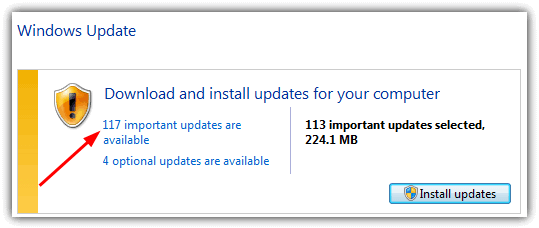
    Whether you’re installing a new Windows by choice or by necessity, you will soon be pretty sick of wasting hours downloading all the hotfixes from Windows Update and continuously downloading patch after patch. Having just installed Windows 7 to see how many updates are available for the most popular version of Windows, it’s quite shocking to see it has 117 important updates ready to be downloaded! And that obviously doesn’t include recommended updates like the multitude of newer .NET Framework patches and subsequent updates after you install software like Internet Explorer 9 or 10 etc.

    Microsoft Update available patches

    One solution is to use a slipstreaming application like nLite to integrate hotfixes into the install disc, but even these become outdated every month after the latest round of hotfixes. If waiting for all the updates to install doesn’t appeal, an alternative is to have a program store and automatically install the updates for you from a USB stick or external hard drive. While it isn’t as quick as a slipstreamed disc, this method is an awful lot quicker than waiting for everything to be downloaded and installed from the internet, and can be left to it while you go and do something else. Here are 4 applications that can do exactly that, you can even run them on a currently installed Windows to bring it up to date.
    (more…)

  • 3 Blue Screen of Death Screensavers (BSOD)

    I think just about every person who has used a Windows computer for a while will have seen the infamous Blue Screen of Death (BSOD). This screen often appears in the event of a serious system error or crash and is supposed to give some information about the possible cause of the error. You can then look up the error code, known as a STOP error code, to try and find the problem and what common solutions there are to fix it.

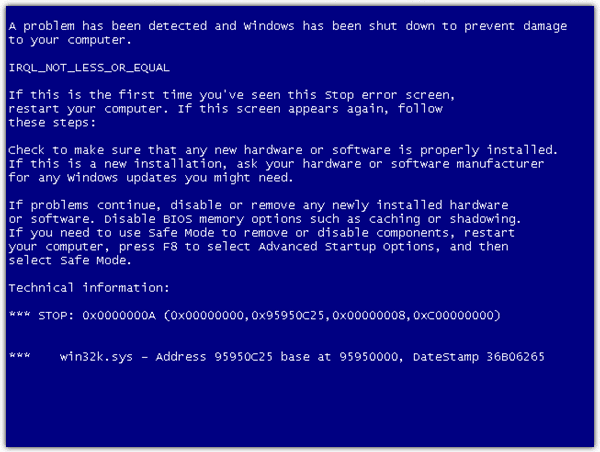
    Unfortunately, when a lot of users come into contact with a screen like the one below, it usually fills them with dread because it means there’s likely to be a problem your average user can’t understand or even attempt to fix themselves. Even Mr Bill Gates couldn’t escape the Blue Screen of Death when he got one demonstrating a beta of Windows 98 on stage!

    Windows Blue Screen of Death BSOD

    It’s not only your average user or novice that hates the sight of this screen either. Computer technicians and power users usually don’t like it either as they know it could lead to hours of troubleshooting because many STOP error codes are very generic.
    (more…)

  • nLite – The Windows XP Installation Customizer

    Even though Windows XP has not been generally available to the masses for several years now, it’s still a hugely popular operating system that’s installed on hundreds of millions of PC’s. Compared to Windows Vista, 7 and 8, XP is still a great performer on older desktops, laptops and netbooks.

    Because of it’s age, there are software components such as Microsoft .NET Framework, Internet Explorer 8 and many others that have never been integrated into a standard Windows XP install CD, and you have to spend hours after a new install updating just the Windows software and hotfixes alone. Also, these days the default drivers that come with XP are often not compatible with newer hardware. This is mainly true for mass storage drivers because you might have to press F6 during install and load the drivers from a floppy. Not good if you don’t own a floppy drive!

    Even though the XP SP 3 install CD is under 600MB, you would think that means there’s not much on the disc that you don’t need. In actual fact, there are a number of components that can be removed from the XP CD without losing functionality. While this makes the install quicker because there’s less data being moved around, it also makes the final size of your Windows folder smaller and less bloated with junk.
    (more…)