Sharing folders in Windows XP is so much easier compared to Windows Vista/7 because of the Simple File Sharing. Simply right click on a folder, go to Sharing tab, check “Share this folder on the network” and anyone on the network is able to access the shared folder without logging in. When it comes to Windows 7, Simple File Sharing is no longer available and you will need to manually add the user and set the permission level. Setting the wrong permission level could be dangerous as it will allow unauthorized users to mess with the folder or files. Rather than checking everyone single folder if the permissions are set correctly, you can use NTFS Permissions Reporter tool which is a great time saver in automatically listing down NTFS permissions all the way down your directory tree.
(more…)
Category: category_2990
-
List All NTFS Permissions on Windows
-
Using Different Credentials to Access Shared Folders in Windows 7
One of the fastest method which I have always been using to access a shared folder on a computer in a local network is by pressing Win+R followed by double backslash and computer, for example, \\raymond which will access a computer named Raymond in the network. If the shared folder is not password protected, then anyone is able to access, no problems there. However if the shared folder requires you to enter username and password, entering a valid credential will cache the credentials until you restart or log off Windows.
This is a convenience feature that Microsoft has implemented since early versions of Windows. However there may be times when you do not want to log off or restart the computer so that you can use another login to access the shared folder. Although Microsoft did not include a simple button to flush the credentials cache so that you can try a different password, here is how you can do it via a simple command line.
(more…) -
Restore Deleted Services and Reset to Default Services Settings
Windows Services is an important hidden part of Windows where it allows programs to run automatically before even logging in to a user account. Many features in Windows depends on the services for it to work properly. For example, if the Windows Update service is stopped and disabled from startup, checking for updates via Windows Update will give you the error code 80070422 with the message “Windows Update encountered an unknown error”. That is a very general error message and a normal computer user wouldn’t even know where to start checking in order to fix the Windows Update problem.
Some malware modifies the Windows services and even after removing the malware, unfortunately the services which has been disabled by the malware are not be re-enabled back by antivirus software. This is when you will start to notice that some parts of Windows are broken even though the virus is no longer on the computer. Here are some free tools that you can use to reset Windows Services to default state.
The default Windows Services setting is definitely safe because I have never seen a case that you have to manually enable a service from the default Services settings for something to work. Most of the time only experienced computer users will disable unnecessary services hoping to squeeze every inch of performance out of their computer.
There are a couple of ways to restore the Services settings back to default.
(more…) -
Manually Reset or Clear Dirty Bit in Windows without using CHKDSK
One mystery that has gone unsolved for the longest time now is the dirty bit on hard drive volumes. Basically a dirty bit is just a 1 hex value located somewhere hidden on the hard drive that Microsoft has never reveal until recently. Windows will check the dirty bit to determine if a volume can contain corrupted files due to hard resetting your Windows computer with files that are still opened or when you unplug a USB flash drive that is in the midst of copying a file.
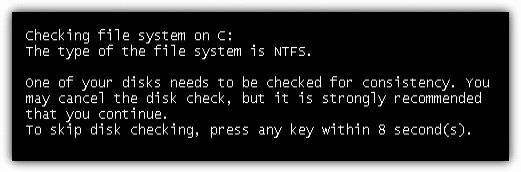
When the computer boots up with the dirty bit enabled on a hard drive, you will be asked to check the disk for consistency before Windows is loaded. You can skip the disk checking by pressing any key but it will come back again the next time you start up your computer. This will usually keep happening until you let the drive be scanned or alternatively you can tell Windows to stop checking the specific drive. This method doesn’t clear the dirty bit on the drive though and simply forces Windows not to scan a drive on boot.
As for a USB flash drive or portable hard drive with the dirty bit enabled, plugging the drive into a Windows 7 computer will prompt a window that asks:
Do you want to scan and fix Removable Disk (G:)?
There might be a problem with some files on this device or disc. This can happen if you remove the device or disc before all files have been written to it.
-
5 Ways to Disable User Account Control (UAC) for Specific Software
Whether you like the User Account Control (UAC) feature in Windows Vista, 7, 8, and 10 or not, you should have it enabled if possible. This is because it’s capable of blocking some actions by malware such as adding itself to global startup, adding or modifying files in important folders, installing rogue software processes and etc. There are certainly weaknesses in UAC and there are ways to bypass its restrictions on a system, but not all malware is capable of doing that which is where UAC can work.

Unfortunately, the effectiveness of UAC will probably diminish over time for many users. They will probably just end up pressing Yes to allow access without even looking at what is asking to run because the prompt appears so often. Power users will no doubt find UAC extremely annoying and it’s the first thing that many will disable after installing Windows. However, it’s better for everyone to keep UAC on if they can.
If you have UAC enabled it can be quite annoying when you use a piece of software often and every time you run it, the UAC prompt appears. The program is perfectly safe, you’ve run it several times, and yet Windows keeps asking. Thankfully, there are ways around this problem to stop the UAC prompt from appearing for programs you specify and trust, here’s a selection of ways you can do it.
Note: These methods are specifically for administrators with User Account Control enabled to disable the prompt for specific programs. They are not for bypassing UAC on standard user accounts. Also, please make sure you are certain the program you want to disable UAC for is safe. It could damage your system if you willingly allow an unsafe program to bypass UAC.
(more…) -
Restore Windows Notepad to the Default Font or Settings
One of the most common utilities you will encounter in Windows is Notepad. Apart from being the default viewer and editor for text files, it’s also used by Windows to edit several other file format types such as batch files, registry files, and scripts. It’s not the most advanced text editing utility around, but the fact Notepad has remained almost unchanged for decades says it does just enough for most people.
One of the problems with Notepad is it’s very easy to change certain things like the default font, and if you or someone else has changed anything about the font, there is nothing in the program that allows you to reset the setting back to the default. If you have children in the family or like to experiment with various settings yourself, it’s easy to mistakenly set the font to something else entirely.

Of course, you’re free to use whatever font you choose that’s on your system. But after using Notepad for so many years, it might look a bit odd with anything other than the default font and you may want it set back.
(more…) -
Will .NET Framework 4 Slow Down My Computer?
Everybody runs applications on their Windows computer and there is a wealth of software out there to choose from. More and more software these days relies on the Microsoft .NET Framework because it makes things easier for programmers by including code and libraries which would otherwise need developing manually. While this is mostly a good thing and enables for faster and more efficient creation of software, it does also mean the .NET Framework needs to be installed on your computer for you to be able to run the software.
A major complaint about .NET over the years has been that it’s unnecessarily huge and bloated and slows down your computer. There are multiple versions of .NET, the latest is 4.6.x and if you want to run some of the latest applications you will sooner or later need it on your system. Windows 10 is pre-installed with .NET 4.6, but Windows 8 ships with 4.5 and Windows 7 comes with 3.5. A popular program like Paint.NET won’t work in Windows without installing .NET 4.6.1 first.

If you believe what some people tell you on the internet, installing .NET 4 on your Windows computer will slow it down by a huge amount, but is that really the case? To find out, we’ve run some tests on a system with and without .NET Framework 4.6 installed to see if there are any differences in performance.
(more…) -
10 Ways to Run Programs as Administrator in Windows
In the Windows operating system, a user account that is a member of the administrators group will not automatically have unrestricted full access to the operating system, thanks to the User Account Control system that has been implemented since Windows Vista. The purpose of the UAC restriction is to prevent malicious software from instantly making changes to any parts of the Windows operating system when it is launched. The User Account Control warning window will help to create an awareness to the user that a program from an unknown publisher wants to make changes to your computer.

As an example, the HOSTS file in Windows is used to map a hostname to an IP address and can be opened and viewed using a text editor such as Notepad. However, in order to save the changes made on the HOSTS file, Notepad must run as administrator or else you’ll get the error window saying “Access is denied.”

An older program that was compiled during the Windows XP era will also face problems if it requires changes in restricted areas because it doesn’t create a UAC prompt to elevate privileges when run. To solve this problem, you can manually run the program as administrator and here we have 10 different ways to do it.
(more…) -
Disable USB Storage, Printer, Audio and Scanner from Windows Registry
When it comes to ports that connect between devices and computers, USB is one of the best inventions that renders other communication ports such as serial and parallel port useless. If you’ve been using computers since Windows 95, it is common to find a keyboard and mouse with a PS/2 port, an external modem with serial port and a printer that uses parallel port. Installing these devices on a computer is also troublesome as it requires Windows to restart to detect the connected devices.
Today, you can find most devices using a USB port to connect to the computer because of many advantages it provides such as supplying power, speed, the ability to detect the device instantly without the need to restart Windows, etc. One good example is a USB flash drive that can be instantly used without plugging in a separate power source and the latest USB3.0 provides a very fast file transfer speed. Most importantly, Windows automatically detects and installs the USB flash drive.
As useful and convenient as it is, USB ports also pose huge security risks by allowing anyone to easily steal data from a private computer by plugging in a USB flash drive and copying data. Fortunately, it is possible to disable USB storage, USB printers, USB Audio and even USB scanners by modifying a registry value in Windows. Here are the steps:
(more…) -
4 Ways to Safely Delete Unused MSI and MSP Files from Windows Installer Folder
Solid State Drives (SATA and NVMe) are fast becoming the norm for many users to place their Windows install onto. Because prices for larger capacity drives are still quite expensive, many users have smaller capacity drives. If you have a smaller SSD or your Windows boot partition isn’t that large, you need to watch every Gigabyte that goes onto it or space can fill up pretty quickly.
Using tools like TreeSize or SpaceSniffer to find what is taking up excess space on your drive might show that the C:\Windsows\Installer folder is one of them. If you check the folder, you will most likely find a lot of MSI and MSP files in there possibly consuming Gigabytes of drive space. Do note that the Windows Installer folder has a hidden and system attribute. To see the folder, you will need to select “Show hidden files, folders and drives” and uncheck “Hide protected operating system files” from the Folder Options in Control Panel.
Viewing the Property details of MSI and MSP files in the Installer folder could show that they are connected to software currently installed. Others might be from software you have uninstalled or old versions that have since been replaced. Those files should be no longer needed and can be deleted. The problem is identifying them because just deleting any MSI or MSP file is a bad idea as it could be required for updating, patching, or uninstalling existing applications.
(more…) -
Create, Edit, Clear or Disable Jump Lists in Windows
One of the many positive enhancements to come out of Windows 7 and highly requested for a return in Windows 10’s Start Menu is the Jump List feature. Jump Lists have proved to be very popular because they are very useful and allow convenient access to recently or frequently used files or website links in the Start Menu and on the Taskbar. Many applications these days come with their own custom Jump List and include custom tasks related to the program as well a the recently opened, recently closed, commonly used items and etc.

One issue with a Jump List is it will show recent activity and history for each program that has a pinned Taskbar icon or Start Menu entry. If you don’t want a specific list to show or want to clear one or more lists, it isn’t immediately obvious how to do it. To disable specific Jump Lists, clear one, some or all Jump Lists, create your own Jump Lists or turn the option off altogether, we have a number of solutions for you to look at.
(more…) -
The Backup Failed when Creating System Image in Windows 7
Because I constantly need to test software on different system type such as 32-bit and 64-bit, I must have a backup image of both environments so that I can always revert back to the original state. Testing or benchmarking software on a fresh Windows installation is most important as it produces more accurate results compared to a system that has tons of drivers and third party software installed. I was just creating a new image for Windows 7 Ultimate 64-bit (x64) with SP1 fully up to date but I encountered a problem in creating a system image using the built-in tool in Windows 7. The backup process fails and prompts the longest error message that I’ve seen in Windows.
The backup failed. There is not enough disk space to create the volume shadow copy on the storage location. Make sure that, for all volumes to be backup up, the minimum required disk space for a shadow copy creation is available. This applies to both the backup storage destination and volumes included in the backup. Minimum requirement: For volumes less than 500 megabytes, the minimum is 50 megabytes of free space. For volumes more than 500 megabytes, the minimum is 320 megabytes of free space. Recommended: At least 1 gigabyte of free disk space on each volume if volume size is more than 1 gigabyte. (0x80780119)
-
7 Free Tools to Check if Someone is Using Your Wireless Network
WiFi technology is everywhere these days and it seems almost every electronic device around has a wireless network connection of some sort. Laptops, tablets, smartphones, digital cameras, printers, gaming consoles, smart home devices, and many other things can connect to each other or the internet through a WiFi connection. A wireless network setup also presents its own set of problems when it comes to your own home network and the devices attached to it.
Setting up your own WiFi network with adequate protection like WPA2 and a strong password is vital. But that still doesn’t mean other people aren’t using your network without your knowledge. It’s possible friends, neighbors, or family members have shared the WiFi credentials with others and people you don’t know could have access to your network and your shared files. While many routers have additional security measures such as MAC address filtering, these might not be configured or someone has circumvented them.
A lot of modern routers will give you a list of the wired and wireless devices making a connection to the network, but some do not and some people wouldn’t actually know how to find that information. Another simple way is using a tool to get the list of connected devices, here’s 7 for you to try out.
(more…) -
Error Code 66A when Updating Microsoft .NET Framework 4 from Windows Update
One of the first thing that I normally do after installing Windows is to disable the automatic Windows Update. Although automatic update is a very convenient way to keep Windows up to date, but I personally do not like Windows or any third party software to automatically do things in background without my knowledge, unless I schedule it to do that. All I need to do is manually check for updates using Windows Update in Control Panel every Patch Tuesday (second Tuesday of each month) as that is when Microsoft releases security patches.
The recent Patch Tuesday released 2 updates and 1 security update for Microsoft .NET Framework 4 with a couple of other updates for Windows. All updates installed without problems except the 3 updates for .NET Framework 4, failing with the error code 66A (Windows Update encountered an unknown error). I tried to install one by one but still no luck.

At first I wanted to reset the Windows Update components using the official Microsoft Fix it 50202 tool but after thinking for a while, this error code 66A should have nothing to do with a broken Windows Update since other updates were able to install except for .NET Framework 4.
(more…) -
Power Off USB Port when Safely Removed USB Device in Windows 7
I got to know about spinning down drives after stopping in Vista & Windows 7 while I was reviewing the changelog for USB Safely Remove 4.4. Basically what USB Safely Remove explained in their blog about this is when you eject a device, for instance a USB flash drive in Windows XP, the LED will be switched off. However in Windows Vista and Windows 7, the LED light is still turned on even after ejecting them from Safely Remove Hardware. It won’t be a problem if it is a USB flash drive because it doesn’t have any moving parts but it could be worrying when it comes to an external mechanical hard drive that requires the heads to park to avoid damaging the hard drive which will lead to data losses.
Starting from USB Safely Remove 4.4, it comes with a feature to power off device after device stopping by just enabling it in the Options. For people that managed to grab a free license of the USB Safely Remove 4.7 which I’ve posted it yesterday, I bet you would have enabled this option during the first run of the software for safety precaution. However for people that missed the giveaway, or would want to use this option WITHOUT installing USB Safely Remove software, here is how you can manually enable this safety feature.
(more…)
