Category: category_2990

  • 6 Ways to Safely Remove Windows XP Update Backup Files to Free Up Hard Disk Space

    Microsoft regularly makes available critical Windows XP and Windows 2000 security patches (or hotfixes as they are also called) which ensure that your operating system keeps up to date. These patches/hotfixes are obtained in a variety of ways such as visiting the Windows Update or Microsoft Update website (accessible from your START button). Other ways are through the Automatic Update service which runs in the background on your PC and runs daily or weekly checks for recently issued updates/patches/hotfixes, or by System Administrators downloading and applying patches and hotfixes to your PC.

    Regardless of how the hotfix is obtained, there is one thing you should be aware of. All of the files that will be replaced by hotfixes are backed up on your hard drive just in case the update goes bad and you need to return your PC to its prior state and uninstall the patch. These older files that are replaced are stored in hidden folders in your Windows system folder.
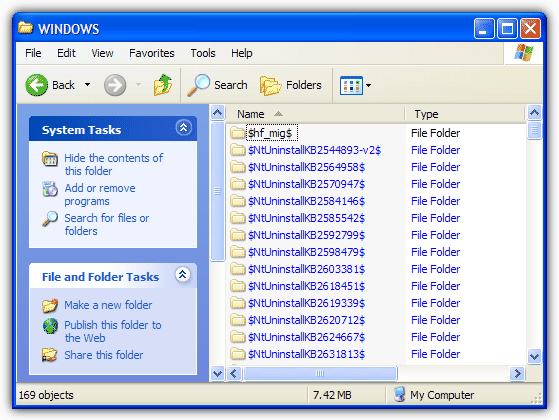
    Delete NTuninstall folder

    Over time these backup folders accumulate and can occupy a significant amount of disk space.
    (more…)

  • 6 Ways to Check What Version of Microsoft .NET Framework is Installed on your Computer

    A vast amount of applications will require the Microsoft .NET Framework to be installed on your system before they will run. When a .NET based application runs on a machine without the correct version of the framework present, the results can be unpredictable. It’s a certainty the program will not work correctly or at all, but what happens to inform the user about the issue differs from program to program. Quite often you will get a rather obscure error message pop up which doesn’t really tell you anything informative.

    The application failed to initialize properly (0x0000135). Click OK to terminate the application.

    This is a common error message but gives no indication of whether the problem is related to the program itself or something else.

    Windows application error 0135

    Some programs might be a bit more helpful and warn you a specific version of the .NET Framework is required before installation can continue. Other software could trigger Windows to offer to download and install the missing version of .NET automatically.

    .Net framework auto install

    A big issue with .NET is it’s a sizable download and when installed can take up several hundred Megabytes of hard drive space. Programs are also built requiring a certain version of .NET so just installing one version probably won’t be enough. For example, Program A might need .NET 3.5 while program B might need .NET 4.6. In that case, you will need both installed on your system.

    Windows Server, Vista, 7, 8/8.1 and 10 all come with a version of .NET integrated into the operating system. Since there are many versions of the .NET Framework (from 1.0 up to 4.8) and more than one are often present on the same system to run different applications, sometimes even you as a user might not even be sure which .NET is installed on your computer. Here are a few ways you can find out.
    (more…)

  • 3 Ways to Slow Down or Speed Up YouTube and Other Flash Videos

    Websites such as YouTube and Vimeo contain millions of videos which can be very helpful in showing what you would like to learn. Obviously learning how to do something from an educational video is far more efficient than reading a few pages of text even if they come with images. The only problem is sometimes the steps can be a little too fast for you to follow where you’ll end up replaying the video over and over again until you finally understand it. Or, the video is too boring and you’d like to speed it up a little because you probably need to watch a small section of the video that you’re interested in.

    In this article we’ll be sharing with you 3 ways on how you can slow down or speed up video playback in YouTube including other flash video websites.
    (more…)

  • 5 Ways to Uninstall DirectX and Reinstall to Repair Problems

    If you asked a knowledgeable computer user how to uninstall Internet Explorer completely in Windows, they would likely advise you not to do that because IE is part of Windows and some features require the IE files be present or there would be crashes and other weird problems. The same principle applies to to DirectX. Simply put, DirectX is a Windows technology that enables higher performance in graphics and sound when you’re playing games or watching video on your PC. Even if you CAN uninstall DirectX completely, it’s almost guaranteed you that you will face problems on your computer by doing so.

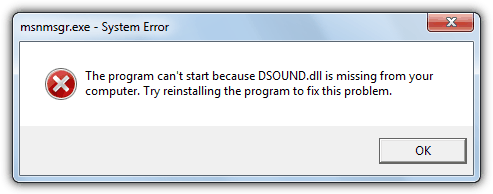
    For example, if you uninstalled DirectX and tried to launch Windows Live Messenger, there will be an error popup “This application has filed to start because DSOUND.dll was not found. Re-installing the application may fix this problem”. That’s because the dsound.dll is a part of DirectX which adds functionality for Direct Sound and Messenger requires it. Logging in to Outlook.com will make the screen and advertisements keep on flashing. As for computer games, anything that relies on DirectX wouldn’t run, which is most games available today.

    program can't start dsound.dll is missing

    So, if you have problems when trying to play a game or watch a video and know that it has something to do with DirectX, the first thing we would suggest is to download the latest version of DirectX and perform a re-installation. This will replace any missing files. However, if re-installation fails or doesn’t fix the problem, your last resort would be to uninstall DirectX and then try installing again. Here’s a few different ways on how to try and uninstall DirectX.
    (more…)

  • Detect Packet Errors in Your Network LAN Connection Status

    Many of us are already using fast broadband connections these days and it’s important to know whether the information you are sending or receiving is correct and error free. When there is an error in sending or receiving data you might have problems downloading or uploading files and they could fail MD5 checksums or appear corrupt and the downloaded Zip or Rar archive won’t open etc. For example, if you keep getting errors sending packets but not receiving, then that could actually point to a faulty network adapter.

    Error information can be an important first step in troubleshooting a connection. It’s very easy to view the basic network connection information, and you can see a network connection’s current status, connection duration, speed and packets or bytes sent and received for the connection. This is usually found by double-clicking the status icon in the system tray or going through Network and Sharing Center > Change adapter settings in Vista and above. The Status dialog box by default shows nearly everything but weirdly chooses not to display errors for the connection.

    local area connection status

    Before using sophisticated or tough to use packet sniffing software to detect packet loss and errors, you can just enable a hidden setting in Windows to show you any possible errors with your connection. Here’s how to do it with a quick registry change and the information will be added to the status dialog window.
    (more…)

  • 8 Ways to Hide Drive Letters or Partitions from Appearing in My Computer and Explorer

    These days most computers come with at least 2 partitions on the hard drive although it’s quite common for you not to be able to see all of them because they have been hidden for various reasons. Windows normally creates a hidden boot partition of a few hundred Megabytes. OEM manufacturers will often install a recovery partition of a few Gigabytes which again is often hidden away so you don’t play with it.

    If you are letting someone temporarily use your PC for a short period of time and would rather they didn’t have access to any of your personal files, one of the easy and quick ways to do it is to hide the drive or drive letter so it cannot be accessed from My Computer or Windows Explorer by the average user.

    It’s also the case that sometimes the inexperienced user will poke around on other partitions and perhaps delete files without actually knowing what they’re for. One of the favorites is created backups from the Windows Vista and 7 backup function for example, which would obviously go on another partition or drive and an ordinary user might not realize what it is.
    (more…)

  • 5 Ways to Stop Windows Automatically Restart After Installing Updates

    Windows Update is a component that can schedule and automatically download and install important security updates for your version of Windows in the background without the user having to interact with the process. While this feature can be very useful for many Windows users to keep their computer up to date, it can also be a complete pain as well because there are one or two issues that can spring up and surprise you when you least expect or want it.

    Anytime you install a Windows Update that requires you to restart your computer, you must restart it or be annoyed with a pop-up message that tells you the computer needs restarting to finish installing the updates. Although you can choose to postpone the restart for a few hours manually, you actually need to tell Windows because depending on the configuration, Windows may restart the computer anyway without your say so!

    Disable automatic updates restart

    If Windows is trying to install critical updates on a schedule or at the next available opportunity that require a reboot, it will popup the restart dialog. But it will also show a timer which will automatically reboot your computer to finish the update, whether you want it to or not. This can lead to lost work or you could lose large downloads etc. There are ways to stop this happening though, here are 5 solutions for you to look at which will stop Windows rebooting automatically after an update.
    (more…)

  • Change or Remove Button Missing at Control Panel Add or Remove Programs

    The correct and safest way to uninstall or remove an installed software or driver on a Windows computer is from Add or Remove Programs which can be found in Control Panel. When you run the uninstaller, it will simply refers back to the list of files that is extracted to the program’s folder during installation and deletes them. Sometimes you will notice that even after uninstalling a program, the program’s folder and some files will still be there. Those files are the ones that is created by the software, not extracted by the installer. There are some uninstaller that is smart enough to ask you if you’d like to delete the remaining files.

    Normally when you open Add or Remove Programs shortcut from Control Panel, you will see a list of installed software which you can change or remove. The change option is usually used to repair the software. It actually meant reinstall the program with exactly the same components that were installed first time. As for remove option, it uninstalls the software from your system.

    There are times that you need to remove or uninstall a software or driver from your computer but the Change/Remove button in Add or Remove Programs is missing!

    Add/Remove button Missing

    Here is a method to make Windows show the Remove, Change (or the Change/Remove button together) buttons in the listing.
    (more…)

  • 3 Ways to Change a Windows User Account Into an Administrator

    As most computer users know, while you are using Windows, you are logged in with an account. There are different types of account to reflect the amount of control a user is allowed to have on the system, User and Administrator. The default account created on a new Windows is an admin account, and for other users you can create additional user accounts which are limited in what they can do and are useful for less experienced users or to deny high level access to others.
    (more…)

  • Move Windows XP Hard Drive or Change Motherboard Without Getting a Blue Screen STOP 7B Error

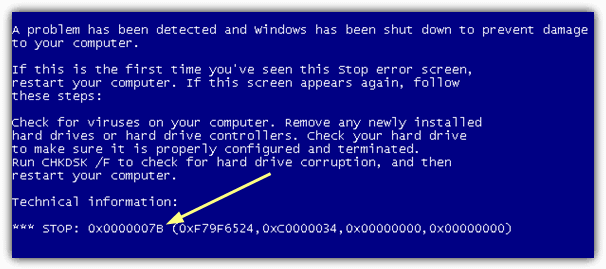
    One feature that was useful in Windows versions prior to XP was you could simply take out a hard drive that has Windows installed and connect it up to another computer. When it boots it up, it’ll start to detect and install all device drivers again. When you change the motherboard or move your hard drive that has Windows XP installed to another computer, be prepared to get endless looping reboots or the famous blue screen of death (BSOD). The error will usually be a STOP 7B error which is related to a problem with the hard drive controller.

    This problem is often simply due to the fact that the storage controller used by Windows XP requires a different driver depending on what type of hard drive controller is on the motherboard. If the old controller uses one driver and the new controller requires a different driver, XP is trying to boot with the old driver and throws up the blue screen because the wrong driver is trying to load. The recovery console or even Safe Mode isn’t usable because Windows can’t boot anything without the correct software for the controller. The only real hope you have of this problem not occurring is to use a motherboard with exactly the same chipset for the hard drive controller.

    Windows Stop 7B Error

    After all these years since the release of Windows XP, it’s still not a straightforward task to move a Windows XP hard drive and partition to another computer without getting a blue screen. There are some easier ways to do it although they cost a fair amount of money. Amazingly, a large proportion of websites on the internet (including Microsoft) will tell you the only solution is to perform a Repair Install or even completely wipe your XP install with a format and re-install.
    (more…)

  • Safest Method to Replace Notepad with Notepad++ in Windows

    The Notepad that comes in Windows is a very basic editing tool to view and edit text files. It can open file extensions such as TXT, INI, LOG, BAT and etc as long as it is a text format. I find Notepad useful when I need to quickly take short notes and also to remove any rich text format especially when the text are copied from websites. One of the biggest problem with Notepad is it does not recognize line breaks from text files created in UNIX or Mac OS operating systems which is the reason why sometimes you see a few very long sentence on a readme file. Other than that, Notepad also doesn’t support tabs, regular expressions, bookmarks and many more functions that can make a text editor really powerful and useful.

    There are quite a number of free third party text editor which is better than Notepad and our favorite one is definitely Notepad++ which we’ve been using it for several years already. Notepad++ has helped us solved many of our text manipulation needs such as generating sequential number, removing duplicate lines, delete lines that doesn’t contain specific words, monitoring log or text file changes in real time, and many more!

    Since Notepad++ is so much better than Notepad, it is a no brainer to replace the built-in Notepad in Windows with Notepad++. Here we suggest the safest method to do it that will still be effective even after a service pack installation without replacing the Notepad.exe in Windows.
    (more…)

  • 4 Ways to Edit Registry Key Values Without Booting into Windows

    Many years ago when I was still a novice in computers, I accidentally disabled userinit.exe from startup thinking that it was spyware using the SysInternals tool Autoruns. When I restarted the computer, I was unable to login to Windows. Whenever I select the user from the list, it logged in and automatic logged off. I had a really tough time trying to restore userinit.exe back to the Windows startup list as it wasn’t easy accessing and editing the registry when Windows is unbootable. Autoruns is much smarter now because when you uncheck userinit.exe from Logon, it will warn you that “disabling or deleting Userinit will prevent users from logging on”.

    In the end I managed to fix the problem but couldn’t exactly remember how I did it because I tried many many ways and I got lucky. I eventually found a real solution on how to edit Windows registry key values without booting into Windows. This is also useful for editing malicious startup items such as rogueware and ransomware. If you have a similar situation as my previous case which requires you to edit the registry without Windows, then here is how to do it.

    Listed here are 4 methods to edit the Windows registry keys using a bootable CD. Although you are being shown how to repair the userinit registry key, these methods can obviously be used for any other keys in the registry that need to be edited.
    (more…)

  • How To Troubleshoot Windows Startup, LogOff, Login and Shutdown Problems

    The fastest time to boot up or shut down your computer is obviously when you first got your computer or after installing a fresh copy of Windows. As time goes by after going through multiple installations and uninstalling third party software, the accumulation of temporary files, the increasing size of the registry, disk fragmentation, accidental infection of malicious software with improper cleanup, all these will eventually lead to causing Windows to take longer than usual to startup or be unable to completely shut down the computer.

    No one likes to use a computer that takes 5-10 minutes to boot into the desktop or a Windows that doesn’t do a proper shut down where you are forced to press and hold the power button until it turns off. A forced shut down can cause data corruption when the files are opened or even hard drive failure. Troubleshooting the cause of Windows startup and shutdown problems may not be that easy because a lot of factors can contribute to this problem.
    (more…)

  • Restore or Fix Missing Accessories Shortcuts in Start Menu

    If you regularly have people asking you how to do something on their PC, usually the easiest way to guide them is through the Start Menu and tell them to simply click on the icon. A lot of very basic and highly used functions are tucked away in the Start Menu, and notably in the Accessories folder. For example they can find accessories shortcuts for simple tools like Sticky Notes, Paint, Calculator or Notepad in the Accessories folder, as well as more advanced tools like the Disk Defragmenter, Resource Monitor or Windows Easy Transfer.

    For various reasons, sometimes these shortcuts can go missing and it makes the average persons job to run simple tasks and tools a bit more difficult. Most of the Start Menu entries in Accessories are simply shortcuts to utilities contained within the Windows or System32 folders and are there purely to give quick and easy access. More advanced users could probably live without them because they know the commands to run them anyway through the Run box, but more inexperienced or average users rely on them a lot more.

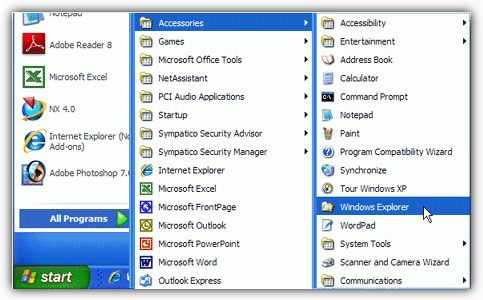
    Windows Start Menu Accessories

    There are a few ways to restore back the Accessories group to the Start Menu and funnily enough XP users have it the easiest because there’s a simple tool that can do it for you. Vista and 7 users aren’t quite so lucky as there doesn’t seem to be the equivalent tool around for them.
    (more…)

  • How To Fix Unable to Install Scanner or Imaging Devices Due to Registry Incomplete or Damage Code 19

    The Device Manager (devmgmt.msc) in Windows is the best place to check if a device such as printer, scanner, mouse, keyboard, DVD-ROM, network adapters and etc is installed and working properly. A device that is not working will show a yellow exclamation mark on the icon itself with the tree automatically expanded. You can find more information on the error by double clicking on the device to bring up the properties window. Here is an example of a common error message “Windows cannot start this hardware device because its configuration information (in the registry) is incomplete or damaged. (Code 19)“.

    Windows cannot start this hardware device because its configuration information in the registry is incomplete or damaged code 19

    If you are getting the same code 19 error for your imaging devices such as scanner or even a multifunctional all-in-one printer, the good news is the device is not faulty and can be easily fixed by following the simple instructions below.
    (more…)