Category: category_2990

  • How Effective is Blocking Websites using HOSTS file?

    A HOSTS file is used to manually force map a hostname to an IP address without relying on a DNS service. The HOSTS file is found on every operating system and for Windows, it is located at Windows\System32\drivers\etc\ folder, just with the filename as HOSTS without an extension. By default the HOSTS file doesn’t contain any mappings and most computer users don’t even need to touch the file. The below image is how the default Windows HOSTS file looks like.

    Windows Default HOSTS file

    However, web developers who are developing websites locally from their computer may find it useful because they can download the whole website’s code to their computer, map the domain name to their computer’s IP address and immediately start editing without worrying about the absolute URLs. Another common usage of HOSTS file is to block websites including advertisements and web trackings by mapping it to a localhost which is 127.0.0.1 or to a non-routable 0.0.0.0 IP address. Other than using the HOSTS file for good purposes, some malware uses it to block the infected computers from accessing security based websites.

    There are times when you need to check the HOSTS file, for example when you suddenly find a website inaccessible from a particular computer while it loads perfectly fine on others. Here is how to view and edit the HOSTS file in Windows.
    (more…)
  • 5 Ways to Identify Which Service or Driver Failed During System Startup

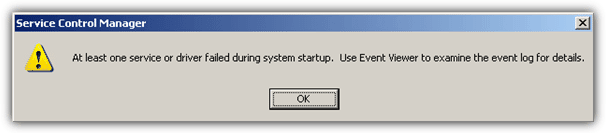
    If you’re still working in an environment with older operating systems such as Windows NT, 2000 or 2003 being used, one of the annoying error messages they can popup is a dialog box during or just after Windows has booted. It will have a message with “At least one service or driver failed during system startup. Use Event Viewer to examine the event log for details”. This can happen when software or drivers don’t get uninstalled correctly or the startup entry isn’t removed from services.

    It’s usually not a big problem because when you click the OK button, the error message will go away and you won’t be bothered by this error message again until you restart Windows. The problem does need investigating though because it could be related to system services or drivers which have an issue and are affecting functions such as the network or causing system performance or instability.

    At least one service or driver failed during system startup

    Unfortunately, there’s no 100% one click fix for this error and the only way you can really find out the cause is by manually checking which service or driver has failed to load through some detective work. We can only guide you on where to check for the fault because fixing it will depend entirely on what has failed and your Windows software configurations etc.

    Here are a few ways you can help identify which service or driver failed during system startup.
    (more…)

  • 7 Ways to Easily Identify SVCHOST.EXE Service Name

    Other than commonly using the Windows Task Manager to end a hung task or process, it is also very useful to quickly check the active running programs on your computer. You may noticed that there is quite a number of svchost.exe listed in the processes tab and is probably wondering what is it and how come there are so many of them running? Basically SVCHOST is used by Windows to run multiple Windows services and the reason why Windows services uses svchost.exe to run is because they are in DLL files and not an independent executable (.EXE) file. If you didn’t know, Windows Services is one of the startup method in Windows where it can automatically run in background without even requiring the user to login to their account in Windows, unlike other startup method where the programs will only run when the user is logged in to Windows.

    svchost.exe in task manager

    Normally users would ignore the existence of svchost.exe listed in the Windows Task Manager and only look for some dubious image name. This is where some malware takes advantage by using the file name as svchost.exe, hoping that you would not notice its presence. One easy way to find out a suspicious svchost.exe is by looking at the user name that is used to run the svchost.exe. If the svchost is ran by SYSTEM, NETWORK SERVICE or LOCAL SERVICE, then it should be legitimate but if it is ran under YOUR user account, then you need to investigate if the svchost.exe file is from another location than C:\Windows\System32\. If you’d like to identify the services that are ran behind the svchost.exe, here are 7 ways to do it.
    (more…)

  • Mac OS X Mountain Lion Theme On Windows

    Although Windows has dominated the operating system market for many years already, there is still quite a number of people that prefers Mac over Windows because of advantages such as stability, lack of virus, secure because it is built from Unix and of course the Mac itself looks beautiful. The operating system known as OS X has always looked awesome too and when Windows Vista was released, you would have heard numerous times that a lot of the newer Windows interface is copied from Mac OS X. Unfortunately you cannot just download and install Mac OS X on a non-Apple PC unless you are willing to use some of the hacks that can be found on the Internet.

    One of the best and easiest way to have a feel of the latest Mac OS X Mountain Lion on a non-apple computer is to simply install a theme. This way you can still be familiar with the computer usage as it is still Windows except the interface resembles Mac OS X Mountain Lion.
    (more…)

  • How To Install USB Mass Storage Device on Windows 98

    Although Windows 98 has been out of general circulation for well over a decade now, it might come as a surprise to some people that it’s still actively in use, especially in a business or specialized environment for running old software. There is actually a third party Service Pack for Windows 98 Second Edition which is still being updated well into 2013, even though Microsoft ended their support for Windows 98 on the 11th of July 2006! Obviously, hardware support from all major manufacturers has ended years ago so if you or your company still run Windows 98 in some capacity, it’s incredibly difficult to find compatible hardware and software for it.

    As an example, a company I did some work for a while back purchased a Kingston Data Traveler USB flash drive for backup purposes on a computer that’s still running Windows 98.  The problem is, due to some obsolete software that needs to run on Windows 98, the computer cannot be upgraded to newer versions of Windows such as 8, 7, Vista or even Windows XP. I’ve tried compatibility mode on Windows XP and it doesn’t work either, so it’s either upgrade the software or continue using Windows 98. Updating the old software is very expensive, so the decision was to stay with Windows 98 and try to source parts that can support this ageing operating system.

    Kingston USB flash drive

    The immediate problem was getting the flash drive to work. Windows 98SE is actually not too bad at handling mass storage drivers for a USB storage device IF you have a driver disc that accompanied it or a download is available. 98SE doesn’t come with a generic mass storage driver that would install support for all standard USB storage devices like newer Windows versions, so not every device you insert will simply get recognised. Predictably, Kingston offers no support for their devices in Windows 98 so no driver can be installed to pick up the flash drive.
    (more…)

  • 6 Ways To Change the Windows Folder Icon To Another Icon

    Windows works by using a file and folder structure and specific files can be stored in their own dedicated folders. Most files that run Windows are stored in the Windows folder while installed software is mostly stored in Program Files. Personal data will likely be stored in folders like Videos, Documents, Downloads, Music, etc. Most users know what the personal data folders are for and use them accordingly.

    You can naturally create your own folders and have a custom structure that suits your needs. Keeping your files well ordered and categorized is ideal for efficiency and helps to keep things more organized. Another option to help visually locate certain folders is making them have different colored or different looking icons to the standard folder. A standard folder in Windows is yellow and it’s helpful to quickly tell one folder from another by making it look different.

    Here we’ll show you some ways to change the folder icon for one individual icon at a time, multiple icons at once and even to change the system default folder icon to another icon. Manual and automatic solutions are available, all work for Windows Vista and above.
    (more…)

  • How To Burn Downloaded Windows Vista to DVD or USB

    We might almost be on the latest version 10 of Microsoft Windows, but there are still a lot of people around that have Windows Vista installed on their machines, especially laptops. Although it received criticism in the early days, in reality a fully patched and updated Windows Vista isn’t that bad and is still a perfectly usable operating system. Don’t forget, Windows 7 and 8 are in part based on Vista so it did in fact get a number of things right.

    Whether you purchased your copy of Windows Vista direct from the Windows Marketplace or it came pre-installed on your machine, the chances are you won’t have a bootable DVD around with clean Vista installation files on it. The Marketplace version was available as a “Digital Locker Download” which gave you access to download 3 files, 2 Windows Image Format (WIM) files and an executable. Unlike Windows 7 and 8 which can be downloaded direct from Microsoft as an ordinary ISO file, Vista needs a bit of work to create an ISO image which you can burn and then install from.

    Users who received Windows Vista already installed on their machine will likely only have a rather old and bloated recovery partition to fall back on. And as you hopefully still have a readable Vista product key on a sticker on the casing of your computer, it’s useful to have the facility to perform a clean install once in a while. If you have a legitimate Vista product key, it doesn’t take too much effort to download the 3 files concerned and convert them into an ISO which can be burned or written to USB and Vista installed from.

    Sadly Microsoft never seemed to release these files with Service Pack 2 integrated so that has to be installed manually after you install Vista. The following downloads are direct from Microsoft’s official distribution partner Digital River, you need the 3 files from either version to create the ISO file. Unfortunately, there are very few languages available, so here are just the English versions. These distro’s contain the following versions of Vista:

    Starter, Home Basic, Home Premium, Business, Ultimate, Home Basic N, Business N
    (more…)

  • 4 Ways to Change Windows System Restore Disk Space Usage

    Microsoft has included a backup feature called System Restore in Windows since ME. It is different to other backup methods like taking an image of the whole system. This is because System Restore doesn’t backup everything but only backs up important or system files when they are likely going to be changed. A restore point can be automatically created at specific points in time, before software or driver installs, before Windows updates or manually.

    If a piece of software, driver or update is causing a problem, you can then select one of the created restore points to go back to that point in time. All the files and registry information will be restored to the earlier time, hopefully eradicating the issue. System Restore can also be used offline to restore the system by booting from a Windows repair CD or installation DVD.

    system restore points

    Depending on how you use your computer, the system may create restore points quite often. This takes up space on your hard drive or SSD. By default, System Restore uses a specific amount of drive space before older points are removed to make way for new ones. However, it’s possible to adjust the amount of space that System Restore can use. Set it lower if you don’t want restore data to take up too much room, set it higher if you make lots of restore points.

    System restore reliability is hit and miss but it might just save your system from needing a complete reinstall. As a result, it’s not recommended to turn the System Restore feature off if you don’t back up your system using other methods.

    Here we show you four different ways in which you can change the maximum amount of drive space System Restore can utilize to create restore points. Use more if you need it, use less if you don’t. All methods work on Windows Vista, 7, 8 and 10.
    (more…)

  • 7 Ways to Disable or Enable Windows User Account Control (UAC)

    Most areas of the system are protected by User Account Control, including Program Files, the Windows folder, the registry, and many system settings. Even trying to copy or save a file to somewhere like the root of your system drive will trigger a UAC prompt. Folders that are located under your user account don’t require UAC, which is why you and programs can freely save and create files in personal folders like Documents or Music.

    User account control prompt

    If a program requires access to any of these locations protected by UAC, it will need to be manually granted with the UAC prompt, which also includes when installing software or drivers. The biggest complaint about User Account Control has probably been that it bugs users too often and many people just end up clicking Yes without really looking at what is asking for access, which essentially nulls the effectiveness of UAC.
    (more…)

  • vLite is a Windows Vista Configuration Tool that creates Vista Lite

    Microsoft Windows Vista takes a lot of resources, as anybody who has used it will tell you. Anyone who moved from XP, I’ll refrain from saying “upgraded“, would have most likely had a real shock at how much memory gets used for even simple things in Vista, where XP in comparison, is pretty lean and mean. 1 Gigabyte of RAM which is plenty for most things in XP, suddenly becomes a bare minimum just to get Vista onto the desktop!

    Many of you will remember, or still use a tool called nLite which has been hugely popular for letting you remove a number of features from XP that you don’t want or need. Things like the annoying search dog and the old MSN were just a few that could be removed easily. What you can also do is integrate Windows updates, Service packs, third party drivers, and also your own third party software to make a clean XP install as efficient and up to date as you want. It will then create an ISO for you to burn and then install the slipstreamed XP.

    As Vista is in even greater need of slimming down by removing unneeded or useless components, a utility to perform a similar trick to nLite is not only welcome, but essential. So here is the tool for easy removal of the unwanted components in order to make Vista run faster and to your liking. vLite can also create the bootable ISO when you have finished the modifications.
    (more…)

  • 3 Ways to Auto Logon to Windows without Typing Your Password

    If multiple users have constant access to your Windows computer, it is always recommended to setup separate user accounts. Not only does this allow users to customize their own account with different themes and desktop wallpapers etc, it can also be better for security. Put a password on your account and it makes it more difficult for other users to access the account your personal files and data

    When multiple accounts are present on the computer, while booting you will be prompted to select a user during logon. The password will also be required if that user account has one set up. Even if you are the only user on the computer, you will be still be asked to enter your password. This is obviously a good thing for security but if other accounts are very rarely used or you’re the only user that ever uses the computer, it can become a pain to constantly have to enter the password.

    enter password on the windows logon screen

    Thankfully Windows has the built in ability to allow a user to automatically logon without typing their password. As you might expect, the option is hidden away slightly to stop general users bypassing their own password too easily, which can reduce security. Once accessed, it is easy to setup and change, here are three different ways to enable the Windows auto logon function. All methods work on Windows XP, Vista, 7, 8.x and 10 unless stated.
    (more…)

  • Setting Windows User Account with Random Password

    There are many freewares capable of generating random password for you if you couldn’t think and decide what password to use for your internet banking, emails, user account and etc… It is not that hard to code a program that does something like that, that’s why most of random password generators are offered for free. A good unbreakable password must consist of numbers, uppercase & lowercase letters, and symbols with at least 8 characters so that brute force attacks would take at least many years to be successful and by that time you might have already changed to a new password.

    If you’re using a shared computer, it is very important to make sure that your user account password strength is strong enough to prevent against cracking using Ophcrack or Login Recovery. If someone cracked your user account password and logged into the computer with it, you may not even notice it unlike if your password is being reset/changed with Offline Windows Password & Registry Editor. They now have access to your files and possibly even passwords that are saved in your web browser.
    (more…)

  • Checking Genuine Windows and Making it Genuine

    Back in 2006 after getting upset over all the pirated copies of Windows XP being used, Microsoft decided to roll out Windows Genuine Advantage. This “critical” Windows update would be installed on your machine and then the Windows Product key being used would be checked against known blacklisted keys and whether it’s been activated before. If the information in the Microsoft database doesn’t match the identity of your machine, the check for a genuine Windows will fail and cause the wallpaper and background to reset every 60 minutes.

    This will throw notifications on your desktop that Windows is not a genuine copy and you won’t be able to get all important Windows updates because of the online WGA validation component. The Genuine Advantage components (WGA Notifications and WGA Validation) would be fine if they were 100% accurate, but of course they aren’t. It’s entirely possible to get a genuine failure even if your Windows is fully legitimate.
    (more…)

  • 5 Ways to Change Windows User Password Without Knowing Current Password

    Adding a password to your user account is an obvious way to increase security and keep your data a little bit safer. You can either setup a password when creating the account or later on when you feel the need to. It’s quite easy and you simply go to the user account options in Control Panel or Settings and use the option a create a new password. From then on the password will be required to logon and by other users for elevated privileges if you are an administrator.

    If you or someone else happens to forget their password or doesn’t know because the password has been changed, then it becomes a problem. While you can create a password reset disk in Windows, you can’t create the disk if you don’t know the current password. There are also other ways to change the password within Windows but you still need to know the current password before using most of them.

    change windows password screen

    There’s also several third party methods to reset or change the password. Something like Kon-Boot can bypass the password completely during logon while a utility like Offline Windows Password Editor can clear the password. Here we’ll show some easy ways to reset or change the user password without knowing the current password.
    (more…)

  • 6 Ways to Hide User Accounts from the Windows Logon Screen

    As we all know, Windows allows you to create more than one account so different users on the computer can have a different account assigned to them. Trusted or power user can have administrator accounts while children or less experienced users might be given more restricted standard user accounts. When you reach the Windows logon screen and there is more than one account available, each user’s profile will be selectable to log in with.

    windows logon screen

    All you have to do is click on the user you want to log in as and enter the password for the account if there is one. However, there may be times when you don’t want all users to show on the logon screen and wish to hide specific accounts from other users. There are, in fact, two distinct ways to hide users from the logon screen, either hide individual users or hide all accounts and force the name of the user to be typed manually.

    Here we show you multiple ways to perform both methods on your computer. These methods work on Windows Vista, 7, 8.x and 10.
    (more…)