Category: category_3210

  • 7 Chromium Based Browsers With Extra Features

    One of the most important pieces of software you will use on your computer is going to be the web browser. There are really three main browser brand names, Microsoft’s Internet Explorer/Edge, Mozilla Firefox and Google Chrome/Chromium. There’s also dozens of smaller third party browsers around to try out. Although Firefox and Chromium are both open source, the majority of third party browsers are based around Chromium and the Blink engine.

    Chromium is the browser project from Google that Chrome is based around. The two are very similar but Chrome is more like the public version as Chromium is never officially released as a standalone browser. Chrome has extras like a PDF reader, Flash player, auto updater and multimedia codecs. Each third party browser developer has its own ideas and either takes things out of Chromium or adds new functions and features in. There are several functions built into Chromium and Chrome already but today’s internet user often needs more, which has to be taken care of with extensions.

    chromium extensions

    A number of third party Chromium based browsers are really pretty similar to standard and offer a few security or privacy tweaks such as removing communication with Google servers. We’re more interested in looking at a browser that enhances the features and functions over and above the standard Chromium, such as built in ad blocking, mouse gestures, better tab/download/bookmark management or even something unique like a built in VPN or DNS encryption.

    Here we list seven browsers based on Chromium and the Blink engine that have a bigger feature set and more options than the browser they are developed around. Importantly, the browsers can still directly or indirectly install extensions from the Chrome store, any that can’t were not included.
    (more…)

  • 10 Ad Blocking Extensions Tested for Best Performance

    Blocking website adverts in web browsers has been a hot topic in recent years and there are merits to both sides of the argument. Many sites out there bombard you with tons of ads, and quite often you will feel that you have no choice but to use an ad blocker because either the ads slow down the site loading too much, or they are incredibly annoying and get in the way or distract from your browsing.

    On the other side, there are sites that try to inconvenience you as little as possible and be sensible with the amount of ads displayed and their placement. Blanket use of ad blockers will hurt those sites just as much as the bad sites you feel have gone overboard with their ads. It’s no secret the vast majority of websites on the internet need to use ads to help pay for running costs. Staff, hardware, fast servers, fast CDNs and the like are not free and need to be paid for.

    ad-blockers-test

    But we cannot get away from the fact an ad blocker is probably the number one add-on for browsers like Chrome and Firefox, and will continue to be so for some time yet. Besides removing the adverts, ad blockers also save bandwidth by cutting down the amount of content a page loads, they can also help with your privacy by blocking scripts that track your browsing habits.

    There’s several ad blocking extensions available for Chrome and Firefox, and some work better than others. To see what they do when when loading a web page, we’ve decided to put a number of ad blockers to the test. This test is about the performance of an ad blocker in terms of how quickly it loads a range of ad blocked pages, the maximum amount of memory it uses and how much stress it puts on the CPU.

    The Ad Blockers on Test

    There are many more ad blockers available in Chrome than in Firefox which is the reverse of what we expected. Here are the ones we are testing for both browsers.
    (more…)

  • 10 Popular Web Browsers Tested for Memory and CPU Usage

    A few years back, I used Internet Explorer for better compatibility with a number of websites. Moreover, I was already used to using Internet Explorer, so why bother changing? There are a quite a few web browsers around these days and they mostly have their own good and bad points. Whether it’s how many resources they take up or how quickly they load web pages, to what extra features they have included or can be added through extension plug-ins. If you’re not happy with your current browser, there’s really no excuse to not go out and try other browsers and see what they have to offer.

    A little while back, I used to keep leaving my laptop on when I went to sleep and in the morning when I went back to the laptop, it was often quite hot and everything running slowly. I only left Mozilla Firefox running with some websites loaded which I usually visit. Checking the Task Manager found that Firefox was eating a lot of memory and CPU usage was going up and down. I removed all extensions and themes, tried again by leaving the laptop on overnight with the same websites open, but still the same thing.

    Luckily Firefox has improved since then and isn’t nearly so resource hungry, but it got me thinking about which web browsers around today are better or worse at consuming system resources. We’ve put together a RAM and CPU usage test with 10 websites loaded simultaneously on to 10 different popular web browsers; Avant Browser, FlashPeak SlimBrowser, Maxthon, Mozilla Firefox, Internet Explorer, Google Chrome, Opera, Green Browser, Apple Safari and finally Pale Moon.
    (more…)

  • 5 Ways to Sync Your Bookmarks Across Browsers and Systems

    While having several different web browsers installed is fine, it can become a problem. One of the biggest issues is each browser will have its own set of bookmarks (favorites). If you create or delete a bookmark in one browser, that change will not be reflected in the others. Many modern browsers do have a profile backup and sync option built in, but it’s only available between browsers of the same type. For instance, synced bookmarks in Chrome will only show in Chromium based browsers.

    Of course, you can manually import or export bookmarks between browsers but it’s an inefficient solution that needs constant updating. This becomes even more difficult if you want to keep your bookmarks the same across different computers and operating systems as well as different browsers. The built-in browser sync will work if you have the same browser on each computer. However, it won’t if you use Chrome on one and Firefox, IE or Safari on another, for example.

    Here we have five solutions that enable you to have the same bookmarks across different browsers and also different computers. This helps to keep your bookmarks more organized and available whatever computer you are on.
    (more…)

  • Getting Direct Website Links from Google Search Results

    The majority of Internet users use the Google search engine to look for information on the Internet. On the Google search results page, clicking on any links will forward you to the website but there are hidden things going on. Before sending you to the website, Google also tracks what links you click on. How links are presented in Google search results can depend on your browser.

    Some browsers will show the direct links when you right click and copy them while others will show long URLs with loads of junk data. This is decided by your browser’s user agent string. If the browser uses the standard Chromium user agent, you will get to copy the direct link on right click.

    While it’s easy to copy the direct URL, most Chromium based browsers allow hyperlink auditing via the Ping attribute. This tracks your activity when you left click links on the Google search page and is considered by many to be a privacy risk. A browser using a non Chromium user agent string will show long URLs with tracking data when you copy them. Microsoft Edge, Opera, and Firefox are a few browsers that do that.

    Google search tracked links

    Whichever method your browser uses to display a Google search page, a left click on a search result link will be tracked. The left image above is the ping tracked link in Chrome from a search result. The right image is the long URL with embedded tracking data you get in a browser that doesn’t use the Chromium user agent string.

    Here we show you some ways to get cleaner direct links from Google search results, whether your browser shows the long URLs with tracking data in the link itself or shorter URLs with ping based link tracking.
    (more…)

  • Warn when Closing Multiple Open Tabs in Chrome, Firefox, Edge and Internet Explorer

    One of the most common causes for frustration when using a web browser is accidentally losing data you have typed into the page. Whether this is typing into an online form, commenting on a blog/forum, or writing an online document, it’s not fun when everything is wiped away. This can simply happen if you close the browser by accident by pressing X to close the window or the Alt+F4 shortcut.

    While it’s possible to reopen the web pages that were previously open before the browser was closed, any data that had been typed in will be lost and you’ll have to start over. To help prevent this kind of accident several web browsers include an option that warns you if you try to close the browser when multiple browser tabs are still open.

    Opera closse multiple tabs

    Not all browsers have this warning though, so if it’s an important function for you, you will either need to find a workaround or use another browser that does have it. In most supported browsers it’s also easy for anybody to disable the warning prompt, so you’ll need to know how to re-enable it again. Here we show you how to get a warning popup if your browser does not have one built in or re-enable the option if it’s been disabled.
    (more…)

  • 5 Ways To Check or Uncheck Multiple Checkboxes in Web Browsers

    There are many different components that make up a typical web page such as CSS, HTML, images and Javascript. There’s also a number of different ways you can interact with a page and online forms. For instance, to give the user the choice of multiple selections on a page, the most common method would be to use checkboxes. Most users would know that their webmail service such as GMail or Hotmail relies on checkboxes to select emails for moving and deleting messages.

    Many web pages on the internet make use of checkboxes for multiple choice selections, but a problem arises when there are lots of boxes on a page. Normally you would have to go to each box individually and if you want to check or uncheck it, click on each box one at a time. Web browsers like Chrome and Firefox offer no built in facility to enable selection of checkboxes in bulk or even all at once which could save huge amounts of time when there are many to process.

    For that you will need to make use of a browser extension. Here we list 5 extensions for Chrome and Firefox and browsers that utilize those extensions. Do take note that after installing a checkbox extension you will need to refresh any pages already open for the selecting to work.
    (more…)

  • Install Google Chrome in Program Files Folder instead of AppData

    Most people install Google Chrome from the official website which is http://www.google.com/chrome. Clicking the big blue Download Google Chrome button will first download the Google Chrome installer (ChromeSetup.exe) which is only 716KB in size. The installer will then download the latest Google Chrome to install it on your computer. Since Windows 95 until the current Windows 7, most if not all third party software is recommended to install in Program Files folder so that we can easily keep track of what software that has been installed on the Windows computer.

    If you haven’t noticed, Google Chrome by default installs to AppData folder instead of Program Files. The good thing about installing Chrome in AppData folder is it doesn’t require UAC elevation so any user including Guest account will be able to successfully install without problems.

    However, for advanced users that prefers to keep all installed software in a standard location which is the Program Files, here is how to do it.
    (more…)

  • Auto Like and Confirm All Facebook Friend Requests

    Never been a great fan of social websites because I just don’t like the idea of too many people revealing too much information publicly on the Internet. Although some information can only be seen if they are added as friends, but it wouldn’t be too hard to be added as friend with a little social engineering. One day me and one of my friend were discussing about Twitter and we laughed at how some people tweeted that they are having so much fun outside which only meant they are not at home. Thief can now break in to houses by monitoring tweets.

    Anyway, no matter how much I anti social websites, I have to keep up with times and technology. I signed up a Facebook account few months back but never really did anything to it, leaving it idle. One day when I was ready to check out Facebook, to my surprise I saw that there were already more than 200 friend requests!

    Facebook Confirm All Friend Request

    I looked around and couldn’t find a button where I can automatically confirm all friend requests. Facebook probably just wants you to be sure that you are confirming the requests of someone you know and not just anyone. Since I don’t have personal information on my Facebook account, I have no problems confirming the 200 friend requests. I surely won’t want to click the Confirm button one at a time, so I looked for a solution that enables me to automatically confirm all Facebook friend requests.
    (more…)

  • 5 Browser Extensions to Auto Fill Forms in Chrome and Firefox

    There are a lot of things that we can do on the Internet and most of them these days involve filling in forms. It is common that when you want to register as a member of any website or forum, you are asked to provide some basic information about yourself such as first and last name, email address, gender, phone number and etc in the given registration form.

    Even for things like downloading freeware you are sometimes required to fill in lengthy and quite personal details. Some online forms are not too annoying and only ask for a few items but others want to know almost everything about you. Whether you want to fill in a form with real or fake information, they are so common that it becomes a very tedious task. Filling in forms can be even more annoying than filling in CAPTCHAs.

    Sandboxie download form

    Browsers like Chrome and Firefox do have some options to automatically fill in basic form data like name, address, email, phone number, and credit card, but they are a bit limiting. However, a browser extension can be far more advanced and save much more data for when forms require more than just standard information. Here we show you five browser extensions for filling in online forms with ease.
    (more…)

  • Use your Web Browser to View Windows Hidden and Protected Files or Folders

    One of the most common problems when you want to do something in Windows Explorer is it doesn’t show all files and folders by default, and those that have been marked by Windows or anything else as either hidden or protected by the operating system won’t show up. Some malware can actually mark ordinary files as hidden or system which makes them invisible to the average user and you’d think your files were deleted.

    Windows can show hidden and protected files if you want, go to Folder Options in Control Panel -> View tab and select “Show hidden files, folders and drives”, and uncheck “Hide protected operating system files”. You can leave the setting like that if you know what you’re doing, but for other computers or users, it could prove to be a little dangerous. If you didn’t already know, you can use your web browser to list files and folders on the local computer, and most will show anything protected or hidden by default. Because viruses can tamper with file attributes, using your browser to view folders and their contents to help with removal is useful without needing to use 3rd party software such as Free Commander.
    (more…)

  • 3 Browser Extensions to Save What You Type into Online Forms and Text Boxes

    There are few things more frustrating when after typing something into your browser such as an email, forum comment or blog post etc, that it accidentally gets deleted and you lose what you typed. This can happen for various reasons but closing the browser or page unexpectedly whether you did it or the computer or browser crashed can often result in lost text if you was typing at the time.

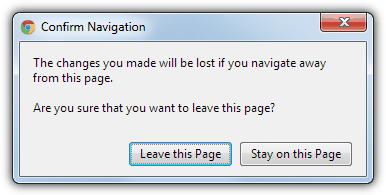
    Popular email services such as Gmail or Hotmail often come with an auto save function which can stop you losing everything you’ve typed in by periodically saving the draft. Once you have finished and sent the email, the draft will be removed which makes this feature a real time saver if you can type quickly. WordPress has a similar function that auto saves when you’re writing a blog post in the TinyMCE editor. Also if you accidentally click the back button or try to close the tab it will popup a warning which also appears for a number of other forms where you type something in.

    Chrome Confirm Navigation window

    There have been times though in the past when this function hasn’t worked properly in WordPress and large chunks of posts were lost and had to be rewritten. If you restrict your typing online and never write much into online forms, editors or emails etc, it won’t be a major issue and you could always copy the text using Ctrl+C to stop you losing it. But if you spend a lot of time online writing into your web browser, a tool to save what you type while you’re typing it could be a real saver of time and headaches.
    (more…)

  • 3 Tools for Firefox and Chrome that Optimize Memory Usage and SQLite Databases

    Mozilla Firefox and Google Chrome are by far the most popular third party web browsers around. Over time they have both increased in the amount of features, and consequently the amount of system resources they consume while running. Add in a few of the 1,000’s of extensions available and your browser could soon consume hundreds of Megabytes of memory and take up large amounts of disc space. Even though both have done work in this area, a lot of people still complain these browsers use far more memory than they should.

    As the browser gets used, slowly it will take more time to load during startup, the overall speed might decrease, and browsing thorough the history will start to slow down. This is a very common problem and occurs partly because of fragmentation in the databases Chrome and Firefox both use. Also if Firefox is left open for several hours, consumed memory of well over a Gigabyte is not uncommon even with only a few tabs open, a long running memory leak issue that plagues Firefox sometimes.

    A useful way to regain a bit of the lost performance in Firefox and Chrome is to compact the SQLite databases they use. A database gets fragmented over time and optimizing it decreases read and write times. Although not such a big problem with performance unless your computer doesn’t have a great deal of memory, optimizing the memory for the browser reduces overheads and leaves more memory available for other programs.
    (more…)

  • Bypass Blogger Content Warning On Offensive Blogspot Sites

    There’s quite a few blogging platforms which you can use to quickly create a blog website. It is very useful in the sense that the owner of the blog site does not need to have any knowledge in creating a website such as registering a domain, signing up for a webhost, updating the name server, installing and configuring FTP client software, uploading files and etc. With a blogging platform such as Blogger, all you need to do is sign up for a free account, choose a subdomain name, select a design from the available templates and start writing with a WYSIWYG editor.

    Blogger is owned by Google and is one of the most used blogging platforms today. You might have come across a Blogger site that shows you a content warning “The blog that you are about to view may contain content only suitable for adults. In general, Google does not review nor do we endorse the content of this or any blog. For more information about our content policies, please visit the Blogger Terms of Service“. Clicking the “I do not wish to continue” button will bring you to Blogger’s main webpage while clicking on “I understand and I wish to continue” will allow you to access the website.

    blogger content warning

    There is no way to manually bypass the content warning and head straight to the website because if you look at the URL, the guestAuth query string comes with 78 random characters. Fortunately it is still possible to automatically skip the blogger content warning with any of the 3 methods below.
    (more…)

  • How To Reopen Accidentally Closed Tab on Web Browsers

    Thanks to the tab features implemented on most if not all web browsers, we are able to open multiple websites from one program window without the confusion of switching between running programs and opened webpages. It is common for some people to have a lot of tabs opened because of constantly opening new hyperlinks from the webpages in a new tab but does not close the previous ones.

    When the amount of tabs increases, so is the memory usage of the web browser and sometimes it can cause the web browser to hang or crawl. A frustrated user may continuously press the CTRL+W hotkey multiple times in attempting to close a few tabs hoping to reduce the memory usage but they can end up accidentally closing the important tabs that they want to read at a later time.

    One way to reopen the closed website is by checking the history where you can find a list of all the visited websites pulled from the local database. The easier way is of course to use the built-in method in reopening closed tabs either through a hotkey or from a few mouse clicks.

    Here is how to undo closed tabs in Internet Explorer, Firefox, Chrome, Safari, Opera, Maxthon, GreenBrowser and Avant Browser.
    (more…)