
Download Windows 7, 8.1 or 10 ISO Images Direct From Microsoft


 15 min. read
  Published on

It doesn’t really matter what version of Windows you have, the best way to get your system working at its full speed and as issue free as possible is with a clean install of the operating system. Simply using Windows over time will eventually degrade its performance. It’s also a good idea to clean install Windows 10 after upgrading so you are not transferring problems from your old Windows install.
It’s easy to get hold of a Windows 10 ISO image, burn it to DVD or write to USB and do a clean install. However, it’s more difficult to source official install media for older operating systems like Windows 7. Of course, there are many unofficial sources but the files have often been cracked, tampered with or altered in some way. Using a trusted source for the download is the preferable option.

The best way to guarantee you are getting a clean and untouched Windows ISO image is by going directly to Microsoft themselves. It used to be easy to download Windows 7 ISO images until they were all removed from Digital River after sales of Windows 7 were discontinued in 2014. Microsoft prefers consumers to download a Windows 10 ISO from the Media Creation Tool instead of a direct download.
Here we show you several ways to download the Windows ISO you need so your operating system can be installed cleanly and safely.
Things to know about Windows ISO images and Reinstalling
- Your Windows license only allows you to reinstall the edition of Windows that you have a license for. If you have Windows 7 Home Premium, you must install Home Premium again.
- You can switch between 32-bit and 64-bit as long as the Windows edition is the same. For example, you can replace Windows 10 Home 32-bit with Windows 10 Home 64-bit.
- You need a legal Windows license or the new install will be in trial mode. Windows 7 users will have a product key sticker. Windows 8.1 or 10 users will either have a separate key if Windows was purchased as a standalone product or the key will be embedded in the system BIOS. It will be read automatically on reinstall if your computer is from a manufacturer such as Dell or HP etc.
- If you upgraded to Windows 10 for free the license is tied to the computer hardware or your Microsoft account. It will reactivate automatically on reinstall without entering a key (if you are reinstalling on the same machine you activated Windows on).
- If you are using Windows 7 with a computer purchased from a manufacturer and cannot read the product key on the sticker, it’s still possible to reinstall and activate without it. Read our article on backing up and restoring the Windows 7 license for help on what to do.
Download Windows 10 ISO With the Media Creation Tool
There are a couple of ways in which you can download a Windows 10 ISO. One is the Microsoft Media Creation Tool which downloads and builds the latest Windows ISO file, performs an in place upgrade or writes the installation files onto a USB flash drive.
1. Download the Windows 10 Media Creation Tool and run it. Accept the license agreement, select “Create installation media for another PC” and click Next.
2. The language, version and architecture type will be chosen that best matches the operating system you are running the tool on. To change these uncheck “Use the recommended options for this PC” and choose what you want from the drop down menus. Click Next when done.

If you also choose Both in the Architecture menu you’ll get an all in one ISO image with 32-bit and 64-bit versions of Windows 10 Home and Pro on the same media.
3. Select “ISO file” to download an ISO image file and click Next. You’ll then be asked to supply a save location and filename. The files will then start to download.
Once complete you can open the DVD burner directly or click Finish and create the install media later. An all in one image with both 32-bit and 64-bit editions included will not fit on a single layer DVDR and you’ll have to use either a USB flash drive or dual-layer DVDR. Once downloaded, you can burn the image to DVD, write it to USB or store the file for later use.
Download Windows 10 ISO Direct From The Microsoft Website
Although the Media Creation Tool works fine, it’s also easy to download the latest ISO direct. Where you download an ISO is actually the same page that offers the Media Creation Tool and it detects whether you are using a Windows web browser. If you are, the Media Creation Tool page is shown, if not, the download ISO image page is shown.
This redirection is done by checking the browser’s user agent string. Simply changing the user agent in your browser to a non Windows version will show the disc image page. It can be done from inside the browser and requires no external add ons. Here we’ll show you how to do it for Chrome.
1. Open Chrome and visit the Windows 10 Media Creation Tool web page and it will offer the tool for download.
2. Press F12 to open the Developer Tools pane. Click the “Customize and control DevTools” button which is the three dots at the top right of the DevTools pane. Select “More Tools” > “Network conditions”.

3. In the User agent section, uncheck “Select automatically”, click the drop down menu and select a user agent that is not Windows. Pretty much any Android, iOS, Blackberry or Mac string will work, including Googlebot and ChromeOS.

4. Keep the DevTools pane open and refresh the page (F5), it should now show the disc image page. Select the edition from the drop down, it will show the latest Windows 10 version and possibly the previous version as well. Click Confirm.
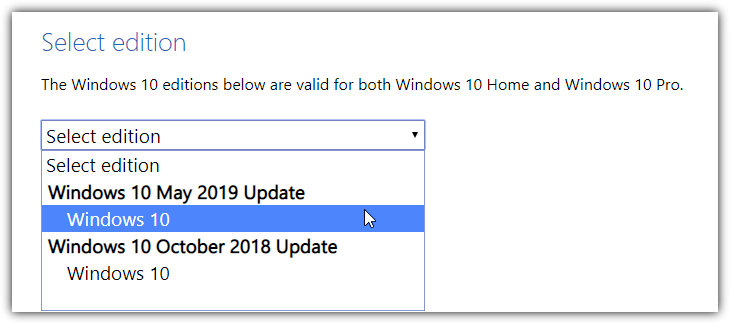
5. Choose the language and click Confirm. The 32-bit and 64-bit ISO images will then be offered for download. Press one of the buttons to start the download. Unlike the Media Creation Tool, the webpage does not offer a 32-bit/64-bit two in one image.
Once the download is complete, you can close the tab. The user agent settings are not permanent and are only applied to that tab. It’s quite easy to do the same in Edge but for Firefox we’d recommend installing an extension. User-Agent Switcher for Firefox is simple and effective.

Just select a mobile device or an operating system other than Windows and press refresh. If for some reason you want to use an extension instead of the manual method shown above, User-Agent Switcher for Chrome will also get the job done.
Download Windows 8.1 From The Disc Image Page
Some users still have Windows 8.1 installed and might prefer to keep it instead of upgrading to Windows 10. After all, it’s supported until 2023. There was a Media Creation Tool for Windows 8.1 but it doesn’t work anymore, you now only need to visit the Microsoft site and download the ISO directly.
1. Visit the Download Windows 8.1 Disc Image page, select Windows 8.1 from the drop down and click Confirm.

2. Select the language from the next drop down and click Confirm again. The download link will show for both 32-bit and 64-bit versions. Simply press the required button to start downloading.
The ISO images for windows 8.1 are from late 2014 and include the major autumn update. Their SHA1 checksums can be checked against the official ISO images to verify they are complete. See later in the article for help in doing that.
Download a Windows 7 ISO From The Disc Image Page
The last official Windows 7 ISO is from 2011 which includes Service Pack 1 and a minor install bug hotfix. There’ll be tons of updates after installation so creating an integrated ISO is worth considering. The one official method left requires entering a Windows 7 product key before downloading the image file.
1. Visit the Windows 7 Disc Image page at Microsoft.
2. Enter your 25 character product key into the box and click Verify. If the key is accepted you will be able to download a Windows 7 ISO that corresponds to the license key you entered. Select the required language and a 32-bit or 64-bit version then download the file.

Important Note: This page has a massive problem because it only accepts retail license keys which you get when purchasing a full copy of Windows 7. If your computer is from a manufacturer such as Dell your key will be of the OEM type and ineligible. The same applies to volume licenses and system builder OEM licenses. Most Windows 7 users are blocked from downloading an ISO image from the only official source available. Well done Microsoft!
On page two we look at some third party methods to get the Windows ISOs from Microsoft, how to get Windows 7 ISOs using virtually the only useful method left and how to verify your downloaded images.
Third Party Methods To Download Windows 7, 8.1 and 10 From Microsoft
Ever since Microsoft removed Windows ISOs from Digital River it’s been more difficult to find a clean and untouched image. There are ways in which you can get to the ISOs on Microsoft’s own servers using other means. Here are a few ways to do it.
Adguard.net Techbench Download Page
Adguard is a Russian website (not the ad blocker) that releases custom ISOs for Windows. They also have a page which is a simple frontend allowing you to download Windows ISO images from the Microsoft servers. This is an easy and quick way to get access to a number of Windows downloads at Microsoft without using hacks or separate third party tools.

Visit the page and in the drop down menus select the type, version, edition, and language. Also displayed are SHA1 checksums for the download so you can check the ISO file integrity once downloaded. Besides Windows 8.1 and a variety of Windows 10 versions, the Adguard Techbench page also offers downloads for Office and virtual machines. It is important to note that none of the Windows 7 options work anymore.
Visit Adguard Techbench Download page
Heidoc Windows ISO Downloader
Heidoc is a website that has been hosting ways to get ISO images from Microsoft for a number of years. They also have a dedicated tool which is able to download not only Windows 7, 8.1 and 10 ISOs but also ISOs for Office 2010, 2013, 2016 and 2019 (also 2011/16/19 for Mac). An ad window pops up on program launch which can’t be closed for a few minutes, you can minimize it though.

Run the program, select what you want on the right and after selecting from a few drop down menus to get the product you want, the image file will start to download. Some of the Office downloads are slightly different because they open and download the file in your browser.
Notes About Windows ISO Downloader:
- Most of the time the Heidoc tool can’t download the standard Windows 7 ISO images. It can on occasion by using its own set of retail license keys to get the ISO from the Disc Image Page mentioned above. However, they get blocked quickly by Microsoft.
- There’s an option to download a Windows ISO from Dell’s repository. This is good for Dell users but other users that download an ISO could find a number of extras such as drivers and software pre-installed. The ISO might cause problems or not work on your system at all.
- The August 2018 entry does actually contain some Windows 7 ISOs direct from Microsoft which have been updated to late 2018. However, they appear to be non standard discs of about 5.5GB in size and there’s very little information online about what they really are. You are welcome to try them but be aware they are an unknown quantity at this time. They also do not integrate updates correctly.
Download Heidoc Windows ISO Downloader
Download Windows 7 ISO From A Third Party Source
Downloading from torrents (or any other third party) is something we’ve mostly discouraged. Mainly because most ISOs are not identical to the images that came from Microsoft. However, because there is very little choice anymore, we have taken the unusual step of finding some torrent files that download completely clean and untouched ISO files.
The English versions of the files we point to have been downloaded and checked by us and they match the known SHA1 checksums of the official Windows 7 SP1 ISO files, so are totally safe to use. They are also reasonably well seeded so you should get an acceptable download speed.
Visit this website at the Internet Archive. It lists an old page which contains a repository of Windows 7 TechNet and Digital River ISO downloads using BitTorrent. The original webpage is no longer available but this cached page still contains all the .torrent files for download.

All the entries shown in yellow above are the standard English ISO files that can be downloaded. Click on the link for the required version to download the torrent file, load up a torrent client (or another method of downloading torrents) and add the torrent file to start downloading. There are many torrent clients available, qBitTorrent is one we’d recommend.
Once downloading is complete you can verify the SHA1 checksum against the official checksums from Microsoft. They are listed in the image but for ease of use, they can also be viewed or copied from the list below. Some other languages are also listed, we haven’t tested them but they should be untouched like the English versions.
Verify The SHA1 Checksum of Your Windows ISO
All Windows ISOs are over 2GB in size so it’s wise to check the download is not corrupt. You can do this by comparing the SHA1 checksum of the downloaded ISO with the checksum from Microsoft. If they don’t match there is a problem and you will need to download the file again. One good source for checksums is the Adguard Techbench page.

If you don’t already have a hash checker handy, we have a list of 10 File Integrity checking tools so you can download one of those. Then compare both SHA1 checksums and make sure they match.

For your convenience, we’ve listed some English language SHA1 checksums for Windows 7 and 8.1 ISOs. We haven’t included Windows 10 simply because it has major updates every six months and the ISOs you can download are constantly changing.
Windows 7 Starter SP1 32-bit
SHA1: E1653B111C4C6FD75B1BE8F9B4C9BCBB0B39B209Windows 7 Home Basic SP1 32-bit
SHA1: 080EC1DE94B88B0F7E8D000690A4AAAA031E2719Windows 7 Home Premium SP1 32-bit
SHA1: 6071B4553FCF0EA53D589A846B5AE76743DD68FC
Windows 7 Home Premium SP1 64-bit
SHA1: 6C9058389C1E2E5122B7C933275F963EDF1C07B9Windows 7 Professional SP1 32-bit
SHA1: D89937DF3A9BC2EC1A1486195FD308CD3DADE928
Windows 7 Professional SP1 64-bit
SHA1: 0BCFC54019EA175B1EE51F6D2B207A3D14DD2B58Windows 7 Ultimate SP1 32-bit
SHA1: 65FCE0F445D9BF7E78E43F17E441E08C63722657
Windows 7 Ultimate SP1 64-bit
SHA1: 36AE90DEFBAD9D9539E649B193AE573B77A71C83Windows 7 Enterprise SP1 32-bit
SHA-1: 4E0450AC73AB6F9F755EB422990CD9C7A1F3509C
Windows 7 Enterprise SP1 64-bit
SHA1: A491F985DCCFB5863F31B728DDDBEDB2FF4DF8D1Windows 8.1 and Pro (Autumn 2014 update) 32-bit
SHA1: C7FA828E01E98B601E0ACA8019F1CB223EB23223
Windows 8.1 and Pro (Autumn 2014 update) 64-bit
SHA1: A8B5DF0B0816280AE18017BC4B119C77B6C6EB79Windows 8.1 and Pro (Autumn 2014 update) 32-bit (English International)
SHA1: 39C57B6D35EAAAB64A971C374FB35004709E1F2C
Windows 8.1 and Pro (Autumn 2014 update) 64-bit (English International)
SHA1: C99A6EC2DE4A71DEF522989D2242CB34AB860A0D
If any checksum you want isn’t listed, you should be able to find it using the Adguard database.
Unlocking Windows 7 Versions From a Single ISO
Each Windows 7 ISO contains all other available versions, except for Enterprise. For instance, the Home Premium 32-bit ISO also contains Starter, Home Basic, Professional and Ultimate, but they are hidden. To unlock the extra versions all you need to do is remove a file called ei.cfg from the image.
A simple way to do this is by using a small program called the ei.cfg Removal Utility which tells the file system of the disc to ignore the file. This is a handy and quick method because opening the file, deleting it and then resaving the ISO is not required, the process is nearly instantaneous. Below is a Home Premium 32-bit install disk with ei.cfg removed.
All you have to do is run the ei.cfg Removal Utility and locate the downloaded Windows 7 ISO, a small window will pop up to say the file is removed, running the tool on the same file again will restore the ei.cfg. Using this method means you can save time and bandwidth and get all Windows 7 consumer editions by downloading one 32-bit and one 64-bit Windows 7 ISO file.



Improve this guide

User forum
0 messages