Author: raymond

  • Search Multiple Search Engines At The Same Time

    What if I was to ask you “What is your favorite search engine?”. I think the vast majority of you would say “Google” without too much hesitation, and probably rightly so, it’s a very good search engine. Looking at some of the more recent statistics, the giant that is Google has around 90% share of the whole search engine market. The next highest is Microsoft’s Bing with a tiny 4% by comparison. Of course, there may be some slight differences of opinion over a favorite search engine as opposed to the one that gets used most often. Because Google is the default choice in popular web browsers like Firefox and Chrome, most users just use whatever the default is and don’t bother, or don’t know how to change it.

    I have to say, my favorite web search engine is definitely Google and I’ve been using it for many years, way back to before it became really well known. If I can’t find anything that I’m looking for in Google, I’d usually just give up. Sometimes it’s probably just simple laziness on my part to not bother searching in other search engines for the same thing, the results would probably be the same anyway, right? But on average, if you did a Google search and then a Yahoo or Bing search using the same search words, they will actually not be the same! It is said that 70% of the first 100 results you get from each engine you try will be different. If you think about it, this makes sense because each company will use different code and search algorithms as well as differing in their ways at filtering useless or undesirable content etc.

    What could be of use sometimes then, is physically performing a search in more than one search engine, there might just be that one website that shows up in one and not the others which could make the difference. Wouldn’t it be great if you could do this by using more than one search engine at once? Well fortunately, there is a way that you can! I found a way that can save my time (and yours) and get more results in less time.
    (more…)
  • How To Access Send To Folder in Windows 7 and Vista

    If set up to your preference, the Windows Send To menu can be a very useful addition to Windows Explorer. This feature has been around since Windows 98 providing a convenient way for Windows users to easily perform simple file operations and send files or folders to other locations such as the Desktop and Documents folder, third party applications, and even to other drives or devices via Bluetooth or CD/DVD writers. A few default locations are provided such as Compressed (zipped) folder, Desktop, Documents, Fax recipient, Mail recipient and attached drives that you can send to, and these options will likely grow after installing third party applications.

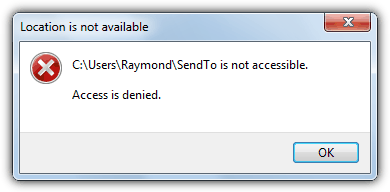
    If you find that the Send To options have too many useless items for your liking and you would like to manually remove some of them from the list, or even add your own custom Send To shortcuts, fortunately you can easily access the Send To folder just like any other Windows folder. In Windows XP is easy to get to and found at “C:\Documents and Settings\{username}\SendTo”. When it comes to Windows 7, 8 or Vista, if you look inside the user’s folder, you will find a SendTo shortcut but double clicking on it will prompt the error message “Send To is not accessible. Access is denied”.

    SendTo Start Menu Access Is Denied

    The Send To in Users is hidden by default and to see it you will first need to select the “Show hidden files, folders, or drives” option from the View tab found in Control Panel -> Folder Options. So why are you getting the Access denied error message when trying to access the SendTo folder?
    (more…)

  • 8 WiFi Scanners to Discover Hidden Wireless Networks

    Most of the wireless routers today comes with some security feature such as security encryption (WEP/WPA), MAC address filtering, lowering transmission power, disabling DHCP & use static IP, and hiding of SSID to help keep your wireless network safe from intruders. Each wireless security mechanism helps to increase the difficulty of unauthorized users from hacking in to your wireless networks but surely does not prevent the determined ones. In this article we will be focusing on one of the option “Broadcast SSID” found in most wireless routers.

    Basically when the broadcast SSID option is enabled, all wireless capable devices can see your router listed together with a bunch of other wireless networks. This option provides a convenience for you to easily connect to it by clicking on your SSID and entering the security key. However, this also allows the nearby hackers to find your network and also see the signal strength with the security type being used directly from Windows without even the need to run a network scanning tool. Non broadcasting wireless networks are not totally invisible as well because they can be detected by any of the 8 tools mentioned below.
    (more…)

  • 2 Ways to Analyze Behavior of Sandboxed Application in Sandboxie

    Deciding if a file is infected or safe from a VirusTotal scan result can be frustrating when half of the antivirus shows that it is infected while the other half shows that it is clean.

    You can try analyzing the half detected file using an online sandbox service such as ThreatExpert but the report only shows the program’s behavior when it’s started and doesn’t tell you what it does when an option is enabled or when a button on the program is clicked.

    This is when the sandbox software such as Sandboxie comes to play by allowing you to run any programs on your computer whether they are safe or infected and yet any changes still won’t affect your computer.

    Although Sandboxie is mainly used to keep your computer safe by running programs in an isolated space, it can also be used to analyze the program’s behavior.
    (more…)

  • Why Sent Email Arrives in Mailbox with Incorrect Date or Time

    Email is the most common method used to communicate on the Internet and is still widely being used today. One of the most annoying problems that a user can face when using their email is the received email shows that it arrived with incorrect date or time.

    Emails are normally sorted by the received date & time for you to easily view the latest new emails as they are shown at the top of the list. You would most likely miss an email that is dated earlier since it’s automatically moved down the list, while an email dated later would cause it to constantly appear at the top of the list.

    Hence, making sure that the emails you receive have a correct time stamp is very important. Many years ago you’d need to identify if you’re experiencing this problem in webmail or email client software because both use a timestamp from different sources. Webmail would get it from your online account settings while the email client software would read it from your operating system clock. Things have certainly changed today with most (but not all) webmail services able to use the date and time setting from Windows.

    If you are receiving emails that are few hours ahead or behind, here is how to fix it.
    (more…)

  • How To Install and Configure FTP Server in Windows

    You may have heard of FTP before which is the reason why you are currently reading this article. FTP is short for File Transfer Protocol and is used to transfer files between computers. Most of the time when you have a website hosted on a server, you are given a FTP information containing the FTP address, username, password and port number that commonly uses 21. This information is for you to connect to your web server using a FTP client software so you can manage the files on your server by downloading or uploading through a directory tree view.

    Other than commonly using FTP for web servers, it can also be used to backup files from a unbootable machine. All you need to do is set up a FTP server on a working Windows computer and then boot up the dead PC with a live rescue CD such as UBCD4Win that comes with a FileZilla FTP client software. You can then establish a connection to the FTP server and start transferring the files.

    There are quite a number of free FTP server software and after testing all of them, we will only show you how to setup your FTP server using FileZilla Server because of the popularity and Xlight FTP Server because it comes with UPnP support that your router will automatically forward the port. Another really easy to configure Core FTP mini SFTP server will also be included.
    (more…)

  • How To Reopen Accidentally Closed Tab on Web Browsers

    Thanks to the tab features implemented on most if not all web browsers, we are able to open multiple websites from one program window without the confusion of switching between running programs and opened webpages. It is common for some people to have a lot of tabs opened because of constantly opening new hyperlinks from the webpages in a new tab but does not close the previous ones.

    When the amount of tabs increases, so is the memory usage of the web browser and sometimes it can cause the web browser to hang or crawl. A frustrated user may continuously press the CTRL+W hotkey multiple times in attempting to close a few tabs hoping to reduce the memory usage but they can end up accidentally closing the important tabs that they want to read at a later time.

    One way to reopen the closed website is by checking the history where you can find a list of all the visited websites pulled from the local database. The easier way is of course to use the built-in method in reopening closed tabs either through a hotkey or from a few mouse clicks.

    Here is how to undo closed tabs in Internet Explorer, Firefox, Chrome, Safari, Opera, Maxthon, GreenBrowser and Avant Browser.
    (more…)

  • 8 Ways to Recognize Foreign Language and Translate to English

    With hundreds of millions websites on the Internet today, there are tons of information that can be found using search engine such as Google and Bing. New websites are being created every day, thanks to the free blog publishing services such as Blogger/Blogspot and WordPress that allows anyone to have their own website live on the Internet within minutes without any technical webhosting knowledge. All of these websites are not necessarily in English and some of the really good articles are written and published in other languages such as Chinese, German, French and etc. Sometimes when we searched for something that is so rarely being published or discussed on the Internet, it is possible that we find some results that aren’t in English.

    The first step in trying to get the webpage with unrecognizable foreign language properly translated is to find out what is the language being used. It is nearly impossible to make a wild guess because there are thousands of main languages, but thankfully here are 8 ways that you can use to automatically identify the language on any text written on the webpage.
    (more…)

  • How Effective is Blocking Websites using HOSTS file?

    A HOSTS file is used to manually force map a hostname to an IP address without relying on a DNS service. The HOSTS file is found on every operating system and for Windows, it is located at Windows\System32\drivers\etc\ folder, just with the filename as HOSTS without an extension. By default the HOSTS file doesn’t contain any mappings and most computer users don’t even need to touch the file. The below image is how the default Windows HOSTS file looks like.

    Windows Default HOSTS file

    However, web developers who are developing websites locally from their computer may find it useful because they can download the whole website’s code to their computer, map the domain name to their computer’s IP address and immediately start editing without worrying about the absolute URLs. Another common usage of HOSTS file is to block websites including advertisements and web trackings by mapping it to a localhost which is 127.0.0.1 or to a non-routable 0.0.0.0 IP address. Other than using the HOSTS file for good purposes, some malware uses it to block the infected computers from accessing security based websites.

    There are times when you need to check the HOSTS file, for example when you suddenly find a website inaccessible from a particular computer while it loads perfectly fine on others. Here is how to view and edit the HOSTS file in Windows.
    (more…)

  • 6 Free Tools to Enable and Customize Hot Corners in Windows

    When Windows 8 was released it divided opinion with its new look and the new features like the Start Screen that other Windows users really were not used to. One new Windows 8 feature already available as standard in other operating systems like Mac OS X or Linux is the idea of using the corners of the screen to trigger various actions when you place your mouse pointer there. This is traditionally called hot corners and it’s been around for a number of years.

    A hot corner is basically quick access to a normal function you might find in the Start menu or with a keyboard shortcut. In Windows 8 both right corners are to show the Charms bar while the top left switches between apps and the desktop. The bottom left shows the Start button from within apps. Hot Corners were very limited in Windows 8 and removed again in Windows 10, but there is much more you can do with the idea.

    windows 8 hot corner

    Besides simply switching between programs, you can also do things like run a program, start the screen saver, open folders or Control Panel items, switch or hide windows, simulate keyboard shortcuts, put the computer in standby and much more. With the right software, you can do this in Windows 10, 7 or ever replace the default actions in Windows 8. Here are 5 free programs to try.
    (more…)

  • 5 Ways to Identify Which Service or Driver Failed During System Startup

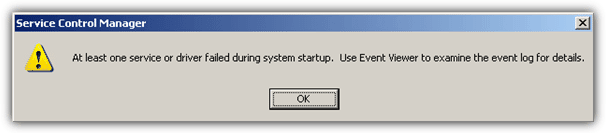
    If you’re still working in an environment with older operating systems such as Windows NT, 2000 or 2003 being used, one of the annoying error messages they can popup is a dialog box during or just after Windows has booted. It will have a message with “At least one service or driver failed during system startup. Use Event Viewer to examine the event log for details”. This can happen when software or drivers don’t get uninstalled correctly or the startup entry isn’t removed from services.

    It’s usually not a big problem because when you click the OK button, the error message will go away and you won’t be bothered by this error message again until you restart Windows. The problem does need investigating though because it could be related to system services or drivers which have an issue and are affecting functions such as the network or causing system performance or instability.

    At least one service or driver failed during system startup

    Unfortunately, there’s no 100% one click fix for this error and the only way you can really find out the cause is by manually checking which service or driver has failed to load through some detective work. We can only guide you on where to check for the fault because fixing it will depend entirely on what has failed and your Windows software configurations etc.

    Here are a few ways you can help identify which service or driver failed during system startup.
    (more…)

  • 7 Ways to Easily Identify SVCHOST.EXE Service Name

    Other than commonly using the Windows Task Manager to end a hung task or process, it is also very useful to quickly check the active running programs on your computer. You may noticed that there is quite a number of svchost.exe listed in the processes tab and is probably wondering what is it and how come there are so many of them running? Basically SVCHOST is used by Windows to run multiple Windows services and the reason why Windows services uses svchost.exe to run is because they are in DLL files and not an independent executable (.EXE) file. If you didn’t know, Windows Services is one of the startup method in Windows where it can automatically run in background without even requiring the user to login to their account in Windows, unlike other startup method where the programs will only run when the user is logged in to Windows.

    svchost.exe in task manager

    Normally users would ignore the existence of svchost.exe listed in the Windows Task Manager and only look for some dubious image name. This is where some malware takes advantage by using the file name as svchost.exe, hoping that you would not notice its presence. One easy way to find out a suspicious svchost.exe is by looking at the user name that is used to run the svchost.exe. If the svchost is ran by SYSTEM, NETWORK SERVICE or LOCAL SERVICE, then it should be legitimate but if it is ran under YOUR user account, then you need to investigate if the svchost.exe file is from another location than C:\Windows\System32\. If you’d like to identify the services that are ran behind the svchost.exe, here are 7 ways to do it.
    (more…)

  • Easily Reboot to Safe Mode for Dummies

    The Windows Safe Mode is often used to perform a number of tasks when they can’t be undertaken in Windows during its normal use. Removing stubborn and difficult to uninstall software or faulty drivers, and deleting malware are just a few of the things that often require Safe Mode to be used because they are affecting Windows too much and cannot be removed in the standard way.

    This “alternate” Windows you can boot to is simply a version of Windows that loads with the bare minimum amount of files, only the basic hardware drivers for the display, keyboard mouse, mass storage drivers etc, and no desktop themes, programs or extra services that would otherwise load up with your system are executed. When the files needed to be worked on are not in use, it’s much easier to delete or move them and help fix any problems you’re having.

    safe mode menu

    Whenever I am required to service a computer that’s not behaving normally, the first thing I’ll do is try to boot in to Safe Mode. Or if I get a call from a friend saying that their computer is acting weird, I’ll also ask them to try and boot in to Safe Mode first and see if the problem will occur there. The problem is, for people who have never heard of or done this before, the chances are I’m going to have a tough time teaching them how to boot in to Safe Mode.
    (more…)

  • 4 Ways in Forcing Firefox to Remember Passwords on All Websites

    Normally when you login to a website, you will notice that your Firefox or Chrome web browser will prompt you to remember or save the password. This is a very useful feature from web browser that offers the convenience of automatically logging in to websites without manually typing the username and password. Some users are concerned about the safeness in saving their password but they can rest assured that they will stay safe when it is encrypted with a master password.

    You may have noticed that your web browser does not seem to ask you to save the password for certain websites such as PayPal, online banking websites like Citibank and etc. This is not due to a possible faulty password manager but rather that the login page containing a piece of code that is used as a standard to tell the web browser not to prompt the user to save the password for security reasons. Here is the HTML source code of the PayPal’s login webpage that has an autocomplete=”off” added to the password input box.

    Autocomplete=off

    If you are looking for ways to bypass the autocomplete=off and force your web browser to save the password on all websites, here are a few workarounds.
    (more…)

  • 3 Tools to Decrypt and Recover Passwords Saved in Firefox

    Every web browser comes with a password manager that lets you save the password that you used to login to a website so that there is no need to manually type the username and password each time you want to login. Other than convenience, a password manager also allows you to use a unique password for every different account which is so much safer. The only question we need to ask is how secure the password manager because a hacker gaining access to your password manager is probably as bad as you using the same password.

    Since Firefox is one of the most used web browser today, let us take a look at how safe is the password manager by trying to reveal the password saved in Firefox and also the possibility of bypassing, resetting or cracking the master password.

    When a password is saved in Firefox, visiting the login page will automatically fill in the login details on the form and the password is normally hidden under asterisks/bullets. Although the password is hidden, it can actually revealed using one of the five methods that we have posted in another article.
    (more…)