Category: Windows

  • Disable F8 Key and Boot Options to Block Access to Safe Mode during Windows Startup

    Whenever Windows is not working properly, most of the time the first thing that knowledgeable users will do is boot the computer into Safe Mode and see if the problem still persists. If Windows will only boot into safe mode and not normal mode, then typically it has a major problem such as disk corruption or the installation of poorly configured software or hardware driver that prevents the operating system from successfully booting normally. Windows in safe mode will have reduced functionality, but the task of isolating problems is easier because many non core components are turned off.

    Although Safe Mode is very useful for troubleshooting computer problems, it can also be used to bypass some security software that will auto start with a normal Windows boot. An example is if you installed an internet monitoring software which restricts or watches your children to use the computer at certain times, they can simply boot in to Safe Mode if they know how and use the computer the whole day. There are times when we need to disable Safe Mode for extra security.
    (more…)
  • Solution to Successfully Burned CD or DVD Shows Blank Content

    I went to one of my work places today and one of the lecturers told me that her desktop’s DVD drive is unable to read a lot of discs that have been burned by students. The drive will only show a blank drive with nothing in it. The disc are then tested on her laptop using VSO Inspector’s disc surface scan and it did not report any problems. Another way to test if it is a disc or drive problem is to insert an original disc such as the provided HP recovery disc to the drive and see if it reads or not. I did that and it was able to read and display all the files in the HP recovery disc.

    This case is pretty similar to a few comments that I get occasionally where users are unable to boot up antivirus rescue cds after burning them to disc. I don’t really know what is the cause of this problem but I always burn my disc at the “LOWEST” speed and never, not even once encounter a computer that cannot read the disc (Windows CDs and DVDs, Hiren’s BootCD, Antivirus Rescue CDs, Linux Live CDs, Windows PE, ophcrack LiveCD) that I burn. I am not saying that we MUST burn it at the lowest speed but there are some drives out there that are less sensitive and will have problems reading disc that are burned at the maximum speed.

    You must be thinking why are there such super fast DVD drive burner available today when we have to burn it at a low speed? Well it is just normal that computer hardware gets faster and bigger in capacity. The manufacturers couldn’t be releasing a slower drive right? So we have a “choice”, to either record our disc in a faster or lower speed.
    (more…)

  • Fix for Blank or Empty Windows Features List in Vista and 7

    If you’ve uninstalled a program in Windows Vista or 7 from Control Panel, perhaps you’ve noticed “Turn Windows features on or off” in the left pane. When you click on it, the Windows Features dialog will appear asking you to “Please wait” and it will start searching for a list of windows features such as games, indexing service, internet information services (IIS) and other system components that you can turn on or off. Vista and 7’s Windows Features list is actually pretty much the same as Add/Remove Windows Component in Windows XP. You can also run Windows Features by typing “optionalfeatures” at the run dialog or command prompt.

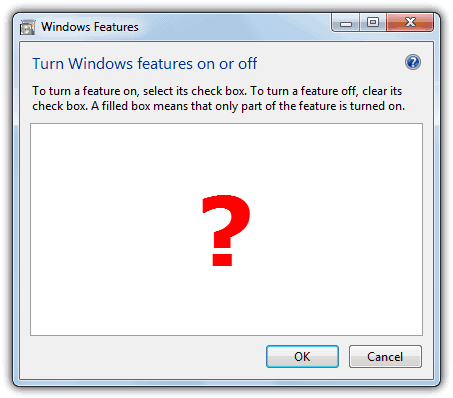
    One of the most common problems that many people are facing with the Windows Features dialog is the window comes out empty or blank and the features list doesn’t appear. You can see “please wait” initially as it tries to make up a list but then it totally blanks out.

    Blank or Empty Windows Features

    Microsoft of course is well aware of this problem and they’ve created a knowledge base article 931712 to acknowledge the problem and also provided 2 solutions to resolve this issue. The first method is to run the sfc /scannow command to scan all protected system files and replace incorrect versions with the correct Microsoft versions. If that didn’t work, they recommend a System Restore.
    (more…)

  • 5 Ways to Solve Error While Deleting Key Problem When Editing Restricted Registry

    Most advanced users know all about it, but if you didn’t know what the Windows registry is, it’s a several megabyte database that stores most of the information for your Windows operating system. It contains thousands of configuration settings for Windows itself, third party software, hardware and preferences for the individual users on the computer. Editing the Windows registry can be dangerous if you don’t know what you’re doing because if you wrongly delete an important key, Windows might not be able to boot up the next time.

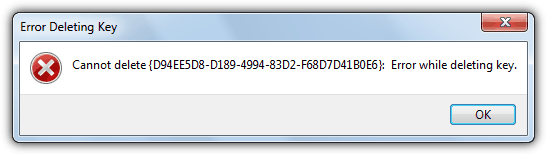
    So no matter how confident and experienced you are, it’s always a sensible idea to be a little bit safer and make a backup of the registry keys that you intend to edit, or even better, make a complete backup of the whole registry as well just in case. If you’re trying to edit or delete keys from the registry to repair or recover from certain problems, you might find that some keys won’t let you do anything with them and you’ll get an error such as “Cannot delete xxxxx: Error while deleting key”. These keys are usually protected to stop accidental deletion and it’s important you have the correct key before trying to change it.

    Error While Deleting Key

    You could also be the administrator on the computer, but still can’t manipulate the required key, which might sound quite odd. Even though the administrator account has a great deal of control, there are other hidden accounts and levels on the system which have even greater access and therefore standard administrator privileges are not enough. To solve this problem, you have to force the registry to allow the logged on user full control of the subkeys. Below are several different ways of performing this operation to give you the required access.
    (more…)

  • Connect Computers Together using Ad Hoc Wireless for Sharing the Internet and Files

    Most people have an internet router at home for connecting to the internet, many will have the added ability of sharing the network via a wireless connection as well. If you have a WiFi router within range it’s quite easy to connect your computer to it for using the internet and sharing files with other computers on the network.

    But if you don’t have a WiFi or even wired router close by it becomes trickier to connect two computers together, unless you happen to have a crossover network cable to hand.

    These days some cheap laptops are even shipping without ethernet ports so WiFi is the only option for connecting to the internet or another computer for file sharing, and a wired only router simply wouldn’t work. Luckily Windows has the ability to connect two computers together over a wireless connection and even allow you to connect to the internet as well as share files.
    (more…)

  • Restore Unbootable Windows System using Offline System Restore

    Every time you install new software such as applications, drivers, games, Windows updates and hotfixes onto your computer, changes are being made to the system files and registry. These changes are now and again not 100% successful and can cause problems. Sometimes an unstable piece of software or beta version, or even a Windows update can make your system misbehave and cause various performance or stability issues after installation.

    Since Windows ME, there has been the function built into Windows called System Restore that allows you to easily go back to the way the system was before the problem occurred. This gives users the option of repairing Windows files and registry settings quickly if they don’t have sufficient time or knowledge to look for solutions to any problems. If you’re able to boot into Windows, then using System Restore to set your computer back is easily achieved by going to Start -> All Programs -> Accessories -> System Tools -> System Restore, and then selecting a restore point from before the issues started.
    (more…)

  • Solutions to CD/DVD Drive Letter Missing from My Computer

    The usage of optical drives has slowly been on the decline for a while now. Partly because small form factor notebooks and hybrid devices are more popular and simply don’t have the room for a CD/DVD ROM drive, and also because mediums like USB flash and portable hard drives are cheap and can be used as a substitute to a CD or DVD to install software. For many of us, an optical drive is still vitally important, whether it’s for reading from and installing games, writing out your downloads, creating a music CD or making a backup of your system.

    Because it behaves just like any other drive attached to your computer, a ROM drive will show up in Windows Explorer and have an assigned drive letter. There is quite a common issue in Windows where the drive completely disappears from My computer in Explorer as if it has been physically unplugged or has broken down. Even Device Manager will tell you the drive is still there and functioning correctly with no exclamation marks to denote an issue.

    cd/dvd drive missing from my computer

    Before you consider replacing the ROM drive because you think it may be faulty, there are some simple solutions which nearly every time will get the drive back showing properly again in My Computer.
    (more…)

  • Easily Download and Install DirectX 10 for Windows XP

    As far as Windows gaming goes, Windows XP was probably left behind way back in 2007 when Vista was released. One of the main selling points of Windows Vista was that gamers simply had to upgrade because of the integration of DirectX 10 into the new operating system. Newer versions of DirectX bring audio and visual enhancements to gaming along with better performance, so if you’re a gamer, you really want the latest DirectX you can get your hands on.

    DirectX is tightly integrated into the operating system when installed so you can’t simply install DirectX 10 or 11 on XP because it won’t work. Although we’re now on DirectX 11 for Windows Vista, 7 and 8, and the next Windows will probably come with DirectX 12, Windows XP is stuck on DirectX 9 which is now over 10 years old. Some games are not made to be backwards compatible with DirectX 9 either these days and you just can’t play the game, whether your graphics card fully supports DirectX 10 and 11 or not.

    microsoft directx 10

    So what do you do if you want to use DirectX 10 on XP but it was never officially released by Microsoft?
    (more…)

  • 6 Ways to Safely Remove Windows XP Update Backup Files to Free Up Hard Disk Space

    Microsoft regularly makes available critical Windows XP and Windows 2000 security patches (or hotfixes as they are also called) which ensure that your operating system keeps up to date. These patches/hotfixes are obtained in a variety of ways such as visiting the Windows Update or Microsoft Update website (accessible from your START button). Other ways are through the Automatic Update service which runs in the background on your PC and runs daily or weekly checks for recently issued updates/patches/hotfixes, or by System Administrators downloading and applying patches and hotfixes to your PC.

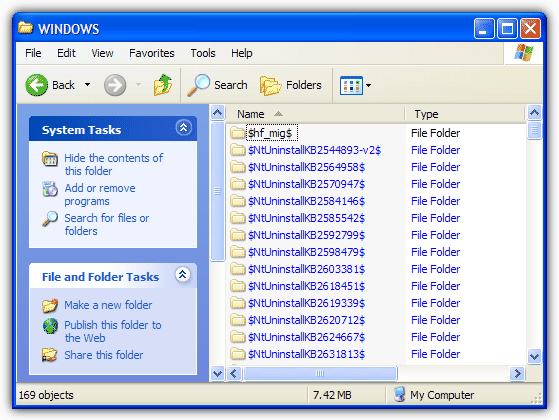
    Regardless of how the hotfix is obtained, there is one thing you should be aware of. All of the files that will be replaced by hotfixes are backed up on your hard drive just in case the update goes bad and you need to return your PC to its prior state and uninstall the patch. These older files that are replaced are stored in hidden folders in your Windows system folder.

    Delete NTuninstall folder

    Over time these backup folders accumulate and can occupy a significant amount of disk space.
    (more…)

  • 6 Ways to Check What Version of Microsoft .NET Framework is Installed on your Computer

    A vast amount of applications will require the Microsoft .NET Framework to be installed on your system before they will run. When a .NET based application runs on a machine without the correct version of the framework present, the results can be unpredictable. It’s a certainty the program will not work correctly or at all, but what happens to inform the user about the issue differs from program to program. Quite often you will get a rather obscure error message pop up which doesn’t really tell you anything informative.

    The application failed to initialize properly (0x0000135). Click OK to terminate the application.

    This is a common error message but gives no indication of whether the problem is related to the program itself or something else.

    Windows application error 0135

    Some programs might be a bit more helpful and warn you a specific version of the .NET Framework is required before installation can continue. Other software could trigger Windows to offer to download and install the missing version of .NET automatically.

    .Net framework auto install

    A big issue with .NET is it’s a sizable download and when installed can take up several hundred Megabytes of hard drive space. Programs are also built requiring a certain version of .NET so just installing one version probably won’t be enough. For example, Program A might need .NET 3.5 while program B might need .NET 4.6. In that case, you will need both installed on your system.

    Windows Server, Vista, 7, 8/8.1 and 10 all come with a version of .NET integrated into the operating system. Since there are many versions of the .NET Framework (from 1.0 up to 4.8) and more than one are often present on the same system to run different applications, sometimes even you as a user might not even be sure which .NET is installed on your computer. Here are a few ways you can find out.
    (more…)

  • 3 Ways to Slow Down or Speed Up YouTube and Other Flash Videos

    Websites such as YouTube and Vimeo contain millions of videos which can be very helpful in showing what you would like to learn. Obviously learning how to do something from an educational video is far more efficient than reading a few pages of text even if they come with images. The only problem is sometimes the steps can be a little too fast for you to follow where you’ll end up replaying the video over and over again until you finally understand it. Or, the video is too boring and you’d like to speed it up a little because you probably need to watch a small section of the video that you’re interested in.

    In this article we’ll be sharing with you 3 ways on how you can slow down or speed up video playback in YouTube including other flash video websites.
    (more…)

  • 5 Ways to Uninstall DirectX and Reinstall to Repair Problems

    If you asked a knowledgeable computer user how to uninstall Internet Explorer completely in Windows, they would likely advise you not to do that because IE is part of Windows and some features require the IE files be present or there would be crashes and other weird problems. The same principle applies to to DirectX. Simply put, DirectX is a Windows technology that enables higher performance in graphics and sound when you’re playing games or watching video on your PC. Even if you CAN uninstall DirectX completely, it’s almost guaranteed you that you will face problems on your computer by doing so.

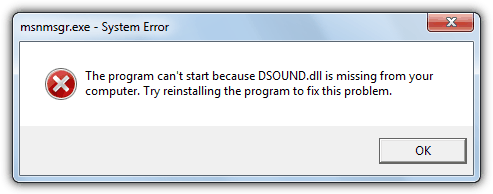
    For example, if you uninstalled DirectX and tried to launch Windows Live Messenger, there will be an error popup “This application has filed to start because DSOUND.dll was not found. Re-installing the application may fix this problem”. That’s because the dsound.dll is a part of DirectX which adds functionality for Direct Sound and Messenger requires it. Logging in to Outlook.com will make the screen and advertisements keep on flashing. As for computer games, anything that relies on DirectX wouldn’t run, which is most games available today.

    program can't start dsound.dll is missing

    So, if you have problems when trying to play a game or watch a video and know that it has something to do with DirectX, the first thing we would suggest is to download the latest version of DirectX and perform a re-installation. This will replace any missing files. However, if re-installation fails or doesn’t fix the problem, your last resort would be to uninstall DirectX and then try installing again. Here’s a few different ways on how to try and uninstall DirectX.
    (more…)

  • Detect Packet Errors in Your Network LAN Connection Status

    Many of us are already using fast broadband connections these days and it’s important to know whether the information you are sending or receiving is correct and error free. When there is an error in sending or receiving data you might have problems downloading or uploading files and they could fail MD5 checksums or appear corrupt and the downloaded Zip or Rar archive won’t open etc. For example, if you keep getting errors sending packets but not receiving, then that could actually point to a faulty network adapter.

    Error information can be an important first step in troubleshooting a connection. It’s very easy to view the basic network connection information, and you can see a network connection’s current status, connection duration, speed and packets or bytes sent and received for the connection. This is usually found by double-clicking the status icon in the system tray or going through Network and Sharing Center > Change adapter settings in Vista and above. The Status dialog box by default shows nearly everything but weirdly chooses not to display errors for the connection.

    local area connection status

    Before using sophisticated or tough to use packet sniffing software to detect packet loss and errors, you can just enable a hidden setting in Windows to show you any possible errors with your connection. Here’s how to do it with a quick registry change and the information will be added to the status dialog window.
    (more…)

  • 8 Ways to Hide Drive Letters or Partitions from Appearing in My Computer and Explorer

    These days most computers come with at least 2 partitions on the hard drive although it’s quite common for you not to be able to see all of them because they have been hidden for various reasons. Windows normally creates a hidden boot partition of a few hundred Megabytes. OEM manufacturers will often install a recovery partition of a few Gigabytes which again is often hidden away so you don’t play with it.

    If you are letting someone temporarily use your PC for a short period of time and would rather they didn’t have access to any of your personal files, one of the easy and quick ways to do it is to hide the drive or drive letter so it cannot be accessed from My Computer or Windows Explorer by the average user.

    It’s also the case that sometimes the inexperienced user will poke around on other partitions and perhaps delete files without actually knowing what they’re for. One of the favorites is created backups from the Windows Vista and 7 backup function for example, which would obviously go on another partition or drive and an ordinary user might not realize what it is.
    (more…)

  • 5 Ways to Stop Windows Automatically Restart After Installing Updates

    Windows Update is a component that can schedule and automatically download and install important security updates for your version of Windows in the background without the user having to interact with the process. While this feature can be very useful for many Windows users to keep their computer up to date, it can also be a complete pain as well because there are one or two issues that can spring up and surprise you when you least expect or want it.

    Anytime you install a Windows Update that requires you to restart your computer, you must restart it or be annoyed with a pop-up message that tells you the computer needs restarting to finish installing the updates. Although you can choose to postpone the restart for a few hours manually, you actually need to tell Windows because depending on the configuration, Windows may restart the computer anyway without your say so!

    Disable automatic updates restart

    If Windows is trying to install critical updates on a schedule or at the next available opportunity that require a reboot, it will popup the restart dialog. But it will also show a timer which will automatically reboot your computer to finish the update, whether you want it to or not. This can lead to lost work or you could lose large downloads etc. There are ways to stop this happening though, here are 5 solutions for you to look at which will stop Windows rebooting automatically after an update.
    (more…)