Category: Windows

  • Change or Remove Button Missing at Control Panel Add or Remove Programs

    The correct and safest way to uninstall or remove an installed software or driver on a Windows computer is from Add or Remove Programs which can be found in Control Panel. When you run the uninstaller, it will simply refers back to the list of files that is extracted to the program’s folder during installation and deletes them. Sometimes you will notice that even after uninstalling a program, the program’s folder and some files will still be there. Those files are the ones that is created by the software, not extracted by the installer. There are some uninstaller that is smart enough to ask you if you’d like to delete the remaining files.

    Normally when you open Add or Remove Programs shortcut from Control Panel, you will see a list of installed software which you can change or remove. The change option is usually used to repair the software. It actually meant reinstall the program with exactly the same components that were installed first time. As for remove option, it uninstalls the software from your system.

    There are times that you need to remove or uninstall a software or driver from your computer but the Change/Remove button in Add or Remove Programs is missing!

    Add/Remove button Missing

    Here is a method to make Windows show the Remove, Change (or the Change/Remove button together) buttons in the listing.
    (more…)
  • 3 Ways to Change a Windows User Account Into an Administrator

    As most computer users know, while you are using Windows, you are logged in with an account. There are different types of account to reflect the amount of control a user is allowed to have on the system, User and Administrator. The default account created on a new Windows is an admin account, and for other users you can create additional user accounts which are limited in what they can do and are useful for less experienced users or to deny high level access to others.
    (more…)

  • Move Windows XP Hard Drive or Change Motherboard Without Getting a Blue Screen STOP 7B Error

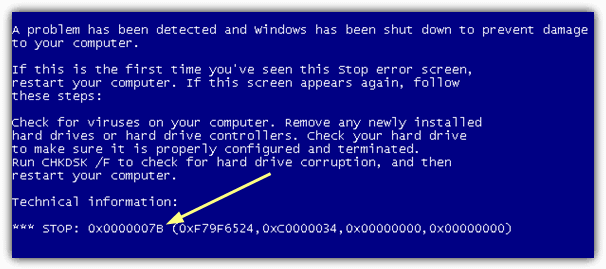
    One feature that was useful in Windows versions prior to XP was you could simply take out a hard drive that has Windows installed and connect it up to another computer. When it boots it up, it’ll start to detect and install all device drivers again. When you change the motherboard or move your hard drive that has Windows XP installed to another computer, be prepared to get endless looping reboots or the famous blue screen of death (BSOD). The error will usually be a STOP 7B error which is related to a problem with the hard drive controller.

    This problem is often simply due to the fact that the storage controller used by Windows XP requires a different driver depending on what type of hard drive controller is on the motherboard. If the old controller uses one driver and the new controller requires a different driver, XP is trying to boot with the old driver and throws up the blue screen because the wrong driver is trying to load. The recovery console or even Safe Mode isn’t usable because Windows can’t boot anything without the correct software for the controller. The only real hope you have of this problem not occurring is to use a motherboard with exactly the same chipset for the hard drive controller.

    Windows Stop 7B Error

    After all these years since the release of Windows XP, it’s still not a straightforward task to move a Windows XP hard drive and partition to another computer without getting a blue screen. There are some easier ways to do it although they cost a fair amount of money. Amazingly, a large proportion of websites on the internet (including Microsoft) will tell you the only solution is to perform a Repair Install or even completely wipe your XP install with a format and re-install.
    (more…)

  • Safest Method to Replace Notepad with Notepad++ in Windows

    The Notepad that comes in Windows is a very basic editing tool to view and edit text files. It can open file extensions such as TXT, INI, LOG, BAT and etc as long as it is a text format. I find Notepad useful when I need to quickly take short notes and also to remove any rich text format especially when the text are copied from websites. One of the biggest problem with Notepad is it does not recognize line breaks from text files created in UNIX or Mac OS operating systems which is the reason why sometimes you see a few very long sentence on a readme file. Other than that, Notepad also doesn’t support tabs, regular expressions, bookmarks and many more functions that can make a text editor really powerful and useful.

    There are quite a number of free third party text editor which is better than Notepad and our favorite one is definitely Notepad++ which we’ve been using it for several years already. Notepad++ has helped us solved many of our text manipulation needs such as generating sequential number, removing duplicate lines, delete lines that doesn’t contain specific words, monitoring log or text file changes in real time, and many more!

    Since Notepad++ is so much better than Notepad, it is a no brainer to replace the built-in Notepad in Windows with Notepad++. Here we suggest the safest method to do it that will still be effective even after a service pack installation without replacing the Notepad.exe in Windows.
    (more…)

  • 4 Ways to Edit Registry Key Values Without Booting into Windows

    Many years ago when I was still a novice in computers, I accidentally disabled userinit.exe from startup thinking that it was spyware using the SysInternals tool Autoruns. When I restarted the computer, I was unable to login to Windows. Whenever I select the user from the list, it logged in and automatic logged off. I had a really tough time trying to restore userinit.exe back to the Windows startup list as it wasn’t easy accessing and editing the registry when Windows is unbootable. Autoruns is much smarter now because when you uncheck userinit.exe from Logon, it will warn you that “disabling or deleting Userinit will prevent users from logging on”.

    In the end I managed to fix the problem but couldn’t exactly remember how I did it because I tried many many ways and I got lucky. I eventually found a real solution on how to edit Windows registry key values without booting into Windows. This is also useful for editing malicious startup items such as rogueware and ransomware. If you have a similar situation as my previous case which requires you to edit the registry without Windows, then here is how to do it.

    Listed here are 4 methods to edit the Windows registry keys using a bootable CD. Although you are being shown how to repair the userinit registry key, these methods can obviously be used for any other keys in the registry that need to be edited.
    (more…)

  • How To Troubleshoot Windows Startup, LogOff, Login and Shutdown Problems

    The fastest time to boot up or shut down your computer is obviously when you first got your computer or after installing a fresh copy of Windows. As time goes by after going through multiple installations and uninstalling third party software, the accumulation of temporary files, the increasing size of the registry, disk fragmentation, accidental infection of malicious software with improper cleanup, all these will eventually lead to causing Windows to take longer than usual to startup or be unable to completely shut down the computer.

    No one likes to use a computer that takes 5-10 minutes to boot into the desktop or a Windows that doesn’t do a proper shut down where you are forced to press and hold the power button until it turns off. A forced shut down can cause data corruption when the files are opened or even hard drive failure. Troubleshooting the cause of Windows startup and shutdown problems may not be that easy because a lot of factors can contribute to this problem.
    (more…)

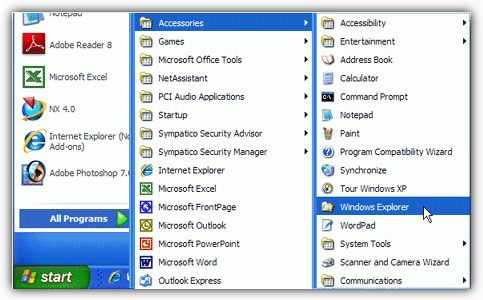
  • Restore or Fix Missing Accessories Shortcuts in Start Menu

    If you regularly have people asking you how to do something on their PC, usually the easiest way to guide them is through the Start Menu and tell them to simply click on the icon. A lot of very basic and highly used functions are tucked away in the Start Menu, and notably in the Accessories folder. For example they can find accessories shortcuts for simple tools like Sticky Notes, Paint, Calculator or Notepad in the Accessories folder, as well as more advanced tools like the Disk Defragmenter, Resource Monitor or Windows Easy Transfer.

    For various reasons, sometimes these shortcuts can go missing and it makes the average persons job to run simple tasks and tools a bit more difficult. Most of the Start Menu entries in Accessories are simply shortcuts to utilities contained within the Windows or System32 folders and are there purely to give quick and easy access. More advanced users could probably live without them because they know the commands to run them anyway through the Run box, but more inexperienced or average users rely on them a lot more.

    Windows Start Menu Accessories

    There are a few ways to restore back the Accessories group to the Start Menu and funnily enough XP users have it the easiest because there’s a simple tool that can do it for you. Vista and 7 users aren’t quite so lucky as there doesn’t seem to be the equivalent tool around for them.
    (more…)

  • How To Fix Unable to Install Scanner or Imaging Devices Due to Registry Incomplete or Damage Code 19

    The Device Manager (devmgmt.msc) in Windows is the best place to check if a device such as printer, scanner, mouse, keyboard, DVD-ROM, network adapters and etc is installed and working properly. A device that is not working will show a yellow exclamation mark on the icon itself with the tree automatically expanded. You can find more information on the error by double clicking on the device to bring up the properties window. Here is an example of a common error message “Windows cannot start this hardware device because its configuration information (in the registry) is incomplete or damaged. (Code 19)“.

    Windows cannot start this hardware device because its configuration information in the registry is incomplete or damaged code 19

    If you are getting the same code 19 error for your imaging devices such as scanner or even a multifunctional all-in-one printer, the good news is the device is not faulty and can be easily fixed by following the simple instructions below.
    (more…)

  • How To Disable CD or DVD Auto Eject in Windows Vista, 7 and 8

    Something introduced into Windows Vista and and is still there in Windows 7 and 8 was that if you don’t have a disc in your CD or DVD drive and you click on the drive in Windows Explorer (or double click on it in Computer), Windows will very kindly open the drive tray for you to insert one. On the face of it, this may seem like a nice thing to have, but quickly gets annoying if you sometimes click on the drive by mistake. This is especially true when your drive is hidden behind a door in your case, the tray will just hit the back of it.

    Insert A Disc

    Although it sounds like a very trivial thing, in Windows there is no setting available to change it where you can just tell Windows not to eject the drive tray. It seems that auto eject is hard coded into Windows and there is no perfect way to disable it, only various workarounds. Windows assumes that when you try to access the optical drive and no disc is present, then you would want the opportunity to insert one.

    There are a few very simple workarounds which don’t require any special actions. One is to right click on a drive to access it instead of left clicking, which isn’t very useful when you’re so used to left clicking. Another is to leave a disc in the drive at all times so that if you click on it, you will see the contents on the disc instead of it ejecting. Again, not something you might find acceptable. Here’s a few other workarounds that aren’t perfect, but are more useful.
    (more…)

  • 10 Ways to Browse the Internet and Use your Computer Without a Mouse or TouchPad

    Maybe your mouse or touch pad at your laptop is inoperable, or maybe you forget to bring it with you. Perhaps you are having USB driver problems, and your mouse isn’t working properly or at all. A computer can still work without a mouse but it is very tough to navigate around Windows. You have to know the correct shortcut keys to be able to open programs, get around the desktop and work inside programs. Windows has hundreds of shortcuts, at least some of which will need to be learned.

    Browsing a webpage in your web browser without a mouse can potentially be an even more painful experience because you’ll end up having to hit the Tab key loads of times to cycle through all the links on the page to get to the one you want to access. What will make things easier if you have to use the keyboard instead of a mouse or touch pad, is having it behave like a mouse so you don’t have to learn tons of shortcuts. Or at least make it easier and more efficient to navigate your way around a webpage.
    (more…)

  • How To Make a Windows XP Install Disc That Includes Drivers

    Although Windows XP is no longer officially supported by Microsoft it’s still a hugely popular operating system. Now is obviously a good time for people to move to Windows 7 or 8 if possible, but not everybody can or wants to completely leave XP for various reasons. Time moves on though, and things like software compatibility and especially driver support will eventually become more of a problem if you use newer hardware for your Windows XP equipped computer.

    One area where Windows Vista, 7 and 8 have greatly improved over XP is driver support out of the box which is partly why the XP install disc is a CD and the others are a DVD. This is obviously a great help because having the video, motherboard, drive controller, sound and networking hardware detected and the drivers installed automatically can save time and effort, especially if you can’t access the internet to download any drivers because your network adapter has no driver installed.

    It can become quite tough finding all the right drivers when you reinstall Windows, some may come from the manufacturer website, others could be for unknown or discontinued hardware. DriverPacks is a set of hundreds of drivers which you integrate into a Windows XP install disc, and then while Windows is installing, any needed hardware drivers contained in those packs are automatically installed as well. It’s a nice solution when you have to do nothing but wait a few extra minutes instead of playing detective or using another computer to get your drivers for a clean install.
    (more…)

  • 5 Freeware To Fix Problem Ejecting USB Mass Storage Device Error

    There are 2 drive removal policies in Windows which are quick removal for convenience or better performance for speed. By default the “Quick Removal” policy is selected to disable the write caching on the device so that you can conveniently unplug the USB flash drive without the need to eject the drive from Safely Remove Hardware. Even though the quick removal policy is enabled, you should always try to use the safely remove hardware icon whenever you can because there is always a risk of data corruption.

    USB removal policy

    An example is when you copy a file to or from the USB flash drive, you will see that the LED is blinking which means there is an activity going on and you shouldn’t unplug the drive or else the file that is being copied will get corrupted. There are times when the drive doesn’t appear to be in use, a file can be locked to the drive in the background which is when Windows will report that “This device is currently in use. Close any programs or windows that might be using the device and then try again.”

    problem ejecting usb mass storage device

    If you’ve closed all visible programs that are attached to the USB flash drive but you’re still unable to safely eject, here we have 5 tools that are able to show the hidden locked files on the USB mass storage device and give you the options to unlock, delete or move the file.
    (more…)

  • How To Change Windows Default Save As or Open Location

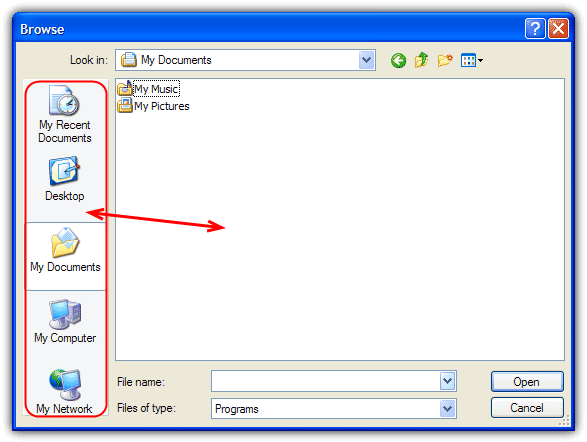
    Whenever you open a file from any program or try to save a file using “Save As”, most of the time the default location would be either Desktop or My Documents. I did a little research and found out that it can’t be changed. However, at the left side of the “Save As” dialog, you will see 5 locations which is My Recent Documents, Desktop, My Documents, My Computer and My Network Places that has been preset for you to save.

    Those 5 locations are called the “Places Bar” and it is supposed to be a convenient way for you to save it to the preset location. The “Places Bar” concept is a good idea, but not everyone regards those five default locations as the most suitable for their situation.

    Change default save as location

    If you’re working on something that frequently needs to save files to other than one of the preset locations, you can change the default save location, so you don’t need to browse to the location each time you want to save. I will show you how to easily you can change the Windows default Save As or Open Places Bar Locations. This method is only for Windows XP and will not work on Vista and 7. There is another article covering newer Windows operating systems such as Vista and 7 although the tools mentioned do also work with XP.
    (more…)

  • Disable or Stop Auto CHKDSK During Windows Startup

    One of Windows annoying so called “features” is the Windows disk checker (Chkdsk) being automatically executed whenever you don’t shut down your computer properly. The blue colored screen appears on Windows XP or black colored screen for Windows Vista and 7 during boot that says:

    Checking file system on C:
    The type of the file system is NTFS.
    One of your disks needs to be checked for consistency. You may cancel the disk check, but it is strongly recommended that you continue.
    To skip disk checking, press any key within 10 seconds(s).

    Simply pressing any key would stop Check disk from running but when you restart your computer, you’ll get this prompt again because Windows still thinks the drive needs scanning and will keep reminding you until it is checked. Sometimes, even after letting Check disk scan the drive that it wants to, the checking process would still automatically run at next boot and it wants to check the drives again.

    Disable CHKDSK at startup

    What we have found out is that when Windows detects there has been an improper shutdown or a drive such as a USB flash drive has been ejected before the system has finished with it, a secret value is stored on the drive to let Windows know about the issue and force a Check disk request. This value is known as a “Dirty bit” and is a single hex value (2 values for Windows 8) that Windows looks at on boot for system drives or when the the external device is inserted.
    (more…)

  • How To Disable, Uninstall or Remove Windows Defender

    Since Windows Vista, your operating system comes with an anti spyware program called Windows Defender. It’s a small piece of software that runs in the background to help protect your computer from various pieces of spyware and malicious software. Defender has been around since 2006 and although not a fully featured security application, it does at least offer some protection for Windows Vista and 7 out-of-the-box. In Windows 8, Microsoft went a step further basically renaming Microsoft Security Essentials to Defender, and it’s now an antivirus package as opposed to just small resident anti spyware tool.

    The problem with all Defender versions in Windows Vista and above is it’s integrated into the operating system and installs by default with no visible or hidden option to uninstall. Many people are looking for ways to disable, uninstall or remove it from their system as they prefer to use other software. Windows XP users at least have the luxury of choosing whether they want to download and install Defender in the first place as it’s a separate package, and then have the option to uninstall again through Add or Remove Programs.

    Luckily most of the time when you install a new anti spyware program or antivirus application that includes anti spyware, it should be smart enough to disable Windows Defender as your new software takes care of it from now on. However, if Defender is still running or causing other issues, you need to know how to turn it off manually or in more extreme cases remove it from the system completely. Here we show you how to do both.

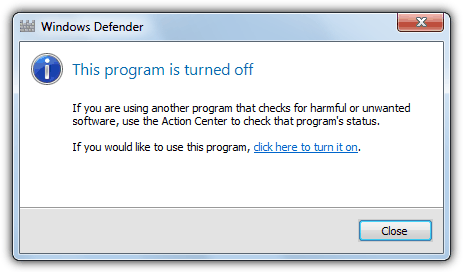
    windows defender program is turned off
    (more…)