Category: Software

  • Bulk Image Converter: Best Online Tools & Software in 2023

    You may want a bulk image converter to transform images, graphics, and photos from one format to another to make them compatible with your devices, programs, platforms, or storage devices. Common image formats include TIF, BMP, PNG, XBM, JPG, WBMP, and many more.

    Using a bulk image converter, you can add a watermark to photos, change the image sizes, flip them, and change their color depth. You can also edit image properties, customize tags, and rebrand the files. 

    You can use typical online and offline image converters when dealing with one or two images. However, if you want to convert bulk images, you’ll need a reliable batch image converter.  

    Best Batch Image Converters

    There’s a huge collection of image file format converters to choose from, but which are the most reliable? We tested different tools online and noted the best free image converter software and their pros and cons. 

    In the article below, you’ll find the best tools to convert different file formats, whether WebP or JPG. We’ve shortlisted the top 5 to help you choose faster. 

    ? Best For Top Features
    1. Wondershare UniConverter Video conversion and multimedia task Convert videos to a wide range of formats
    Burn DVDs and CDs from a variety of sources
    Trim, crop, add watermarks, subtitles, and other effects to your videos.
    2. XnConvert Convert, resize, and edit your images Convert your images to and from a wide range of formats
    Resize your images while maintaining the aspect ratio
    Add text or image watermarks to your images
    3. BatchPhoto Batch editing and converting of photos Editing tools, such as resizing, cropping, rotating, and flipping your images
    Filters and effects that you can apply to your images
    Add text or image watermarks to your images
    4. RedKetchup Resizing multiple images simultaniously Resize multiple images at once, saving you time and effort
    Customizing your image resizing, such as adding padding
    Automate the resizing process by creating presets for your image resizing
    5. AnyWebP Converting images to the WebP format Convert your images to and from a wide range of formats
    Converting images to the WebP format
    Customize your image conversion

    1. Wondershare UniConverter – The Best for Converting Images Without Quality Loss

    bulk image converter online free
    • Operating system: Windows, Mac, and Linux. 
    • Developers: Wondershare

    Wondershare UniConverter is our top choice for the best desktop app for converting bulk image files. It’s free and simple to use.

    The software can convert images to jpg, BMP, TIFF, and PNG without compromising quality. Using the software, you can crop, add effects, remove/add watermarks, and resize images. If you need to convert audio or video without an internet connection, Wondershare UniConverter can help.

    To convert bulk images, follow these simple steps:

    • Download, install, and launch Wondershare Image Converter on your machine
    • Select Image Converter from the program’s tool menu.
    • Click the + symbol in the interface’s center or the Add Files button to upload multiple pictures simultaneously.
    • Edit images (if needed).
    • Click on the corresponding symbol below the image thumbnail to crop, apply effects, or add a watermark. You can adjust individual file sizes with these symbols.
    • Click on the Convert All Images tab in the upper right area.
    • Choose the format and size of the final output.
    • Alter the size of all added files by using the settings icon.
    • Click the Convert button in the tool’s lower-right corner to convert multiple images simultaneously
    • Select a folder on your desktop to store the output files in the File Location tab.

    Wondershare Converter comes with three pricing tiers, including a quarterly Plan of $29.99/Quarter, an annual Plan is $39.99, and a perpetual plan of $55.99 to be paid once only.

    Download Wondershare UniConverter 

     The Pros

    • The software produces high-quality outputs.
    • The user UI is straightforward enough for beginners to use.
    • Converting pictures is quick and easy.
    • Cropping, effects, and watermarking can all be applied to the added images in this batch picture converter.
    • It is possible to adjust the file size and make all pictures the same resolution.
    • An intelligent cutter is a great tool for automatically splicing and cutting videos.

     The Cons

    • Unreliable customer support.
    • The free edition has some restrictions.

    2. XnConvert – Best Batch Image Converter for Windows

    bulk image converter download
    • Operating system: Windows, Mac, and Linux. 
    • Developers: XnSoft 

    XnConvert is a free cross-platform batch picture converter. You can use it to edit your images, quickly resizing, compressing, and converting them to different formats. You can also employ more than 80 actions on your images, including cropping, color alterations, and filtering.

    It supports bulk image conversion to png and graphic formats such as TIFF, JPG, camera RAW, GIF, and JPEG2000. You can save and reapply your templates for a subsequent batch picture conversion.

    XnConvert has more than 20 different translations, so most people across the globe can use it. It provides robust features in a user-friendly interface with efficient drag-and-drop tools. XnConvert supports up to 70 file formats and is compatible with over 500 file types. 

     Pros

    • XnConvert provides support for numerous formats 
    • It is very straightforward to use
    • It has a good collection of tools, filters, and repercussions
    • It enables more than 80 actions for automated editing
    • It provides cross-platform compatibility 

     Cons

    • The preview area is inadequate
    • Customer support may take time to respond

    You can use the free version of XnConvert, but if you want to upgrade, contact customer support for more pricing information.

    Download XnConvert

    3. BatchPhoto – Best for Organizing Repetitive Tasks

    bulk image converter to jpg
    • Operating system: Windows, Mac, and Linux. 
    • Developers: Bits&Coffee™

    BatchPhoto is an essential tool for editing, converting, and processing photos simultaneously. You can use it to apply regular and predictable actions on a large selection of pictures. 

    For example, if you have a folder with 100 photos and need to resize and convert them to a specific file format, you can apply these changes to all photos simultaneously. 

    Since 2005, BatchPhoto has systematized repetitive image-processing tasks. You can edit countless pictures simultaneously, and it promotes multi-core CPUs. 

    The software supports over 170 image formats, including jpg, TIF, and PNG. You can change photos in folders containing new or updated photos.

    Follow these steps to convert bulk images using BatchPhoto:

    1. Download, install, and open BatchPhoto on your computer.
    2. Click Add Photos on the software to select the images to convert.
    3. Select multiple images at once or choose an entire folder.
    4. Move to the Edit Photos screen by clicking next.
    5. Click Add Filter and select Format Conversion from the dropdown menu.
    6. Choose the format you want to convert your images to.
    7. Resize your images by selecting Resize and entering the desired dimensions.
    8. Once you have set your conversion options, click Next to move to the Set Output screen.
    9. Choose the folder where you want to save your converted images.
    10. Click Process to start the conversion process.

     Pros

    • BatchPhoto has multi-core CPU capability, allowing you to edit thousands of photos instantly
    • Its design allows for the easy and effective operation
    • It lets you apply pre-defined filters to the pictures while selecting quality
    • There is a file preview accessible
    • It enables you to add graphic effects like sepia, charcoal, and oil paint to photos in bulk.

    Cons

    • There is little support for input formats
    • Being an online utility, it requires a stable internet connection

    Attempt BatchPhoto for free right now, or buy immediately and save up to $20. It is priced at $29.95 for BatchPhoto Home, $49.95 for BatchPhoto Pro, and $129.95 for BatchPhoto Enterprise.

    Download BatchPhoto

    4. RedKetchup – Best Bulk Image Resizer

    bulk image converter to png
    • Operating system: Windows, Mac, and Linux. 
    • Developers: RedKetchup.io

    RedKetchup is a free online image processing tool that lets you easily adjust, edit, or compress bulk images. Its functionality depends on your browser’s capability since images are processed using JavaScript.

    To convert your files, you must upload them to the website and choose the desired output size. You might need to keep the browser tab open and active to ensure a smooth and quick process.

    Set the color depth selection to 8-bit to compress PNG or BMP files and ensure consistent image quality. You can also choose settings from a predetermined project or customize every setting in the configure batch tab.

    Here’s the procedure you can follow while using RedKetchup:

    1. Choose the photographs you wish to resize, edit, or compress
    2. Drag and drop the picture files or directories
    3. Choose a zip file that contains the photos
    4. Copy an image to the clipboard.

    The maximum storage is determined by how much system memory is available, and each copy is analyzed separately. However, downloading all of the photographs in a zip file may require three or four times as much storage capacity.

    Pros

    • It supports most image formats
    • Size, backdrop, color intensity, and sharpness can all be customized
    • There is a choice to configure conversion settings for a preset activity

    Cons

    • It is internet-based and thus can’t function offline
    • The conversion speed is a bit slow and reliant on internet connectivity

    RedKetchup has a free version available for those willing to try it. Contact customer support to get a custom quote for the pricing.

    Download RedKetchup

    5. AnyWebP – Best Bulk Image Converter to WebP

    bulk image converter png to jpg
    • Operating system: Windows, Mac, and Linux. 
    • Developers: AnyWebP

    In 2010, Google unveiled the WebP format as a modern image format. WebP is an image encryption format like JPEG. However, WebP outperforms JPEG for the same picture quality in performance and encoding efficiency. You can reduce your website’s loading time and increase user experience considerably by using WebP.

    If you need to convert jpg, png, and gif photograph photos to WebP format, consider AnyWebP bulk image converter to WEBP. The tool’s UI is straightforward; users can select the file size and quality.

    The tool operates via the web interface and relies on server speeds to perform the conversion process. It enables you to swiftly and accurately convert photos to WebP files. 

    Pros 

    • You can add both Google Drive or local files
    • It provides the option of picking the file size and quality.
    • You can convert as many photos as you want.
    • It has an easy-to-use interface.

     Cons 

    • It only supports conversion to WebP format
    • It has a 30MB maximum size restriction per image.

    You can try the BulkImages to WebP Converter for free before investing in it. Contact customer support to get a custom quote regarding the software’s pricing.

    Download AnyWebP

    How can I convert bulk images?

    There are various image formats, depending on your requirements. We think Wondershare UniConverter Image Converter is the best tool to convert as many images as possible without losing the picture quality. Several programs for resizing images are also available; the key is to choose the one that best suits your demands.

    You can also try BatchPhoto or RedKetchup before choosing their paid versions, which have more capabilities. This way, you can determine the best software to convert bulk images and customize them to your liking.

    Consider the pricing for each, keeping in mind some require downloading tools to your computer while others operate via the web.

    The Verdict

    You can select a batch picture conversion tool using the selections above that best suit your needs. This will ensure you meet your business expectations or share images with your peers. 

    What do you think about the above list? Share your comments below, or tell us about other tools we should add to the list above. 

  • Safest Torrent Client: 10 Best We Tested in 2023

    Torrenting using the safest torrent client is the most preferred way to download large files such as software, movies, and books. Although legal, it exposes your IP address to everyone and increases the risk of getting malware, spyware, and viruses on your computer. 

    Torrenting copyrighted material is illegal, but copyright laws are complicated. If you don’t take proper precautions, you might expose your internet activities to copyright trolls and your ISP. You might get a warning letter for downloading stuff you didn’t know was copyrighted.  

    This article discusses the best ways to stay safe while torrenting files and reviews the safest torrent clients you can use to download large files. 

    What is the Safest Way to Torrent?

    Most digital-privacy-conscious torrent users rely on virtual private networks (VPNs) to hide their internet activities from Internet Service Providers and copyright trolls. Good VPN clients don’t keep a log of your internet activity and are fast enough that they don’t interrupt your downloads. 

    When choosing a VPN, look for one that isn’t based in a country where the government can demand customer records. We highly recommend using ExpressVPN to ensure private and secure internet access on any device. 

    ExpressVPN doesn’t keep your activity or connection logs, and you can set it up on any device, including PC, Mac, Android, or iOS. It operates on ultra-fast servers in 94 countries and offers a 30-day risk-free money-back guarantee. 

    To secure your computer from malware and viruses from torrent files, we highly recommend installing an antivirus like ESET Antivirus. It’s available on Windows, Mac, and Android devices. 

    What are the Safest Torrent Clients? 

    The safest torrent clients have different safety features and tools, with some being safer than others. Knowing which torrent client to use to avoid malware, spyware, viruses, and snooping eyes can be overwhelming. 

    After rigorous research and testing, we’ve compiled a list of the 10 safest torrent clients we think meet the criteria to help you avoid unsafe ones. Read the comprehensive list of the top 10 torrent/P2P clients below. 

    Best for Top Features
    1. BitTorrent Downloading files sequentially Downloading torrents in bulk
    Assigning priorities to hasten downloads
    Managing torrents remotely
    2. uTorrent Downloading torrents on Android or tablet Virus and malware protection
    Can stream or play any file type
    Better file conversion capability
    3. qBittorrent Downloading without redistributing Polished user interface with no Ads
    RSS feed support with download filters
    Supports many extensions
    4. Deluge Protocol encryption for safer downloading Local peer discovery and exchange
    Highly customizable Plenty of plug-ins
    5. Vuze Downloading torrents on the go Control upload and download speeds
    Auto start on device restart
    Search and discover torrents 
    6. BitLord Finding the network’s maximum carrying capacity Search to find torrent files
    Play videos on file while downloading
    Connect with Chromecast
    7. Transmission Encrypting files and enhancing IP filtering Built-in server to control transmissions remotely
    Peer caching and blocklists for bad peers
    Bandwidth limits and support for IPV6 
    8. WebTorrent Prioritizing certain torrent files  Free, commercial, ad-free, and open source
    Stream videos on AirPlay, Chromecast, and DLNA
    Lightweight and fast
    9. BitPort.io Downloading 1 torrent every 24 hours Torrent via the cloud
    Support for Chromecast and Apple TV
    Google Drive capability
    10. BitComet Detecting server support for downloads to resume Long-term HTTP and DNS seeding
    Preview files while downloading
    Speed up downloads and revive dead torrents

    1. BitTorrent – Safest torrent client overall

    torrenting
    • Operating System: Windows 10, 11, 7,  Mac,  Android, iOS
    • Pricing: Free 
    • Developer: Bram Cohen and Rainberry, Inc 

    BitTorrent is a renowned and powerful free torrent client with over 2 billion users. It has many features and supports various operating systems, including Windows, MacOS, Linux, Android, and iOS. 

    BitTorrent is among the longest-running torrent clients that receive regular updates and support. The most useful features include built-in search functionality, encrypted connections, and magnet link support. 

    It comes with drag-and-drop features and a customizable interface. You also get malware protection, playback, and Wi-Fi-only support on Android to help you avoid using your data when on a limited data plan. 

    The biggest drawback of BitTorrent is that it includes Ads in the free version and comes with bundled software you rarely need. 

    Download BitTorrent

    2. uTorrent – Best for downloading torrents on Android or tablet

    utorrent
    • Operating System: Windows 10, 11, 7,  Mac, Linux, Android
    • Pricing: Free 
    • Developer: Rainberry, Inc 

    uTorrent is one of the most widely used torrent clients globally, with 125 million users. It’s lightweight and has a simple and organized interface, making it excellent for novice and advanced users. 

    UTorrent has a web version called uTorrent Web that runs entirely on your web browser, meaning it doesn’t consume many computer resources. The web version is also faster than uTorrent clients for Windows. 

    The software has various customization options, including scheduling and prioritizing files, setting bandwidths, verifying seeds, managing clients remotely, and finding torrents with built-in search engines. 

    Thanks to its built-in media player, you can install third-party plugins and stream torrents as they download. 

    Download uTorrent

    3. qBittorrent – Excellent choice if you want to Download without redistributing

    open-source torrent
    • Operating System: Windows 10, 11, 7,  Mac,  Linux, Android 
    • Pricing: Free 
    • Developer: Bram Cohen and Rainberry, Inc

    qBittorrent is a free and open-source torrent client to download torrents fast and easily. The platform doesn’t display Ads nor has bundled software that you don’t need. 

    qBittorrent is simple and easy to use with advanced features at your request. It’s most suitable for beginners and users with relatively weak hardware and performance computers. The fact that some users claim qBittorrent cuts off their internet connection must be considered.

    The features on qBittorrent include RSS feed support, sequential downloading, IP filtering, torrent creation, bandwidth scheduling, media playback, and UI lock. 

    It comes with tools to schedule computer resource limits while downloading and watching videos while they download. However, it lacks extensions for advanced users.

    Download qBittorrent

    4. Deluge – Great for protocol encryption for safer downloading

    torrent client
    • Operating System: Windows,  Mac,  OS X
    • Pricing: Free 
    • Developer: Deluge BitTorrent client Team

    Deluge is a great alternative for beginners looking for a simple, user-friendly, and powerful torrent client. It’s free and open-source, making it versatile. 

    The torrent client supports third-party plugins, allowing you to extend its capabilities to customize your experience. You can set bandwidth limits, download and upload speed limits, IP block rules, and download schedules. 

    The platform does not have Ads or bundled-up software with the main package. However, the tool has a steep learning curve, especially for people unfamiliar with torrent clients.

    Download Deluge

    5. Vuze – Excellent choice for downloading torrents on the go

    how to download torrents
    • Operating System: Windows,  Mac,  Android, iOS
    • Pricing: Free 
    • Developer: Azureus Software, Inc

    Vuze is perhaps the most feature-packaged and customizable torrent client on the internet. It’s not easy to master, but you might need it to add your features and capabilities if you’re an advanced torrent user. 

    You can also expand its functionality by installing third-party software plugins. Users can stream files as they download using the in-built video streaming player. 

    The torrent client has tools to adjust the download/upload speed limits, bandwidth limits, IP filtering, magnet link support, and more. You can also search for torrents in the in-built search engine. 

    Download Vuze

    6. BitLord – Good at finding the network’s maximum carrying capacity

    torrent app
    • Operating System: Windows, macOS, and Android
    • Pricing: Free 
    • Developer: House of Life

    BitLord is a useful torrent client with amazing features to help you download your desired files. You can use it to sort out torrents by names, download and upload speeds, dates, and estimated finish dates. 

    Bitlord prevents your computer from going to sleep when downloading or uploading files. By adjusting how many files to download at a time, you can increase the download speed and schedule files based on importance. 

    The user interface is clutter-free but seemingly old-fashioned. It allows users to create torrents and protect the app with a password to prevent someone from accessing their downloads. 

    You can use the application on mobile, Windows PC, and Macbook. However, it comes with bundled software, which you can’t use on Linux. 

    Download BitLord

    7. Transmission – Great for encrypting files and enhancing IP filtering

    torrents
    • Operating System: Unix-like, macOS, Microsoft Windows
    • Pricing: Free 
    • Developer: Mike Gelfand, Charles Kerr, Mitchell Livingston 

    Transmission is a simple yet powerful BitTorrent client with one of the lowest footprints of any torrent client. It’s easy to use and intuitive, designed to integrate nicely with your chosen computing environment. 

    The application is free and open-source, balancing usefulness and functionality without the bloat. You can use it on Mac, Windows, and Linux. 

    Key features of the program include support for encryption, download scheduling, faster download speeds, and remote management. It’s ideal for servers, embedded systems, and headless use.

    Download Transmission 

    8. WebTorrent – Great for prioritizing certain torrent files 

    download torrent
    • Operating System: Browser, Mac, Windows, and Linux.
    • Pricing: Free 
    • Developer: WebTorrent

    WebTorrent is a p2p streaming torrent client for the web browser and desktop. It’s written in Javascript for the web and uses WebRTC for peer-to-peer transport, making it lightweight and intuitive. 

    You don’t require browser plugins, extensions, or installations to use WebTorrent. You can host files or stream videos, music, and audiobooks from the depths of the internet. 

    WebTorrent developers also own Instant.io, a useful cloud torrent platform for sharing files with peers. There are also many sites like Wormhole, GitTorrent, File.pizza, PeerWeb, and more. 

    Download WebTorrent

    9. BitPort.io – Great for downloading 1 torrent every 24 hours

    torrent for pc
    • Operating System: Windows, PlayStation. Xbox,  Android
    • Pricing: Freemium
    • Developer: Cool Sheep Technologies s.r.o

    BitPort uses cloud storage to store your files and accelerate the download process. This adds a layer of security and saves your computer storage, allowing you to perform other activities as you download. 

    In addition to saving your computer storage, you never lose your files when your internet connection expires. You can access the files from the cloud and create folders to store your files in an organized manner. 

    You don’t need to download any software on your computer to use Bitport.io. However, you may need to sign up for their service. 

    BitPort.io can be useful if you don’t want to save files on your computer or want to access them from several devices. You can manage files from your smart TV, Android, PC, or iOS devices. 

    The platform is free, but you must upgrade to access advanced features. It charges $5 per month for the Basic package, $10 for the Standard package, and $15 for the Big package. 

    Download BitPort.io

    10. BitComet – Tool for detecting server support for downloads to resume

    fast torrent
    • Operating System: Windows, macOS, Android
    • Pricing: Free 
    • Developer: BitComet Development Group (China)

    BitComet is designed as a download manager for torrent files to help users easily handle BitTorrent, HTTP, and FTP requests. It’s easy to use, dynamic, and fast, offering high-speed downloads for large files. 

    Since it uses HTTP and FTP, it claims to provide safer and quicker ways to download and share files online. However, it features an old-fashioned design similar to other clients. 

    You can configure the app to shut down your computer after the download. Other features you might like include multi-mirror and multi-section downloading, bandwidth schedulers, quick resume, intelligent disk caching, and connection optimization. 

    Download BitComet  

    Will I go to jail for torrenting? 

    Torrenting files is legal in most countries. However, it depends on what you download. If you torrent illegal or copyrighted material, you might get in trouble. 

    You’re less likely to go to jail for torrenting copyright files. Most lawsuits are civil suits, and if a penalty is levied, it’s usually a fine or in terms of monetary compensation. 

    Which is safer, BitTorrent or uTorrent? 

    BitTorrent is considered safer than uTorrent as it hasn’t had as many controversies as the latter. 

    For instance, many users claim uTorrent used to have a cryptocurrency miner bundled on the installation package, which would reduce the computer’s performance.  

    Is qBittorrent safer than BitTorrent? 

    BitTorrent isn’t as focused on the user’s safety as qBittorrent. It suggests using a VPN to secure your activities online. 

    qBittorrent offers an SSL certificate for users to use remote options. It works to remove malware, viruses, and spyware tools. It’s a safe tool when combined with a VPN. 

    Can you get caught torrenting if you use a VPN? 

    VPNs add a layer of security to your computer by hiding your IP address and web traffic. However, you can get caught torrenting even when using a VPN. 

    For starters, your IP might leak if your VPN doesn’t have a kill switch. The government might also compel your VPN service provider to hand over your personal information if they notice suspicious activity online. 

    How does my ISP know I’m torrenting? 

    If you download files from a website with an SSL encryption certificate, your ISP can not see what you’re downloading. Since most torrents use HTTP and FTP connection, the ISP can see what you download. 

    They might also look at your connection patterns and bandwidth usage to realize that you’re torrenting files. They can tell when you connect with different IP addresses while uploading files.  

    Final Thoughts

    If you want to torrent files securely on your mobile, PC, or Mac device, you should install a safe VPN like Expressvpn. The software masks your IP address and hides your online activity. 

    For faster torrenting, use the safest torrent clients we’ve listed above. We tried and tested them for security, speed, and convenience. If you find other useful tools, share your comments in the comment section below. 

  • File Transfer Software for PC to Android: Best Picks in 2023

    Many users store mobile backups on their PCs, especially when they want to get rid of an old smartphone. You might also want to access and share documents on your computer via mobile apps. But how do you transfer files from your PC to Android? 

    Previously, people used USB data cables and Bluetooth. However, most modern laptops don’t have USB ports, USB cables are cumbersome, and Bluetooth is too slow. Transferring files over a wireless connection is more convenient.

    You need a reliable file transfer app for pc to android that works without the internet. To help you find the most reliable software, we tested and compiled a list of the 7 most effective tools that are easy to use and efficient in transferring files.

    Best File Sharing Apps for PC to Android

    There are many files sharing apps for PC to Android. Most file transfer software for PC to Android works well without the internet. If you simply want to transfer files to your PC and vice versa, Wondershare MobileTrans or AirDroid might be your best choice. Also, we’ve uncovered a selection of free quick file copy software programs.

    Let’s dive into some of the best file transfer software for PC to Android.

    Best For Top Features
    1. Wondershare MobileTrans Transfer files, contacts, and messages between devices Back up and restore your device’s data
    Delete data from your old device
    Restore data from a backup file.
    2. AirDroid Personal Transfer files and manage your Android from PC View and edit contacts, messages, and call logs
    Manage your device’s files and photos
    Control your device remotely
    3. SHAREit Quickly and easily transfer files Media player for playing music and videos
    A junk cleaner to optimize your device’s performance,
    A GIFs, stickers and wallpapers library.
    4. Feem Transfer files, folders, and hard drives between devices View and manage files on your device
    Send files to other Feem users
    Send files to nearby users without the internet
    5. Xender Transfer large files easily between devices. View and manage files on your device
    Backup and restore data
    Delete unnecessary files to free up space on your device
    6. Zapya Transfer files quickly and easily between devices View and manage files on your device
    Send files to other Zapya users
    Share files through a web-based interface
    7. Send Anywhere Transfer files securely and easily remotely between devices Send files to multiple recipients simultaneously
    Upload files to the cloud for backup and syncing
    Create a link that can be shared via email or social media.

    1. Wondershare MobileTrans – The Best File Sharing App for PC to Android

    • Operating System: Windows, Mac, Android, iOS, Web Browsers
    • Developers: Sand Studio 

    Wondershare MobileTrans is an ideal option for transferring files from Android to PC. The application is free and super-easy to use. You can transfer files between Android and iOS devices, mobile devices, and PCs. 

    The platform allows users to directly send files from their mobile devices to PCs and vice versa. It supports all file types, including photos, videos, music, documents, contacts, etc. Users can also use Wondershare MobileTrans to back up and restore their data on mobile devices.  

    The software automatically detects your mobile phone, and there’s no need to perform mundane tasks to send your files. You can simply export your files to your PC or import them to your mobile via your PC. 

    Pros:

    1. Transfer files between mobile devices and PCs 
    2. Has a simple and user-friendly interface 
    3. Supports transferring various file types
    4. Back up and restore your mobile device,
    5. You can easily switch to a new device without data

    Cons:

    1. A transfer limit of five files per session
    2. A transfer limit on the number of contacts and messages
    3. Some users have reported connection issues 

    Wondershare MobileTrans is a free tool, but you can choose the Individuals or Team and Business options if you want a premium version. The Individuals version costs $39.95/Year, while the Team and Business versions cost $59.95 and custom pricing, respectively. 

    Download Wondershare MobileTrans

    2. AirDroid Personal – Excellent tool for transferring files between mobile devices and PCs

    • Operating System: Windows, Mac, Android, iOS, Web Browsers
    • Developers: Sand Studio 

    AirDroid Personal is a popular mobile device management suite. It’s designed to help you transfer files, mirror screens, manage SMS and notifications, and remote control Android devices via your computer. 

    AirDroid Personal can transfer files such as photos, videos, and documents from your Android device to your PC. It can also send and receive messages, view your phone’s call logs and contacts, and even access your phone’s camera.

    The software is easy to use and works flawlessly without an internet connection. You don’t need to download the Android and desktop apps to use the service; you can use the web-based version. 

    Pros:

    1. Transfer files wirelessly between your PC and Android without a USB cable or internet connection
    2. Control your Android device remotely from your PC 
    3. Monitor your device’s notifications on your PC
    4. Has a clean and user-friendly interface 

    Cons:

    1. Has a file transfer size limit of 30MB
    2. Has a limited number of messages you can send and receive.
    3. Some users have reported performance issues

    AirDroid offers a free version with limited features and a premium version with additional features such as unlimited file transfer, remote camera access, and more. The premium version typically costs $2.50 per month, paid annually. 

    Download AirDroid Personal 

    3. SHAREit – Great tool for sharing files with multiple devices simultaneously 

    • Operating System: Windows, Mac, Linux, Android, iOS 
    • Developers: SHAREit

    SHAREit is a peer-to-peer file-sharing, gaming, and content-streaming platform that allows users to share images, music, and more. You can use it to transfer files wirelessly from your PC to Android. 

    The software uses Wi-Fi Direct, making sharing files without the internet possible. It supports many file types, including photos, videos, documents, and music. You can use it to clone your devices and transfer your data to a new device. 

    SHAREit comes preinstalled on most Lenovo mobile devices and PCs. It supports Windows, Linux, Android, iOS, and Windows phones. You must download and install the application to use it on your device. 

    Pros:

    1. Uses Wi-Fi Direct technology to transfer files faster
    2. Transfer files between devices running different operating systems.
    3. No internet connection required 
    4. Share files with multiple devices at once
    5. Clean and easy-to-use interface 

    Cons:

    1. SHAREit’s free version contains ads
    2. Does not support all file types
    3. SHAREit’s installer includes additional software

    SHAREit is completely free, and you can share it with anyone to seed movies, games, music, and wallpapers.

    Download SHAREit 

    4. Feem – Great for transferring large files between devices

    • Operating System: Windows, Linux, Mac, Android, iOS 
    • Developers: FeePerfect AG 

    Feem is a simple and easy-to-use file transfer software that allows you to transfer large files between your devices in record time. Their developers claim it’s 50 times faster than Bluetooth and twice as fast as Dropbox. 

    The platform uses Wi-Fi Direct technology to increase transfer speeds and TLS to secure your local transfers from external attacks. The app will use your phone to create a hotspot and a network connection to share files. 

    The greatest advantage of Feem is it offers unlimited file transfers of all sizes. If your transfer process is interrupted, for example, when your device powers down, you can resume where you left off. Feem also has a feature you can use to chat with your friends on a secure network. 

    Pros:

    1. Multi-platform support
    2. Simple and user-friendly interface
    3. No internet connection required 
    4. Uses Wi-Fi Direct technology to transfer files
    5. Share files with multiple devices at once

    Cons:

    1. Limited free version
    2. The full-paid version may not be affordable for some users.
    3. Some users reported that Feem was not secure.

    Feem is free software for Windows, Mac, Linux, Android, and iOS. It allows you to transfer files seamlessly without an internet connection. 

    Download Feem

    5. Xender – Best tool for mobile file transfer

    • Operating System: Windows, Mac, Android, iOS, Web Browsers
    • Developers: Sand Studio 

    Xender is a popular file transfer software boasting over 500 million users worldwide. Many users use the app to share files on their mobile phones. However, you can also transfer files wirelessly between your PC and Android device.

    The application uses Wi-Fi Direct technology and claims it’s 200 times faster than Bluetooth. It doesn’t require the internet to function, but it shows Ads when you’re connected to the internet.

    The software is easy to use and supports multiple file types, including photos, videos, music, and documents. Xender also has a built-in media player that allows you to play music and videos directly from the app. 

    Pros

    • Has integrated and accessible support
    • Allows users to manage their files easily on mobile
    • The application is lightweight, requiring less space
    • Has a fast transfer speed and a perfect processing method
    • No file size restrictions

    Cons

    • It requires the user to click many prompts
    • Does not automatically detect a device

    Xender is free and available on Android, iOS, and web browsers. To send files from PC to Android, visit http://web.xender.com/ to get started. 

    Download Xender

    6. Zapya – Great for rapid sharing applications and files

    • Operating System: Web Browsers
    • Developers: zapyatransfer.com

    Zapya is a peer-to-peer file-sharing application that allows users to rapidly share applications, videos, photos, music, and other files. It’s lightweight and popular, boasting 984k votes on Google Play with a 4.5 average rating.

    You can use Zapya to transfer files from your PC to Android wirelessly without the internet. It uses Wi-Fi Direct technology to speed up the transfer process reaching up to 10MB per second.

    Pros

    • It’s easy to set up with no complicated setups
    • Uses Wi-Fi Direct, so it doesn’t require the internet
    • It’s free and transfers files faster
    • It supports unlimited file transfers
    • Comes with a built-in media player and gallery

    Cons

    • Does not support HD videos
    • Some users reported that Zapya was not secure.

    The software is easy to use and supports multiple file types, including photos, videos, music, and documents. It offers a built-in media player to play music and videos directly from the app.

    Download Zapya

    7. Send Anywhere – Great tool for sending files as many times as you want

    • Operating System: Windows, Mac, Android, iOS, Web Browsers
    • Developers: Sand Studio 

    Send Anywhere is a file transfer software offering an easy way to send files on your devices. You can send any file type as many times as you’d like. It uses the web to create seeds to share with your friends worldwide.

    Send Anywhere supports all file types, including photos, videos, music, and documents. To send a file, you upload the file on the site, which creates a 6-digit key valid for 7 days. The receiving device will need to enter the key on their browser, and they can access the files you uploaded. 

    Pros: 

    • Easy and straightforward to use
    • You can transfer files with anyone globally
    • Transfer a mass amount of data
    • Saves your files online for 7 days

    Cons

    • It requires the internet to function
    • It’s not as fast since it relies on your internet speed

    The platform is easy to use and freely available via the web. 

    Visit Send Anywhere

    How can I transfer files from PC to Android?

    There are several ways to transfer files from a PC to an Android. These include:

    1. Using a USB cable: Connect your device to your PC using a USB cable, then drag and drop the files you want to transfer.
    2. Using Bluetooth: Pair your PC and Android device via Bluetooth, select the files you want to transfer, and send them.
    3. Using Cloud storage: Upload the files you want to transfer to your cloud storage account, then access them on your Android device.
    4. Using File transfer software: You can wirelessly transfer files between your PC and Android using the abovementioned apps.

    Can you wirelessly transfer files from PC to Android?

    You can transfer files wirelessly from a PC to an Android device using file transfer software such as AirDroid, SHAREit, Xender, or Zapya. These tools use Wi-Fi Direct to send files from your PC to your Android

    Conclusion: Best File Sharing Apps for PC to Android

    Using file transfer software is convenient and easy. You can wirelessly transfer files of any size between your PC and Android device. Mentioned above is some of the best file transfer software for PC to Android in 2023

    What do you think about the abovementioned software? Try them out and share your thoughts in the comment section below about which tool you enjoy using the most. 

  • 10 Best Cloud Torrent Services [2023 Guide]

    Today, the cloud can handle most traffic and activities you do on your local machine. Torrenting without the cloud is fast, even for users with slow internet speeds. Using a cloud torrent service makes the process more secure and lightning-fast. 

    If you love torrenting, you can save on the functionality of your device by storing large files in the cloud. It’ll also save you from having to unblock torrent sites or search for torrent alternatives. 

    cloud torrent service

    There are considerable cloud torrenting websites on the internet that provide excellent services. Picking the right one can help increase your download speeds and anonymity when streaming audio or videos. 

    In this article, we discuss the top cloud torrenting service providers and see how they compare. 

    10 Best Cloud Torrent Service Providers

    1. SEEDR.cc – Best cloud torrent service overall
    2. Offcloud – Best for downloading large files
    3. Bitport – Excellent for streaming on multiple devices
    4. Zbigz – Supports all content and has no download limits
    5. Put.io – Excellent for downloading large files at high speeds. 
    6. TorrentSafe – Great for downloading content anonymously
    7. Filestream – Offers entertainment and file management for free
    8. Instant.io –  Requires no registration to download files
    9. TransferCloud – Save files from BitTorrent on your cloud 
    10. YourSeedbox – Users can download and submit files

    1. SEEDR.ccBest cloud torrent service overall

    cloud torrent client
    • Pricing: Freemium
    • Developer: Seedrs

    Seedr is an excellent tool for downloading and streaming files via the web. It’s fast and secure, allowing users full anonymity while operating on the site. It doesn’t store private information like your IP address and online activity. 

    The site operates via a web portal designed for use on all devices, including smart TVs and mobile phones. You only need to copy and paste the torrent link into the URL area. 

    You can sign up with your Facebook or email account, but you don’t need to add your credit card when starting. A free account provides 2GB of storage, which you can upgrade or increase by doing simple tasks. 

    If you upgrade to a paid membership, you’ll pay a monthly membership fee of $6.95 for the Basic package, $9.95 for the Pro package, and $19.95 for the Master package. 

    Features of SEEDR 

    • Anonymity: It gives users full anonymity when operating through the site
    • Instant play: You can stream files as they download
    • Responsiveness: It’s easy to use and user-friendly 
    • Speed: It’s fast, supporting speeds of up to

    Visit Website 

    2. OffCloud Best for downloading large files

    free cloud torrent service
    • Pricing: Freemium
    • Developer: Offcloud

    OffCloud is a cloud-based download manager that’s simple and easy to use. It’s one of the best tools to manage torrent traffic. It markets itself as an intuitive SaaS tool for retrieving files from the cloud. 

    The biggest advantage of Offcloud is the number of different sources it supports for downloading and retrieving data. It’s feature-rich, allowing you to download and transfer files for remote access. 

    The platform can integrate with most cloud storage platforms, including Google Drive, Dropbox, SoundCloud… etc. It also integrates with other tools like BitTorrent and IFTTT, and you can save or export from RSS.  

    You can use Offcloud for free to access 3 hosting files. If you upgrade your plans, you’ll pay $9.99 per month or $69.99 per year. 

    Features: 

    • Anonymity: It does not store private user data
    • Fast: Excellent for downloading large files and managing torrent traffic
    • Responsiveness: Has an intuitive UI that’s simple and easy to use

    Visit Website

    3. Bitport – Excellent for streaming on multiple devices

    best cloud torrent service
    • Pricing: Freemium
    • Developer: Bitport

    Bitport is a cross-platform torrenting and streaming site for downloading files quickly, securely, and anonymously. It has an easy-to-use platform with an intuitive UI and is built on NOD 32 antivirus. 

    The platform lets you stream on multiple devices, including Apple TV, Chromecast, and supporting Kodi. You can use the site on a mobile or computer. 

    If you choose the free Bitport account, you can access 1GB of cloud storage and one daily download limit. You may need to upgrade to higher tiers if you want more features. 

    The cheapest plan starts at $5 per month, giving you access to 30GB of storage and 5 download limits per day. The Standard and Big plans cost $10 and $15 per month, respectively. 

    Features: 

    • Anonymity: The site doesn’t store user data, so they remain anonymous
    • Instant play: Users can stream and torrent files at the same time
    • Responsiveness: It allows you to download large files in minutes 

    Visit Website

    4. Zbigz – Supports all content and has no download limits

    free torrent cloud service
    • Pricing: Freemium
    • Developer: Zbigz

    Zbigz is a cloud storage and torrenting site with almost all kinds of content available and no download limits. The site supports remote downloads and integrations with external cloud-storage services like Google Drive. 

    Zbigz claims to secure your online privacy by collecting minimal user data and enabling Bitcoin on their payment system. You can also use Zbigz without an account, but you can only torrent one file of less than 100MB

    Using a free account, you get a maximum of two 1GB files removed after 7 days. Premium plans start from $3.99 for 5 days, $9.9 for a month, $24.9 for 3 months, $48 for 6 months, and $84 for a year. 

    Features: 

    • Anonymity: The site stores minimal user information 
    • Instant play: You can stream files on the platform
    • Responsiveness: You can download large gigabytes of files in minutes

    Visit Website

    5. Put.io – Excellent for downloading large files at high speeds. 

    torrent to cloud service
    • Pricing: Paid
    • Developer: Pilli

    Put.io is a great cloud torrenting service for downloading large files at high speeds. You can save them on the files privately on your account for remote access. 

    The site integrates with everyday applications like Apple TV, Chromecast, Kodi, IFTTT, Roku channel, game consoles, and more. However, it does not provide cloud storage services; it only stores files temporarily for users to download. 

    The cheapest tier costs $9.99, with 100GB of data storage to access your files online. Other plans cost $19.99 and $49.99, giving you 1TB and 10TB of data storage, respectively. 

    Features: 

    • Anonymity: It utilizes the cloud to ensure you remain anonymous
    • Instant play: You can stream files on your everyday applications
    • Responsiveness: The website is easy to use 

    Visit Website

    6. TorrentSafe – Great for downloading content anonymously

    What is a good cloud torrent service?
    • Pricing: Freemium
    • Developer: TorrentSafe

    TorrentSafe contains various safety and anonymity features. It conceals the user’s IP address from the torrent client while downloading or steaming content from browsers. 

    You don’t need any registration to use it. There are also no logs to track downloads, and the torrent is removed from the server once it has been transferred to the user. 

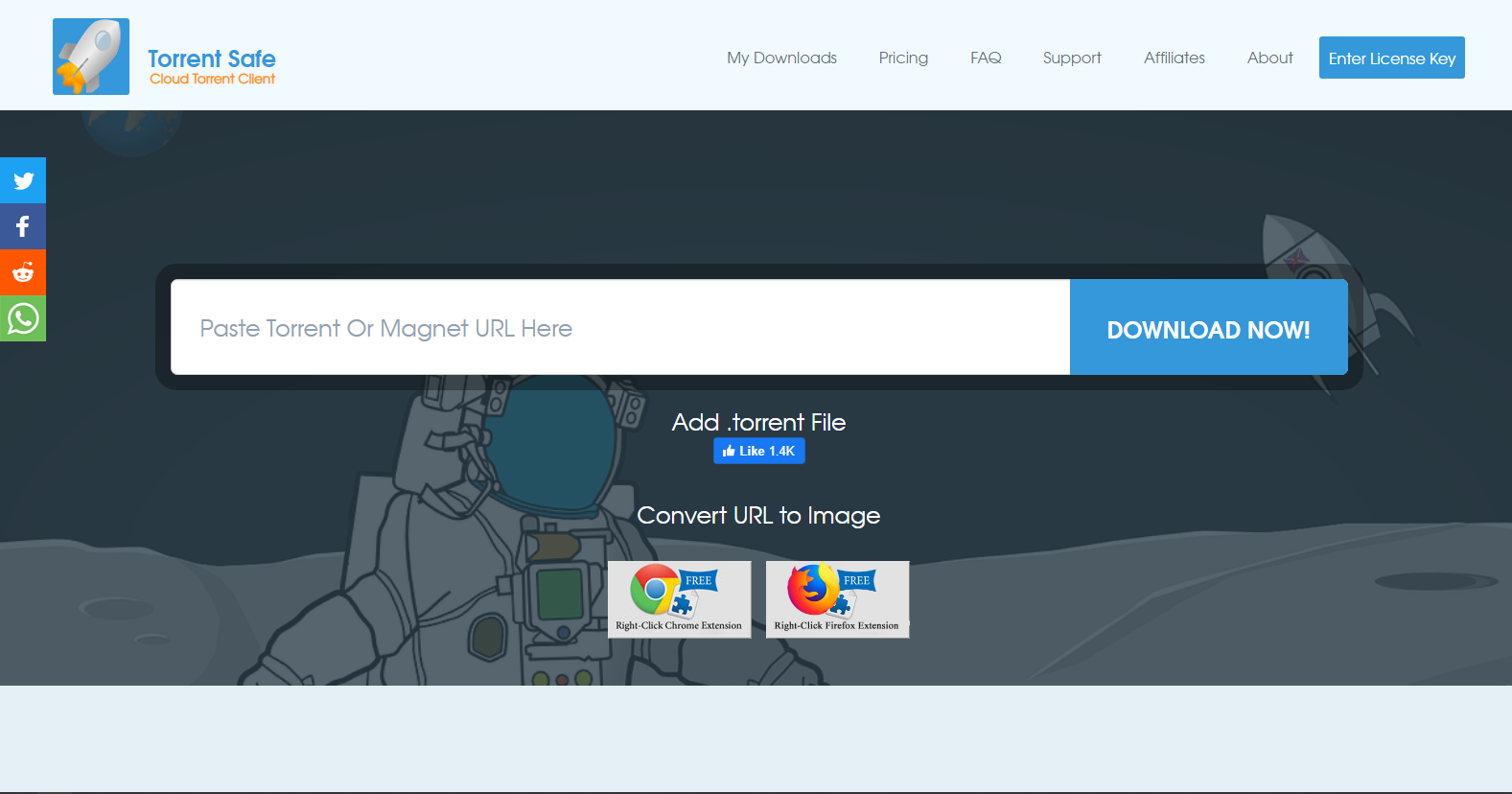
    The TorrentSafe service is simple; all you need to do is upload or enter the torrent’s URL address or file name, and the service will begin downloading the torrent automatically. 

    They protect your security and provide faster download speeds than your typical home ISP by using state-of-the-art, super-fast dedicated servers with lots of bandwidth.

    The free basic plan allows 1GB of files and 2 days of file lifetime. The premium plan costs $6.49/month and has a 7-day file lifespan. When paid in full, a 1-year plan costs $3.99/month, while a 4-year plan costs $2.49/month.

    Features: 

    • Anonymity: It conceals the user’s IP from torrent clients 
    • Instant play: You can stream and download files on demand
    • Responsiveness: The website is fast and easy to use

    Visit Website

    7. Filestream – Offers entertainment and file management for free

    • Pricing: Free
    • Developer: Filestream

    Filestream is a chrome extension that offers torrenting and file management for free. It allows you to obtain links to versions of files available for downloading. 

    If you want to download a file, you’ll need to copy the link and paste it into the relevant field, which will take you to a page with a detailed directory of links. You can keep these files on the cloud, on sites like Dropbox, Google Drive, or OneDrive. 

    The site works well with numerous torrent sites so that you can download content from any domain. Users can view content on TV screens or PCs using its screen mirroring ability. Moreover, it contains a video editing function allowing users to integrate, cut, and crop numerous videos.

    Filestream has a freemium pricing model, which means the software is free with the option of upgrading for more features. To learn more about prices, visit the official website.

    Features: 

    • Anonymity: It allows you to stay anonymous while sharing files
    • Instant play: You cannot stream files on the platform
    • Responsiveness: It’s easy to use, but sometimes it can be down

    Visit Website

    8. Instant.io –  Requires no registration to download files

    • Pricing: Free
    • Developer: WebTorrent, LLC

    Instant.io is a cloud torrent client that allows users to access and download torrents via the web. The website is user-friendly and requires no registration.

    You can download or seed files via the cloud platform. To share a file, simply upload it to the site and share the link with your friends. You can also download the torrent link to share. 

    The cloud torrent client is free and anonymous. You don’t share files with people you don’t know, and your file links stay hidden until you decide to share. 

    Features: 

    • Anonymity: Only your friends can access your files
    • Instant play: You cannot stream videos or music 
    • Responsiveness: It’s fast and easy to use

    Visit Website

    9. TransferCloud – Save files from BitTorrent on your cloud 

    • Pricing: Freemium
    • Developer: TransferCloud

    TransferCloud allows you to save files from websites like BitTorrent and direct URLs to your cloud storage. Your computer serves only as a conduit while you are downloading data from the internet to upload to a cloud drive. 

    TransferCloud eliminates the need for a manual process. Copy and paste the web address, Torrent address, or Magnet Link into the service, and it will begin downloading the file automatically. 

    It offers limitless bandwidth, so you can download multiple files at once, transfer files of up to 10GB, and receive them much more quickly. You can send files to Google Drive, Dropbox,  OneDrive, Amazon Cloud Drive, or any other major hosting provider.

    Features: 

    • Anonymity: You never share your IP address with your peers
    • Instant play: You cannot stream videos and music
    • Responsiveness: It has an intuitive UI, and it’s easy to use

    Visit Website

    10. YourSeedbox – Users can download and submit files

    • Pricing: Freemium
    • Developer: YourSeedbox

    YourSeedbox is a torrenting server allowing users to download and submit files. The entire process is conducted via a web-based user interface. When the torrent download is finished, you can transfer the file to your home computer using FTP(S) or HTTP(S). 

    Naturally, you remain anonymous, and your home network isn’t exposed while doing any of this. It’s also an excellent method to increase the success rate of your seeds.

    YourSeedbox lets you use a private or public seedbox server, making everything quick and simple. A dedicated seedbox gives unlimited freedom and unshared access to all its resources. 

    In contrast, a shared seedbox provides great performance at an affordable price, making it ideal for seeding torrents.

    Features: 

    • Anonymity: You remain anonymous to peers 
    • Instant play: You cannot stream files 
    • Responsiveness: The UI is intuitive and easy to use

    Visit Website

    What is Cloud Torrenting?

    Cloud torrenting is downloading torrent files via the web. Cloud torrents are similar to other torrent clients but specifically operate on the cloud. They are self-hosted, meaning you have absolute control over your files once you download them. 

    Cloud torrenting has many benefits. These include: 

    • Instant downloads: If you select a torrent that another user has already downloaded, it becomes available for streaming instantly
    • Saving on bandwidth: Cloud torrents keep a cache of popular files on hand, helping users save on bandwidth if they want popular files
    • Remote access: You can access downloaded files on all devices. With the right cloud storage providers, you don’t need to transfer files from your computer
    • Increased privacy: Everything you download with torrent is tracked, and you share your IP address with everyone. You add an extra layer of privacy by using cloud torrent. Outsiders can’t see what you download. 
    • Faster connections: Cloud torrents use dedicated servers with faster uplinks than your home connection. This means you don’t have to wait for your download to finish so that you can do other things on your PC. 

    Final Thoughts

    There are many cloud torrenting websites on the internet. In this guide, we picked the most reviewed and responsive service providers. 

    Do you like any tools that aren’t listed above? Want to try some of these? Share your thoughts and experiences below. 

  • Scan Your System for Windows Security Vulnerabilities

    From the days of Windows 98, we all know that the Windows operating system is always vulnerable to malicious attacks and security bugs and this situation is just as relevant today as it’s ever been, perhaps even more so. That’s why you need to constantly check for updates in Windows Updates to patch any security holes that have been discovered. Microsoft comes out with new updates every month known as ‘patch Tuesday’ because they are usually released on the second Tuesday of every month.  There are a few ways to obtain Windows Security Update patches and make sure your system is protected, thus closing the security holes and any attempt to exploit them.

    The easiest and most simple way is using the Windows built in Automatic Updates function which will automatically check and download any updates at a specified day and time. Although the patches usually get released once a month, if high security risks are found or patches to prevent major web based attacks are needed, they will be released immediately.

    Windows Automatic Updates

    If you don’t like Windows to constantly connect to Windows Update and you have XP, then you can manually visit the Windows Update website and either select Express or Custom checking method. Windows Vista and 7 users have an easier time doing this as the option to manually update is done through the Windows Update function in the Control Panel.

    Manually Update Windows

    There is another way to check if you are missing any important security updates, and that is to use Protector Plus – Windows Vulnerability Scanner.

    Protector Plus – Windows Vulnerability Scanner checks your system for Windows Vulnerabilities. It guides you to update with the right patch to make your system secure. It’s less than 1MB and a portable standalone executable so all you need to do is download and run it. Click on the Yes button to start scanning your Windows right away or clicking No will show a window with your system’s information such hard drive space, memory usage a few stats about the current Windows install.

    Protect Windows from Vulnerability

    Once the Scan is completed which takes no more than a couple of seconds, Protector Plus – Windows Vulnerability Scanner lists the vulnerabilities detected, their risk level and the Microsoft security bulletin number with a link to the download location of the patch. It also creates the log file named Protector_Plus_Windows_Vulnerability_Scan.htm at the same location where Protector Plus – Windows Vulnerability Scanner was executed. This is basically an html version of what is displayed in the window.

    Protect Windows from Vulnerability

    Protector Plus – Windows Vulnerability Scanner is free to use. This software is compatible with Windows XP , Windows 2000, Windows 2003, Windows Vista and Windows 7.

    It’s a tool which is pretty useful for people like me. I don’t use Automatic Updates and for some unknown reason Windows Update doesn’t work properly for me. When I visit Windows Update and click on Custom, I will only see the bar moving and that’s it. It never display what hotfix my Windows is needed to install. The drawback of this free tool is that it doesn’t have LiveUpdate feature. The program is updated by Proland Software every month to detect new vulnerabilities, so you need to download a new version and manually run the Windows Vulnerability Scanner every month. Might not be the best way to check for hotfixes, but it’s my preferred method.

    Download Protector Plus – Windows Vulnerability Scanner


  • How To Disable AVG Zen And Uninstall Avira Connect Launcher

    These days, many antivirus companies are branching out and now sell VPNs, tweaking and cleaning software and various other services or applications. While you as a user might have no interest in anything else being offered apart from the free antivirus, the antivirus company is keen to make you aware that these other products exist. A few vendors have gone further and now put their free antivirus behind a launcher fronted that advertises their other products.

    Both AVG and Avira have gone down this route and when you click the tray or desktop icon for the antivirus it takes you to the launcher instead. AVG’s interface is called Zen while Avira’s launcher is called Connect. They are referred to as central hubs to control the products you own from the company on all your devices. In reality though, they are hindrance for the majority of users that just want the antivirus and are not interested in any of the other products.

    Avira Connect Launcher

    The problem is Zen and Connect are integrated into the free antivirus packages and refuse to let you uninstall the launcher software while the antivirus is installed. The tray icons also take you to the launcher instead of opening the antivirus main interface. In essence, you are stuck with the launcher whether you want it or not.

    AVG Zen Launcher

    While these launchers shouldn’t really take up a huge amount of system resources, they are for the most part, unnecessary. Here we’ll show you how to disable AVG Zen and uninstall the Avira Connect Launcher so you don’t have to use them if you don’t want.
    (more…)

  • 3 Free Norton Ghost Alternatives to Create a Full Windows Image Backup

    If you’re constantly testing software, trying out new Windows settings or tweaks or even purposely infecting your own machine with malware, it’s essential to have a complete copy of your Windows partition to hand so you can quickly restore it to its exact state to before you started messing around.

    Even if you don’t use your computer very often or for those things, a full backup could save you time and money, reinstalling Windows and all your applications again would be a long, laborious and possibly expensive process.

    Norton Ghost used to be the go to piece of drive imaging software if you wanted to create full backups of your entire Windows system. Backup Images have an advantage over backing up files and folders because they make a complete copy of everything in the Windows partition.

    Although it was good, Norton Ghost wasn’t free and has long since been discontinued. Thankfully things are different now and even Windows can create basic full image backups of your system, although it can be slightly inflexible.

    Here we’ll show you 3 free applications that can make full backups of your entire Windows install and how to create an image of your system with each one.
    (more…)

  • 13 Free Online Services and Software for Converting PDF to Word Compatible Format

    The Portable Document Format (PDF) was introduced by Adobe in the 90’s and as the name implies, PDF is simply meant to be a type of self contained document that you can distribute easily. It doesn’t matter what operating system or software you have installed, as long as you have a reader to view it, the document will always look the same. Unlike a simple text file, a PDF document can contain many elements including text, images, hyperlinks, tables, fillable forms and etc.

    Windows 8 has built in support for viewing PDFs and most web browsers can also view and save PDF documents. There’s plenty of free third party tools like Foxit Reader, Nitro Reader, SumatraPDF or even Adobe’s own reader. If you want to edit a PDF file, a popular way of doing so is converting the document into Microsoft Word format, that way just about anybody can then edit it without the need for specialized PDF editing software. If needed, you can later convert the Word document back to PDF.

    Some products such as Microsoft Office itself, Google Docs and even Libreoffice can convert or allow you to edit a PDF but the results are often less than satisfactory. Here we list a number of free software or online PDF to Word format converters that can help you get a good result.
    (more…)

  • Top 10 Free Macro Automation Software for Computers to Perform Repetitive Tasks

    There are times when you need to do something over and over again on the computer which is very time consuming and tedious. One simple example is the need to transfer a lot of data from an Excel spreadsheet into a database management system (DMBS) and it cannot import the data from the XLS file. Instead of hiring a team of people to do the data input or a programmer to write a custom importer, you can actually rely on a piece of “Macro” software to automatically do it for you.

    Macro software can be used to create a series of actions to help in automating tasks. It can be as simple as clicking a button to record your keyboard and mouse actions but it can also be very advanced where you get to write your own sophisticated macro script for play back. You can find both free and paid macro software, the free macro software is easier to use with less features while the paid versions support more commands and activations.

    Here we have a list of our top 10 free macro software which can make your computer perform repetitive tasks.
    (more…)

  • Comparing 20 Drive Imaging Software Backup/Restore Speed and Image Size

    One of the worst things that could happen to a computer user is losing the contents of the Windows drive, whether it’s through corruption, self inflicted damage or hardware issues. If it’s not bad enough to have to reinstall Windows again afterwards and then apply the hundreds of Microsoft updates, any personal files will also have been lost as well if they were not backed up beforehand. Experienced users will always recommend keeping a copy of your Windows drive or at least your documents and other files safe at another location, as it might not be possible to get those files back again.

    The backup method known as drive imaging is one of the most effective ways to keep a backup copy of your whole Windows drive safe in case disaster strikes. Drive imaging simply copies the whole structure and contents of a drive or partition, then compresses the content into a file which you can save to CD/DVD/BDR, network or FTP, the cloud or onto another hard drive or USB flash drive. This can be on a clean install or after several years of use, Windows and its contents will be restored back to the point in time you created the image.

    As your Windows partition will be tens or even hundreds of Gigabytes in size, it makes sense to find a program which does a good job of both compressing the image to a smaller size and not taking too long to complete this task. The backup software market is quite competitive so how do you know who’s the most efficient at creating a backup image? In this article we’ve put a number of free and paid backup software applications to the test to find out who’s fast at backing up a Windows drive, who creates the smallest files for the backup image and who’s the best at restoring the images back to the hard drive.
    (more…)

  • Create a Free Home Wireless Hotspot With Login Page

    What is an internet hotspot? Most people with even a small amount of technical knowledge will be able to answer that question in this day and age. An internet hotspot is simply a broadband/fibre connection that offers wireless internet access, and they are literally everywhere these days. Many shops/shopping centers, food and drink outlets, hotels and various other businesses/industries offer free or paid internet access via a hotspot. Even ISPs sometimes offer nationwide hotspots as an inclusive or optional part of your internet package.

    Creating a hotspot on your computer is actually quite easy but with an ordinary hotspot your protection consists only of the WEP or WPA WiFi key, you have to tell everyone the key to give them access. If you want to refuse someone access, the wireless key needs to be changed and a new one resent to those other users who still are allowed to connect. Have you ever wondered how to create a login page on your hotspot like businesses and commercial services do? This way everyone will be able to connect to the hotspot but when they try to browse the web, they’ll be presented with a page that requires a username and password login before the wireless internet can be used.

    There are various methods to create wireless hotspots that incorporate a login page (also known as a captive portal) but many of them are complicated to set up. Some require you to use Linux, others need extra access points connected via a second LAN adapter. You can also use specialized routers for this task or use a router that has a customized firmware but not everyone can use this method. There used to be a Windows application called 2Hotspot which made it very easy to create a login page for your hotspot, sadly that project died many years ago.
    (more…)

  • 12 Software to Turn your Computer into Video Surveillance System

    Webcams are very common nowadays and most, if not all modern laptops come with one built-in at the top center above the screen. It can be used for a lot of different purposes such as making a video call (chatting, demonstration, conference, webinar), taking pictures of yourself and even logging in to a computer using face recognition.

    A webcam can also be used as a surveillance camera by installing the correct software and configuring it to automatically record videos, notify you via email and perform custom actions when a motion is detected. This allows you to setup a powerful home based CCTV to monitor a section of your home which is most likely a source of break-ins without spending unnecessary money to install an expensive complete home surveillance system.

    There’s a number of software applications that can turn your computer and webcam into a surveillance system, each has its own pros and cons with different features. There are some that are difficult to configure which are meant for more advanced users while there are also user friendly ones that are lightweight. Below you can find our recommended list of 12 free webcam monitoring software based on your needs.
    (more…)

  • 15 Archivers Tested to Find the Fastest Speeds and Smallest File Sizes

    Just about everything that gets stored electronically nowadays is compressed in some form or another. Whether it’s game discs, Windows install discs, webpages, music, video, images, internet downloads or setup installers, most files are shrunk down from their original size to reduce the storage space they consume. One of the most popular and widely used file compression formats around today is ZIP which was developed by PKWare in 1989. Unlike JPG or MP3, ZIP is an archive format which allows you to store several files and also folders inside a single compressed ZIP file.

    Living in the internet age, it’s beneficial if a file can be compressed to half its size before you upload or download it, this can save bandwidth and time. Of course, there are many file compression formats around besides ZIP, others such as RAR and 7z are also very well known. ZIP archive compression is the only one which is natively supported out of the box by Windows, but like the copy function in Windows, there are better and faster alternatives.

    compress zip benchmark

    For more serious compression needs, dedicated archiver software that can handle ZIP or other better formats may be required. Many software archivers come with their own features but in the end what’s still important is the speed at which files can be compressed or extracted and the output size of the compressed file. There are many claims made about who’s fastest or offers the best compression rate, but you will never know who’s right until they’ve been tried out. Here we put 15 file archivers to the test to see which ones have the best compression rate plus the fastest speed.
    (more…)

  • 10 Free Tools to Permanently Delete Files and Prevent Data Recovery

    In Windows, if you delete an important file, even from the Recycle bin, it’s still entirely possible to recover that file as long as it doesn’t get overwritten between its deletion and your attempt at recovery. That’s because the file is never truly deleted and Windows is just told that the space the file occupies is available to write over when needed. In this case, a free tool that you can use to recover data is all that’s required.

    But this is obviously not good if you want to permanently delete a personal or private file because anyone could just try to recover it. Once a deleted file has been overwritten, it’s very difficult to recover and more professional methods would be needed to get any readable data back.

    Delete from recycle bin

    There are various ways to overwrite deleted files. If you sell or give your drive to somebody else, it needs to be completely wiped so nothing is left that can be recovered by the new owner. You can also erase the deleted data off a current drive by wiping all its free space. Then there’s the method we’re talking about here which is to completely overwrite and wipe the file or folder as you go.

    This method is the quickest and most secure as the files are erased immediately and not left in a recoverable state until the next time you decide to wipe the drive’s free space. Here are 10 free tools that can securely erase or “shred” your files making them unrecoverable. All tools were tested in Windows 10 and 7 64-bit.

    Important Note: Permanently deleting files is something that should be used with care as once the file is deleted and overwritten, you won’t be able to get it back, even with recovery software.
    (more…)

  • Check What DLL or OCX Dependency Files are Needed for a Software

    Some software claims to be portable, but how do we know if it is really portable or not? I remembered back in the days when everyone was using Windows 98, a lot of “hacking tools” especially nukers are just one single executable file but it still requires dependency files such as winsck.ocx, msvbvm60.dll and etc. If those DLL or OCX files are not registered in your system32 folder, you won’t be able to run the program.

    Another example would be software coded in .NET. Most of the .NET coded software seems to be portable because it doesn’t require installation but since .NET Framework doesn’t come pre-installed in Windows XP, we can’t say that it’s portable. Perhaps when Windows Vista or 7 has totally replaced XP, then we can call software coded in .NET portable.

    Last week I tried to run Remove Restriction Tool on one of a customer’s computer that has been infected by a computer virus but it gave an error. I couldn’t figure out what was wrong but I can only suspect that maybe one of the DLL files that was required to run RRT has corrupted but I didn’t know which one. Many years ago I had a tool that was able to check what DLL or OCX files is needed to run the executable file but I’ve lost it since I didn’t have a blog at that time to record it down. I searched around and found a similar tool called Dependency Walker.

    Dependency Walker is a free utility that scans any 32-bit or 64-bit Windows module (exe, dll, ocx, sys, etc.) and builds a hierarchical tree diagram of all dependent modules. For each module found, it lists all the functions that are exported by that module, and which of those functions are actually being called by other modules. Another view displays the minimum set of required files, along with detailed information about each file including a full path to the file, base address, version numbers, machine type, debug information, and more.

    check required DLL for executable

    All you need to do is run depends.exe and then load an executable (EXE) file that you want to check what file is required to run it. Within a few seconds Dependency Walker will show you the required files. As you can see on the image above, I loaded RRT.exe (Remove Restriction Tool) unto Dependency Walker and it shows me that KERNEL32.DLL and MSVBVM60.DLL is required. Every Windows has kernel32.dll file so we don’t need to worry on the availability of that file. As for msvbvm60.dll, I can place a working copy of that DLL file at the same folder as where the RRT.exe is and it will automatically load the DLL file if it can’t find one in system32 folder.

    Download Dependency Walker